

Visual Basic for Applications (VBA) is a powerful feature in Microsoft Excel that allows users to automate repetitive tasks, generate complex reports, and even interact with other Office applications like Word and Outlook. Many users frequently download Excel files containing VBA scripts (macros) or copy code snippets from technical forums to enhance their workflow.
However, a common issue arises when these files are downloaded: they often refuse to run. This is usually due to Excel’s default security settings, which block macros to prevent malicious code from executing. In this guide, we will walk you through the precise steps to configure your security settings and successfully run VBA macros in Excel.
Understanding Macro Security and File Types
Before diving into the settings, it is important to recognize the file formats that support macros. Standard Excel files (.xlsx) cannot store VBA code. If you are working with macros, ensure your file has one of the following extensions:
- .xlsm (Excel Macro-Enabled Workbook)
- .xlsb (Excel Binary Workbook)
- .xls (Legacy Excel 97-2003 Workbook)
If you open one of these files and the automation does not trigger, you likely need to adjust your Trust Center configuration.
Step 1: Configuring Trust Center Settings
To allow macros to run, you must grant Excel permission to execute them. This is done through the global options menu. Follow this standard procedure to access the security settings:
- Open Microsoft Excel.
- Click on the File tab in the top ribbon.
- Select Options at the bottom of the left sidebar.
- In the Excel Options window, click on Trust Center in the left menu.
- Click the Trust Center Settings… button on the right side.
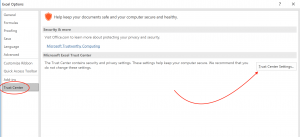 Screenshot of the Excel Options window highlighting the Trust Center Settings button
Once you are inside the Trust Center, you need to modify the specific settings that control how macros are handled.
Step 2: Enabling Macros
Inside the Trust Center dialog box, locate Macro Settings on the left sidebar. You will see several options regarding how Excel treats VBA code. To run files downloaded from the internet or created by colleagues, verify the following configuration:
- Select the option that best fits your security needs. For developers or those frequently running scripts, “Disable all macros with notification” is recommended. This keeps you safe but allows you to choose when to run a script.
- If you want to run everything without questions (not recommended for security reasons unless you are offline and trust all files), you can select “Enable all macros”.
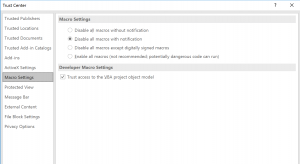 Excel Trust Center window showing Macro Settings options to enable VBA
After making your selection, click OK to save the changes.
Step 3: Activating Macros for Specific Files
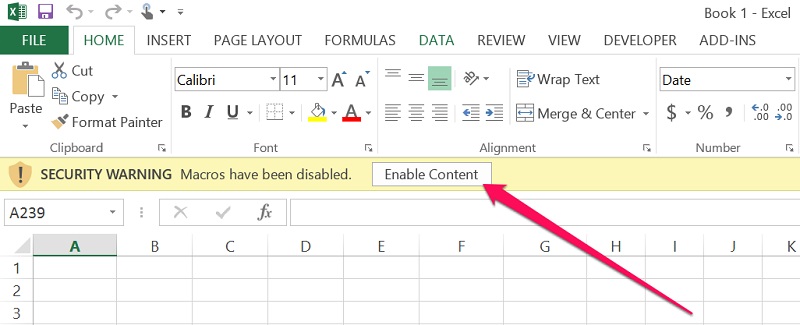
Even with your settings configured, Excel acts as a gatekeeper for files originating from the internet. When you open an Excel file containing VBA for the first time, you will likely see a yellow security warning bar below the ribbon stating that macros have been disabled.
To run the code within that specific file, you simply need to click the Enable Content button located on this bar. This adds the file to a “trusted” list for your current session.
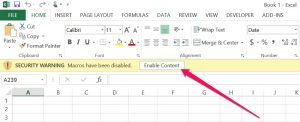 The yellow security warning bar in Excel with the Enable Content button
Once clicked, the VBA scripts and automation features within the workbook will function immediately.
How to Manually Insert and Run VBA Code
In many cases, you might not have a full file but rather a snippet of useful code found on a tech blog or forum. You can manually insert this code into your current workbook without needing to download a new file.
Step 1: Open the VBA Editor
With your Excel file open, press the keyboard shortcut ALT + F11. This will launch the Microsoft Visual Basic for Applications window.
Step 2: Create a New Module
Code must be placed inside a container called a “Module.” To create one:
- Click on the Insert menu in the VBA editor toolbar.
- Select Module from the dropdown list.
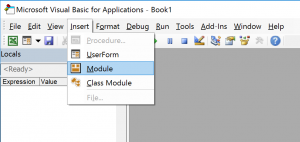 VBA Editor interface showing the Insert menu and Module option
Step 3: Paste and Execute
A blank white window will appear. Paste the code you copied earlier into this space. Once pasted, you can run the macro immediately by pressing F5 or by closing the editor and assigning the macro to a button in your Excel sheet.
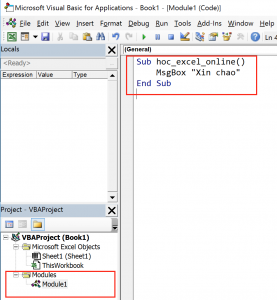 Pasting VBA code into the newly created module window
Conclusion
Mastering the basics of enabling and inserting VBA macros is the first step toward unlocking the full potential of Microsoft Excel. Whether you are running complex financial models, automating daily data entry, or controlling other Microsoft Office apps like PowerPoint, VBA is an essential tool for the modern power user.
While enabling macros is necessary for automation, always ensure you trust the source of the file or code before clicking “Enable Content,” as macros can contain harmful commands. By following the security best practices outlined above, you can enjoy the efficiency of automation while keeping your data safe.













Discussion about this post