


Have you ever opened an Excel workbook only to find that your sheet tabs are missing at the bottom? Or perhaps you are building a professional dashboard and want to hide the sheet navigation bar to give your project a cleaner, app-like application? Whether you are troubleshooting a display issue or looking to optimize your workspace, knowing how to manage sheet visibility is a crucial skill.
In this guide, Thủ Thuật will walk you through the precise steps to hide individual worksheets for data security and how to toggle the entire sheet tab bar for a streamlined interface.
Managing Visibility of Individual Worksheets
Before diving into advanced settings, let’s review the fundamental methods for hiding and unhiding specific sheets. This is particularly useful when you have reference data or calculation sheets that you don’t want other users to modify accidentally.
Method 1: Using the Context Menu
The most common and quickest way to hide a sheet is through the right-click menu. This method is intuitive and works perfectly for quick adjustments.
- Navigate to the bottom of your Excel window where the sheet names are listed.
- Right-click on the specific tab you wish to conceal.
- Select Hide from the context menu.
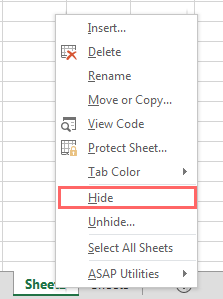 User right-clicking on an Excel sheet tab to select the Hide option
To reverse this action, simply right-click on any visible sheet tab, select Unhide, choose the sheet you want to restore from the list, and click OK.
Method 2: Using the Ribbon Menu
For those who prefer navigating through the main toolbar or need to teach this to beginners who rely on visual icons, the Ribbon method is the standard approach.
- Go to the Home tab at the top of the Excel window.
- Look for the Cells group (usually towards the right side).
- Click on Format.
- Hover over Hide & Unhide under the Visibility section.
- Select Hide Sheet.
 Animation demonstrating the process of hiding and unhiding sheets via the Ribbon
This method achieves the exact same result as the right-click method but ensures you are familiar with the Ribbon structure, which is helpful for certification exams or standardized training.
To unhide using this method, follow the same path: Home > Format > Hide & Unhide > Unhide Sheet…
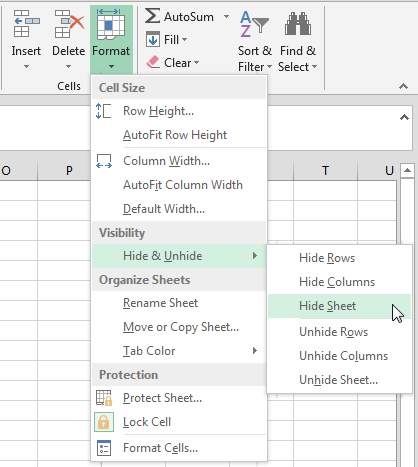 The Format menu in Excel showing Hide and Unhide options under Visibility
How to Hide the Entire Sheet Tab Bar
Now, let’s move on to the advanced trick: removing the sheet navigation bar entirely. This is different from hiding a single sheet; it removes the ability to click through sheets at the bottom of the window. This is highly recommended when presenting data or creating a locked-down dashboard environment where you navigate using buttons or hyperlinks.
To hide the list of sheet tabs, follow these steps:
- Click on the File tab in the top-left corner.
- Select Options at the bottom of the sidebar to open the Excel Options dialog box.
- In the left pane, click on Advanced.
- Scroll down until you find the section labeled Display options for this workbook.
- Uncheck the box that says Show sheet tabs.
- Click OK to apply changes.
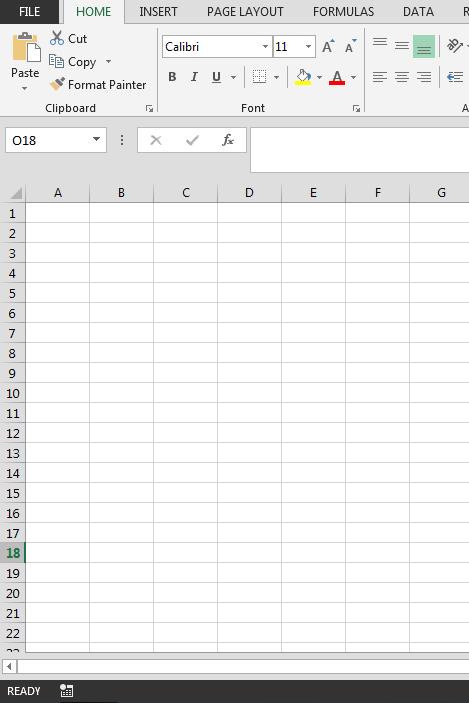 Excel interface displaying the bottom area with the sheet tab bar completely hidden
Once you complete these steps, the bottom bar containing “Sheet1, Sheet2, etc.” will disappear, providing more vertical screen real estate for your data. If you ever need to restore the tabs, simply repeat the process and re-check the Show sheet tabs box.
Conclusion
Mastering the display options in Excel allows you to tailor the software to your specific needs, whether it’s securing sensitive data sheets or creating a professional presentation view. By understanding both the basic hiding of sheets and the advanced removal of the sheet tab bar, you gain full control over your workbook’s appearance.
We hope this article from Thủ Thuật helps you optimize your Excel experience. Don’t forget to explore our other technical guides for more tips on mastering office productivity tools.
Happy learning!













Discussion about this post