

Have you ever opened a Microsoft Excel workbook only to find that the sheet tabs at the bottom of the screen are missing? Or perhaps you are designing a dashboard and want to hide the underlying data sheets to provide a cleaner user interface? Managing the visibility of your worksheets is a fundamental skill for organizing data effectively.
In this guide, Thủ Thuật will walk you through the precise steps to restore missing sheet tabs, hide specific worksheets, and even utilize VBA for advanced control. Whether you are using the latest version of Excel or an older edition, these tips will help you customize your workspace.
1. How to Show or Hide the Sheet Tabs Bar
If the entire row of sheet tabs (Sheet1, Sheet2, etc.) has disappeared from the bottom of your Excel window, it is likely due to a global display setting within the workbook. This is a common issue when receiving files from other users who may have disabled the view.
To restore or hide the sheet tabs bar, follow these steps:
- Click on the File tab in the ribbon.
- Select Options at the very bottom of the left sidebar.
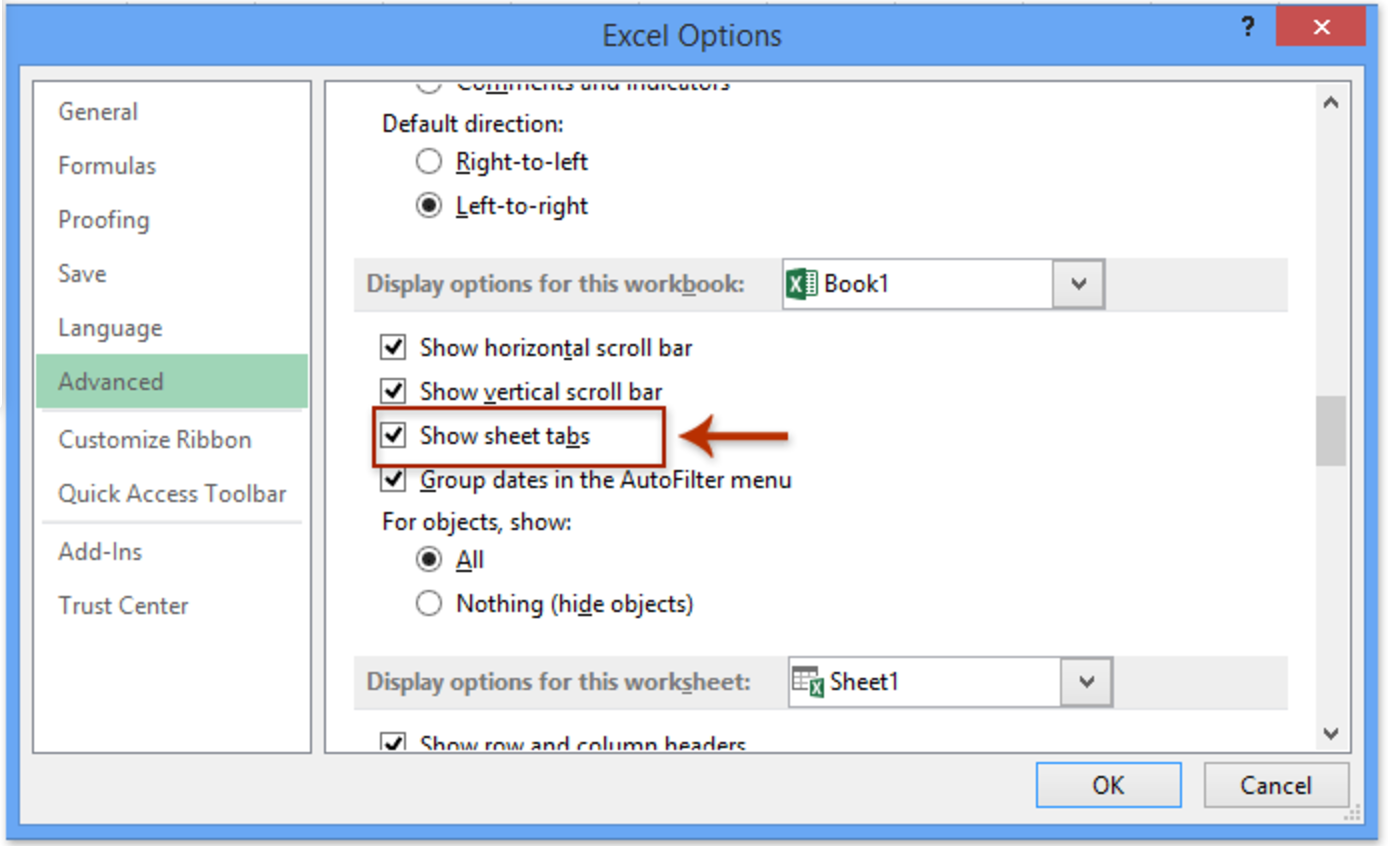
- In the Excel Options dialog box, select the Advanced tab.
- Scroll down to the section labeled Display options for this workbook.
- Check (to show) or uncheck (to hide) the box next to Show sheet tabs.
- Click OK to apply the changes.
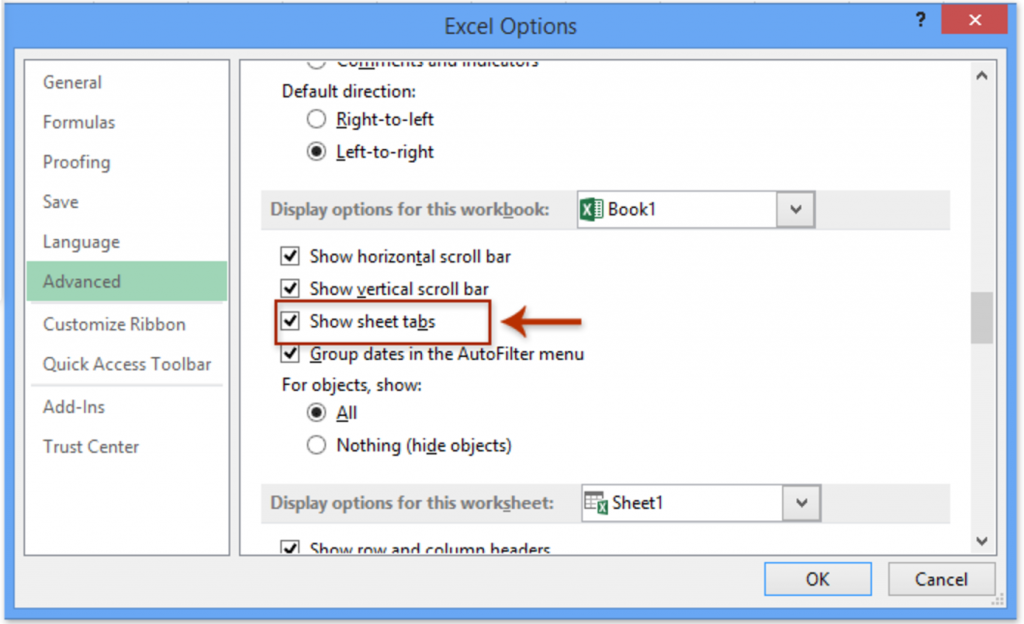 Excel Options dialog box showing Advanced settings to show sheet tabs
Once you click OK, the changes will take effect immediately. This setting is specific to the workbook, meaning it travels with the file. If you send this file to a colleague, they will see the tabs based on the setting you chose.
Note for Older Excel Versions
If you are using an older version of Excel (such as Excel 2007), the interface might look slightly different. Instead of the File tab, you will interact with the Office Button.
 The circular Office button icon from Microsoft Office 2007
For these versions, click the Office Button > Excel Options, and then proceed to the Advanced settings as described above.
2. Hiding and Unhiding Specific Worksheets
Sometimes, you do not want to remove the entire tab bar, but rather hide specific sheets that contain calculation logic or raw data. This keeps your workbook looking professional and prevents accidental edits to crucial data.
To Hide a Sheet:
- Locate the tab you want to hide at the bottom of the window.
- Right-click on the Sheet Name.
- Select Hide from the context menu.
To Unhide a Sheet:
- Right-click on any visible sheet tab.
- Select Unhide…
- A dialog box will appear listing all hidden sheets. Select the one you want to restore and click OK.
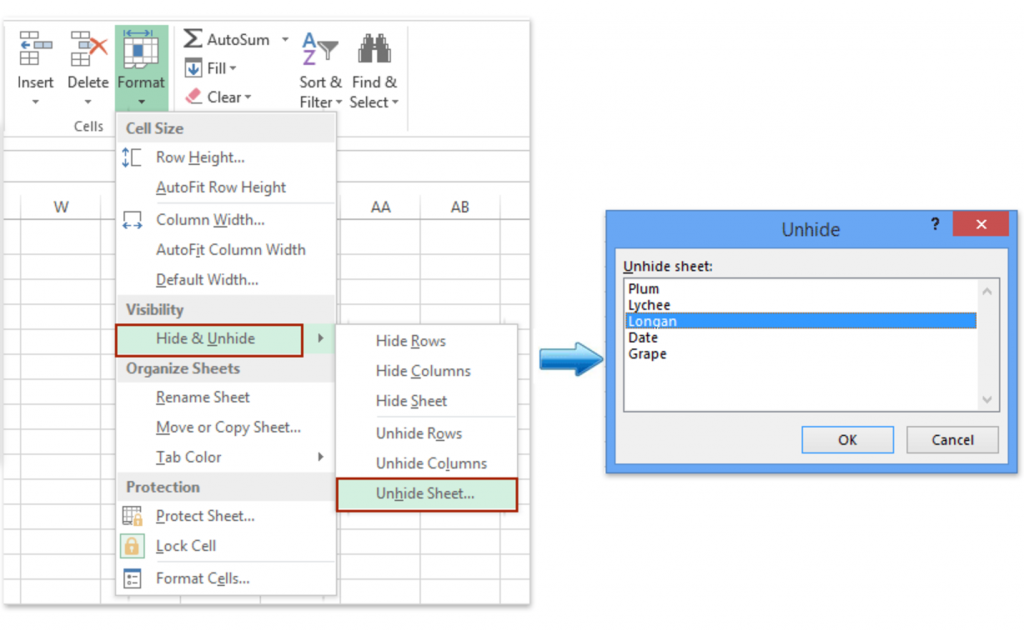 Context menu in Excel showing the Hide and Unhide options for sheets
This method is excellent for general organization. However, keep in mind that any user who knows how to right-click can unhide these sheets. For more security, you might need to use VBA.
3. Advanced Method: Using VBA to Control Visibility
For users who need to automate this process or make sheets “Very Hidden” (so they cannot be unhidden via the right-click menu), Visual Basic for Applications (VBA) is the solution.
To use VBA for sheet visibility:
- Press Alt + F11 to open the Visual Basic Editor.
- Go to Insert > Module to create a new module.
- You can write simple code to change the
Visibleproperty of a sheet.
While we are not providing a specific script in this overview, learning to manipulate sheet properties via VBA allows you to toggle tabs dynamically based on user actions or macros.
Conclusion
Mastering the Excel interface is the first step toward becoming proficient in data management. Whether you are restoring a missing tab bar via Excel Options or decluttering your workbook by hiding specific sheets, these simple tricks improve your efficiency and the presentation of your data.
To truly excel at your work, combining these interface tips with deeper knowledge of functions and VBA is highly recommended.
 Animated banner illustrating Excel training and tips
Don’t forget to explore more articles on Thủ Thuật to enhance your technology skills every day!
References
- Microsoft Support: Show or hide sheet tabs
- TechCommunity: Excel Display Options
- Thủ Thuật: Excel Tips and Tricks












Discussion about this post