


Microsoft Excel is an incredibly powerful tool for data analysis, but printing a spreadsheet often feels like a gamble. By default, Excel determines where one page ends and the next begins based on paper size and margin settings. However, these automatic breaks often split critical data tables awkwardly, making reports hard to read. To gain full control over your document’s layout, you need to manually insert page breaks. This guide will demonstrate exactly how to insert vertical and horizontal page breaks, ensuring your printed reports look professional and organized.
Understanding Page Breaks in Excel
Before diving into the “how-to,” it is essential to understand the two types of breaks available. Vertical page breaks separate columns across different pages, while horizontal page breaks separate rows. By mastering these, you can ensure that headers remain with their data and that logical sections are not cut off in the middle.
How to Insert a Vertical Page Break
If your dataset is too wide to fit on a single sheet of paper, you will need to create a vertical break to push specific columns to a new page. This is particularly useful for separating distinct categories of data, such as Q1 results from Q2 results.
Step 1: Open your Excel spreadsheet. Identify the specific column where you want the new page to begin.
Step 2: Click to select the column immediately to the right of where you want the break. For example, if you want the break to occur after Column D, you must select Column E.
Step 3: Navigate to the Page Layout tab on the Ribbon. Click on Breaks and select Insert Page Break from the dropdown menu. You will notice a solid line appear, indicating the manual break location.
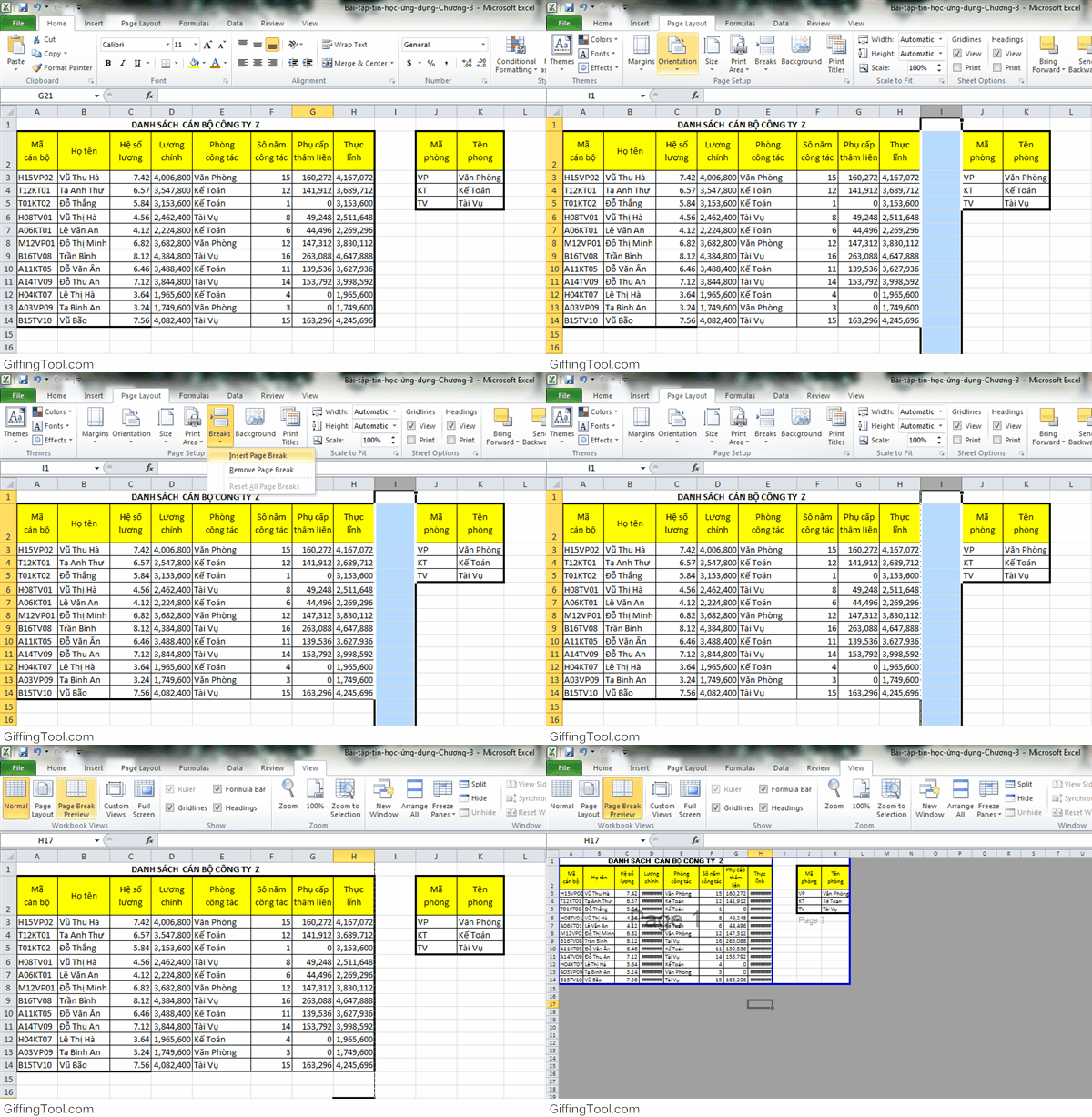 Animation demonstrating how to insert a vertical page break in Excel by selecting the column to the right
How to Insert a Horizontal Page Break
Horizontal page breaks are the most common formatting requirement, used to separate rows of data. This is essential when printing long lists to ensure a specific row starts at the top of a new page.
Step 1: Identify the row that should be the first entry on the new page.
Step 2: Click to select the entire row immediately below where you want the page break to occur. For instance, to break after Row 20, select Row 21.
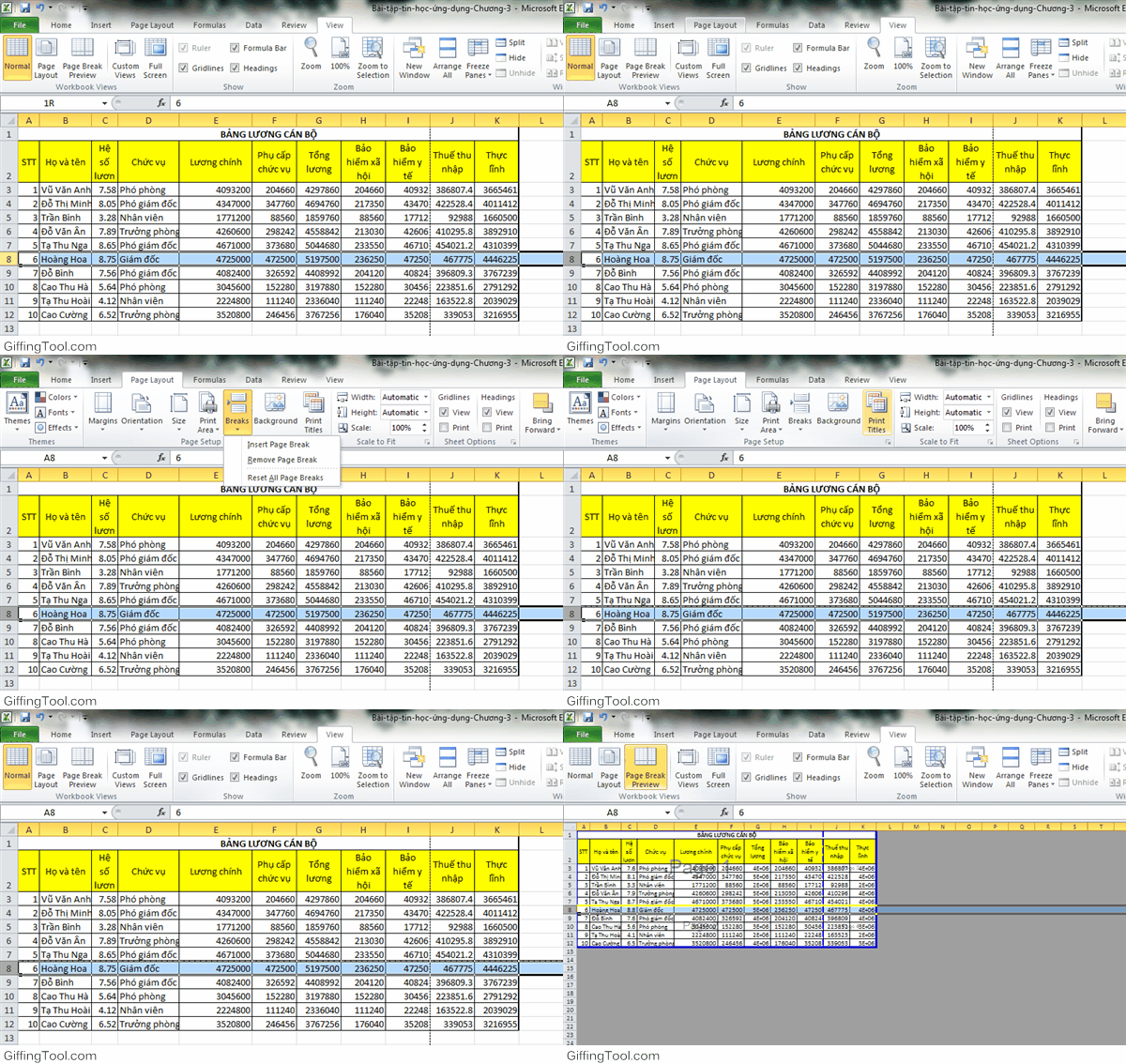
Step 3: Just as with vertical breaks, go to Page Layout → Breaks → Insert Page Break. A distinct horizontal line will appear above your selected row.
 Step-by-step animation showing the insertion of a horizontal page break in Excel
Verifying Your Layout with Page Break Preview
Inserting breaks blindly can sometimes lead to errors. To ensure your document is formatted exactly as you intend, Excel provides a specialized view mode.
After inserting your breaks, navigate to the View tab and select Page Break Preview. In this mode, you can see exactly where pages end (indicated by blue lines) and the page order (watermarked as Page 1, Page 2, etc.). This visual confirmation saves time and paper by catching layout errors before you hit the print button.
 Viewing the spreadsheet in Page Break Preview mode to verify the print area layout
How to Remove Page Breaks
Sometimes, requirements change, or a manual break creates too much white space. Fortunately, removing a page break is just as simple as adding one.
To remove a specific break, select the column to the right of the vertical break or the row below the horizontal break you wish to delete. Then, go to Page Layout → Breaks → Remove Page Break. The solid line will disappear, and Excel will revert to its automatic pagination for that section. If you want to clear all manual formatting at once, you can select “Reset All Page Breaks” from the same menu.
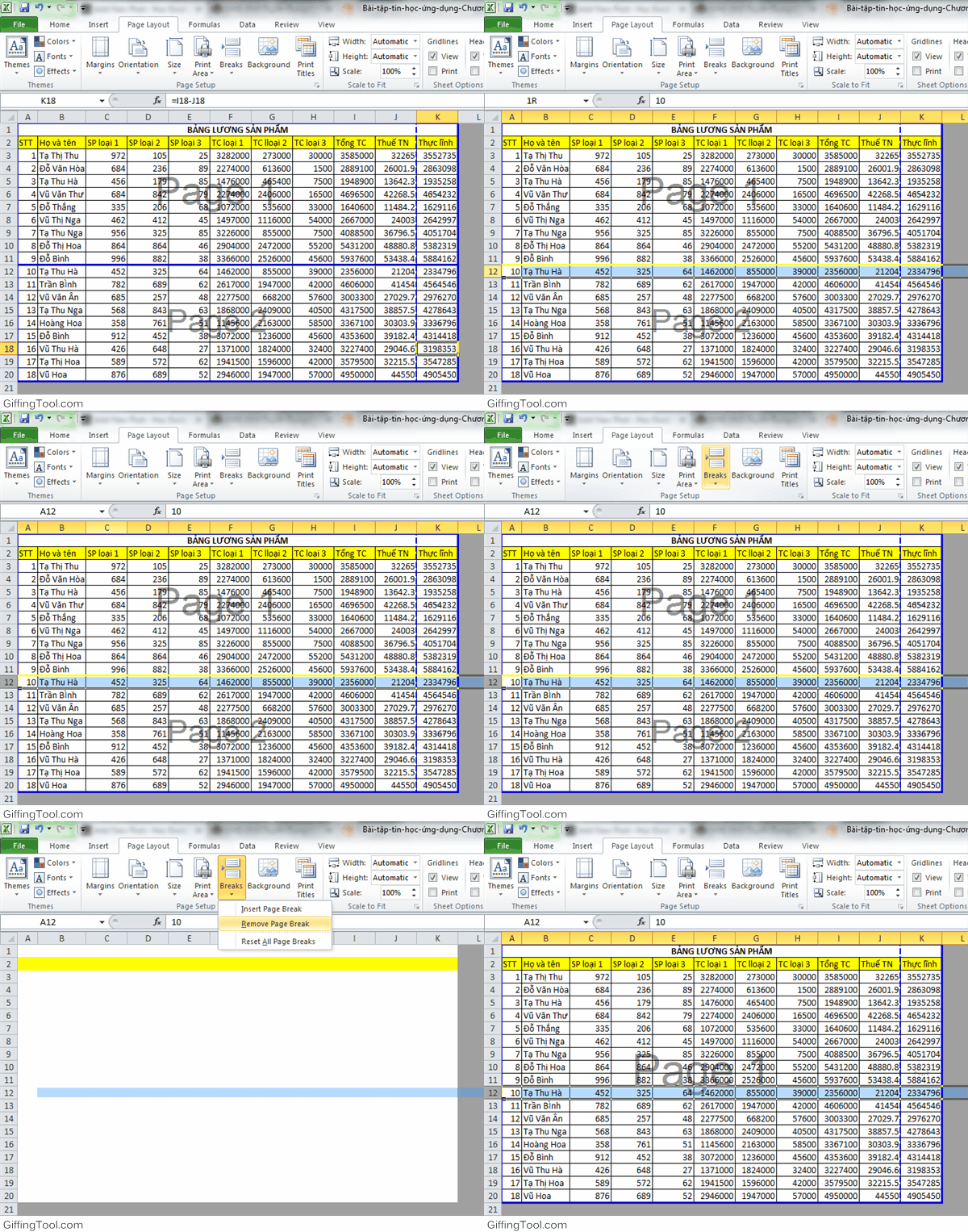 Animation showing the process of removing a manual page break in Excel
Conclusion
Controlling page breaks is a fundamental skill for anyone looking to produce professional-quality Excel reports. By manually adjusting where your data splits, you ensure that your hard copies are just as readable and impactful as the digital versions. Whether you are preparing financial statements or inventory lists, taking a moment to adjust the Page Layout will significantly improve the reader’s experience.
For those looking to deepen their expertise, mastering print settings is just the beginning. Advanced Excel skills, such as Conditional Formatting, Pivot Tables, and Data Validation, can transform how you handle data. Continuing to explore these features will move you from a basic user to an Excel specialist.
References
- Microsoft Support: Insert, move, or delete page breaks in a worksheet.
- TechRepublic: Tips for formatting Excel spreadsheets for printing.
- ExcelJet: Managing page breaks and print areas.













Discussion about this post