

In the realm of Power BI data modeling, the RELATED and LOOKUPVALUE functions are fundamental tools for retrieving information across tables. Under standard circumstances, these functions operate seamlessly when there is a direct relationship between the table containing the search value and the table containing the desired result. However, real-world data scenarios are rarely that simple.
A common challenge arises when the relationship between two tables is not direct but is instead bridged by an intermediate table (often referred to as a bridge table or a snowflake schema scenario). When you need to pull data from Table A to Table C, but they are only connected through Table B, standard single-function logic fails.
This article explores the technical solution for this specific modeling problem, demonstrating how to nest RELATED within LOOKUPVALUE to traverse intermediate tables effectively.
Understanding the Data Scenario
To master this technique, we must first analyze the structure of the data. In complex data models, direct “One-to-Many” relationships are not always available for every lookup requirement.
Consider a scenario where we have three distinct tables. We need to fetch an Address for a transaction, but the transaction table does not contain the necessary ID code to look up the address directly.
1. The List Table (DanhSach)
This is our master data table containing the target information. It holds the Branch Code (Mã) and the Address (Địa chỉ). In a standard lookup, this would be our target table.
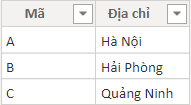 Screenshot of the List table in Power BI containing branch codes and addresses
2. The Sales Table (BanHang)
This is our fact table (transactional data). It contains the Branch Name (Tên) but, crucially, it lacks the Branch Code. Without the Branch Code, we cannot directly link it to the List Table described above.
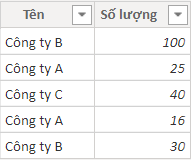 Screenshot of the Sales table showing branch names without codes
3. The Intermediate Table (MaChiNhanh)
This table acts as the bridge. It contains both the Branch Name and the Branch Code (Mã CN). It defines the relationship between the names found in the Sales table and the codes found in the List table.
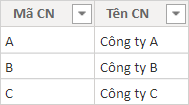 Screenshot of the intermediate Branch Code table linking names to codes
Analyzing the Relationships
In Power BI’s model view, the relationship structure is critical. We are dealing with a chain where the Sales table connects to the Intermediate table, which in turn connects to the List table.
This structure implies that while there is a path from Sales to List, it is not a single hop. The RELATED function works based on row context propagation across an existing direct relationship (Many-to-One). Since there is no direct line from Sales to List, RELATED cannot be used alone. Similarly, LOOKUPVALUE requires a common search column, which does not exist directly between Sales (Names) and List (Codes).
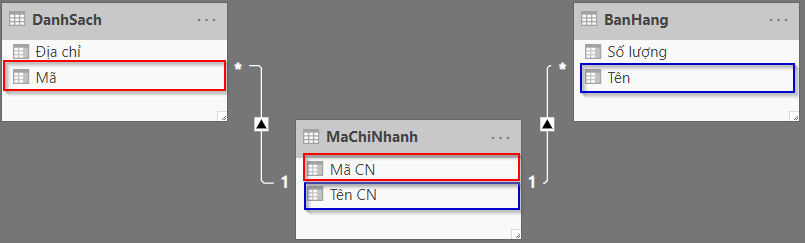 Power BI data model diagram showing the relationship between Sales, Branch Code, and List tables
The Objective: Create a calculated column named “Address” (Địa chỉ) in the Sales table (Table 2) by retrieving data from the List table (Table 1).
The Solution: Combining RELATED and LOOKUPVALUE
To bridge this gap, we must combine the strengths of both DAX functions. We will use LOOKUPVALUE to perform the search in the distant table, and RELATED to provide the search key from the intermediate table.
The Logic Breakdown
- LOOKUPVALUE acts as the primary vehicle. It allows us to search the
DanhSach(List) table independent of the active relationship filtering direction. It requires a search column and a search value. - The Constraint: The
BanHang(Sales) table does not have theCoderequired to search theDanhSachtable. - The Fix: We use RELATED to grab the
Codefrom theMaChiNhanh(Intermediate) table. SinceBanHangis directly related toMaChiNhanh,RELATEDcan successfully fetch the code associated with the branch name in the current row context.
The DAX Formula
We will create a New Column in the BanHang table with the following syntax:
Dia chi = LOOKUPVALUE(
    DanhSach[Địa chỉ],        // The Result Column: What we want (Address)
    DanhSach[Mã],             // The Search Column: Where to look for the match
    RELATED( MaChiNhanh[Mã CN] ) // The Search Value: The key retrieved from the bridge table
)
Technical Explanation:
DanhSach[Địa chỉ]: This is the column we want to return.DanhSach[Mã]: This is the column in the target table that contains the unique identifiers.RELATED( MaChiNhanh[Mã CN] ): This function executes first. For every row in the Sales table, it looks at the connected Intermediate table and returns the correspondingMã CN(Branch Code). This code is then passed toLOOKUPVALUEto find the matching address in the List table.
Result and Validation
After entering the formula, Power BI calculates the column row by row. It successfully “hops” over the intermediate table to retrieve the correct address.
This method ensures data integrity and avoids the need to physically merge tables using Power Query, which can unnecessarily bloat the data model and reduce performance with large datasets. Keeping the tables normalized and using DAX for retrieval is often the more efficient approach for reporting.
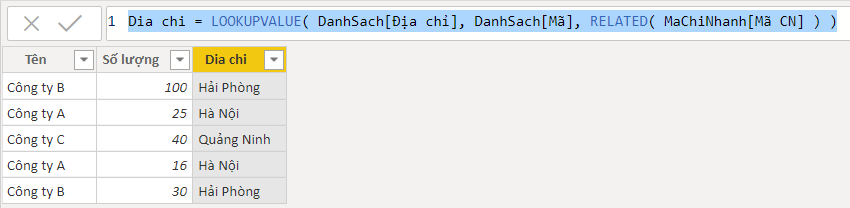 Power BI data view showing the calculated column with successfully retrieved addresses
Conclusion
Mastering lookup functions in Power BI distinguishes a novice user from a data modeling expert. While RELATED and LOOKUPVALUE are powerful on their own, their combined utility allows you to navigate complex, multi-table architectures (Snowflake schemas) without altering the underlying data structure.
By understanding how to leverage an intermediate table to pass search keys between disconnected datasets, you can solve complex reporting requirements efficiently. Remember, real-world data is rarely perfectly shaped; knowing how to traverse these “bridges” is an essential skill for any Data Analyst.
Continue practicing these DAX patterns to enhance your ability to handle diverse and complex data scenarios in Power BI.
References
- Microsoft Docs: LOOKUPVALUE function (DAX)
- Microsoft Docs: RELATED function (DAX)
- Power BI Community: Data Modeling Best Practices













Discussion about this post