


Working with large datasets in Excel often involves filtering information to analyze specific segments. A common challenge arises when you need to input data or apply a formula to a filtered column based on conditions in other columns. If you simply copy and paste or drag a handle, you risk overwriting the hidden rows that are not part of your current filter view.
To maintain data integrity and speed up your workflow, you must ensure that your actions apply strictly to the cells currently displayed on the screen. This guide demonstrates a simple yet powerful technique to fill data exclusively into visible cells, preventing errors and saving manual effort.
The Scenario: Updating Specific Data Segments
Imagine you are managing a sales report and need to update the “Bonus” column. Specifically, you want to mark “Yes” for every entry where the “Region” is “West”. Doing this manually for thousands of rows is inefficient, and standard pasting might affect the hidden “East” or “North” rows.
We will start with a standard dataset. The goal is to isolate the target rows and apply updates in bulk without affecting the rest of the spreadsheet.
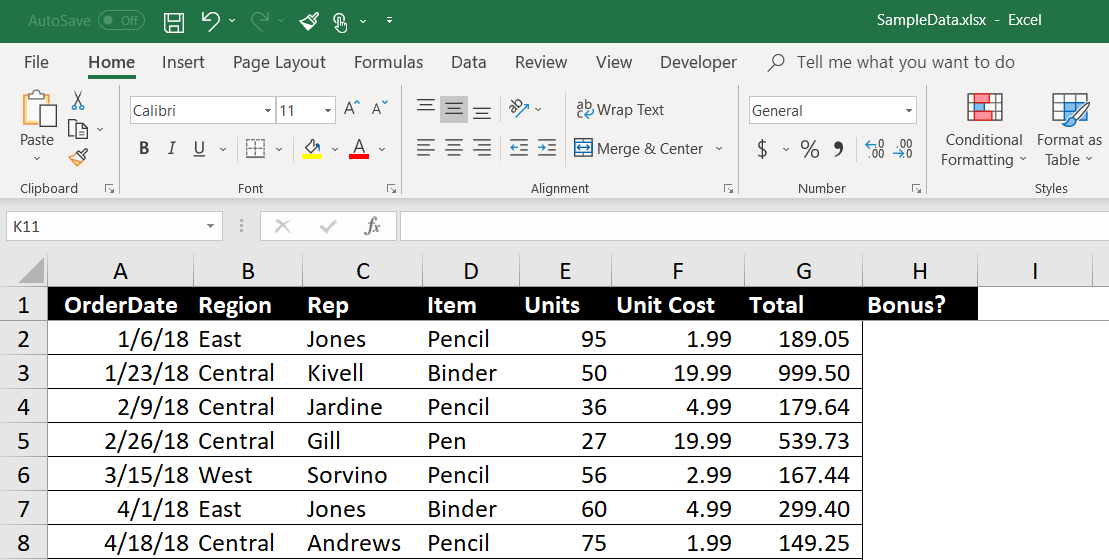 Excel dataset showing Region and Bonus columns before filtering
Step 1: Filtering the Data
The first step in this process is to isolate the data you want to modify. By applying a filter, you temporarily hide the rows that do not meet your criteria.
Navigate to the header row of your dataset. Click on the filter dropdown arrow next to the “Region” column. Deselect all options and check only “West”. This action hides all other regions, leaving you with a contiguous-looking list of West region sales, though the row numbers will indicate gaps.
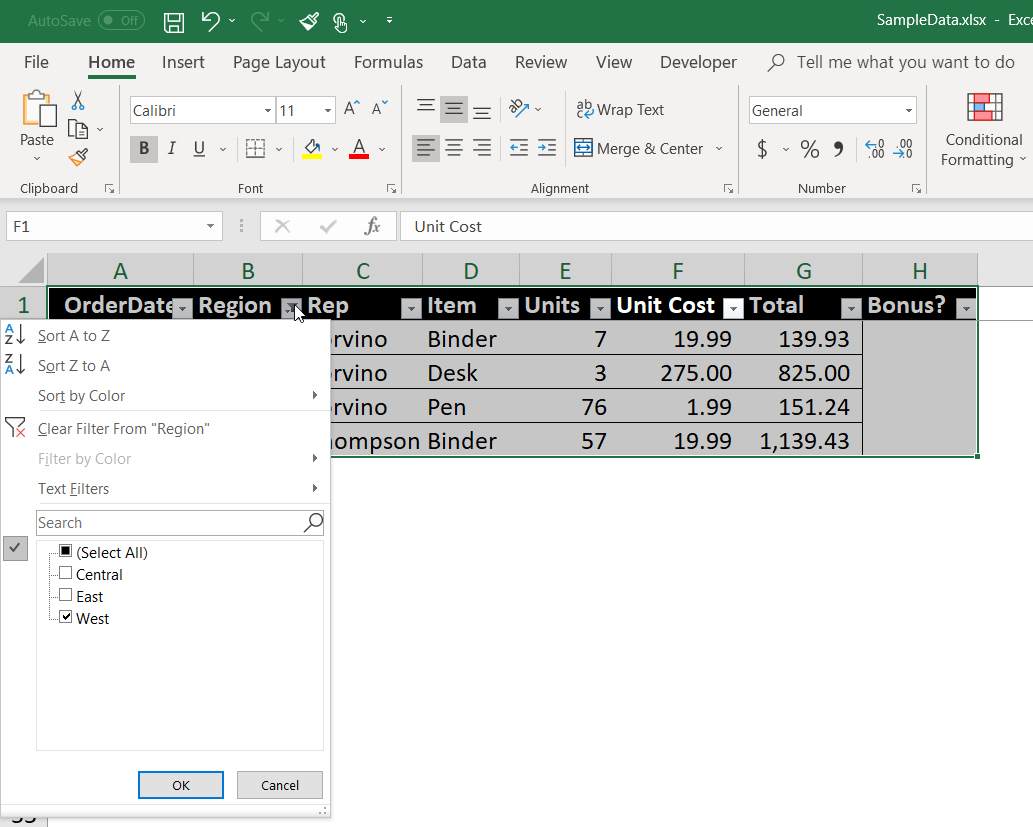 Excel filter menu selecting only the West region
Step 2: Selecting the Target Range
Once your data is filtered, you need to highlight the specific cells where the new data will go. In our example, this is the “Bonus” column (Column H).
Click and drag to select the cells in Column H corresponding to the filtered data. At this stage, Excel has technically selected the range from the top cell to the bottom cell, which includes the hidden rows in between. If you were to paste data now, it might bleed into those hidden rows depending on your Excel version and paste method.
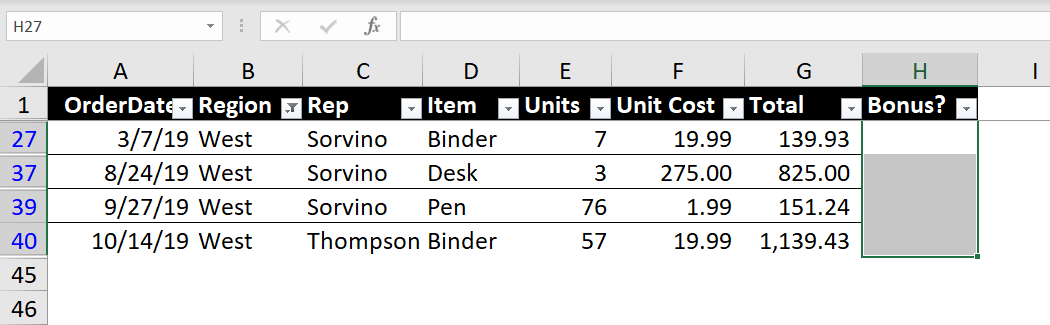 Selecting the Bonus column cells in the filtered Excel sheet
Step 3: Selecting Visible Cells Only
This is the most critical step. We need to tell Excel to deselect the hidden rows and focus only on what is currently visible.
Navigate to the Home tab on the ribbon. On the far right, look for the Editing group, click on Find & Select, and choose Go To Special… from the dropdown menu. Alternatively, you can use the keyboard shortcut Ctrl + G and then click the “Special” button.
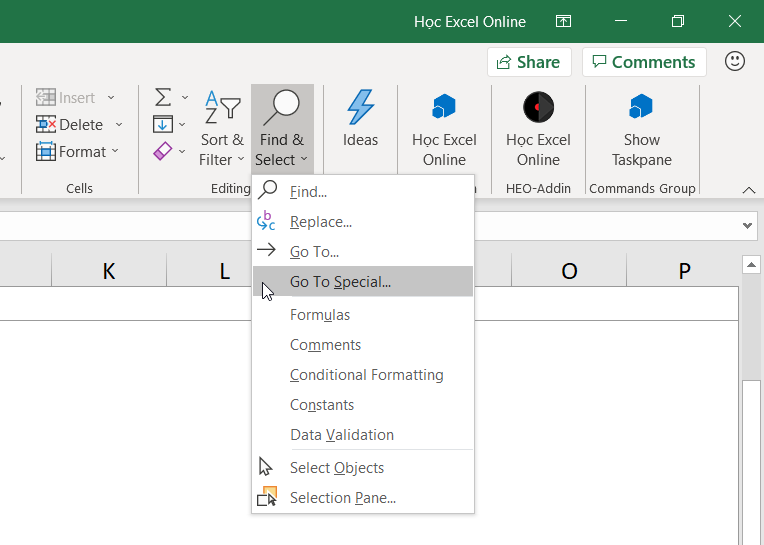 Navigating to the Find and Select menu in the Excel Home tab
In the Go To Special dialog box, you will see various selection options. Choose the radio button labeled Visible cells only and click OK.
Pro Tip: You can skip the menu entirely by selecting your range and pressing Alt + ; (Alt and Semicolon). This is the direct shortcut for selecting visible cells.
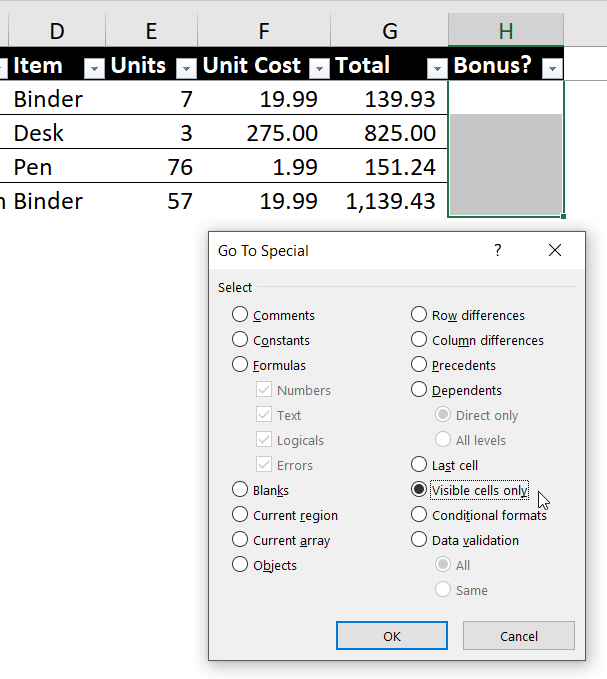 Go To Special dialog box with Visible cells only option selected
After confirming, you will notice a subtle change in the appearance of your selection. The borders between rows may appear as distinct white lines or separate blocks, indicating that the hidden rows are no longer part of the selection.
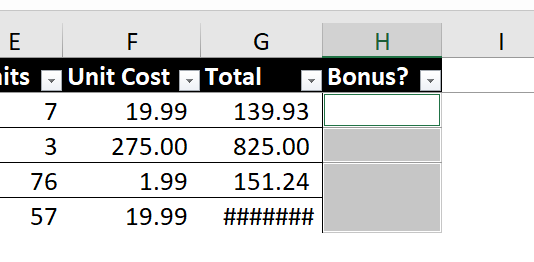 Visual indication of non-contiguous cell selection in Excel
Step 4: Inputting Data in Bulk
Now that only the visible cells are active, you can input your data safely.
Type “Yes” (or your desired formula) into the active cell (usually the top one). Do not press Enter yet. Instead, press Ctrl + Enter. This command tells Excel to fill the value or formula into all currently selected cells simultaneously.
If you have data copied from elsewhere, you can now press Ctrl + V to paste. Because we explicitly selected “Visible cells only,” Excel will skip the hidden rows and paste the data into the correct visible slots.
 Animated demonstration of filling data into visible cells
Alternative Method: Using the Fill Handle
If you prefer using the mouse or need to create a sequence, you can also use the Fill Handle after selecting visible cells.
Type your data into the first visible cell. Hover over the bottom-right corner of that cell until the cursor changes to a thin cross. Click and drag it down over your selected range. Since you have restricted the view, this often works correctly, but combining it with the “Visible cells only” command ensures absolute safety against overwriting hidden data.
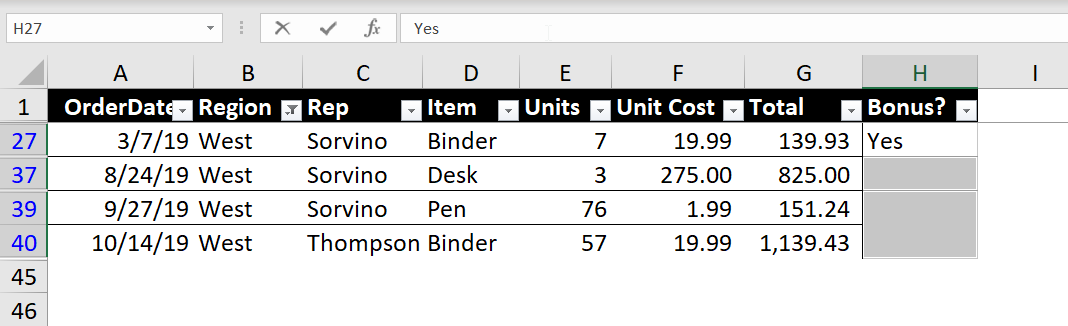 Using the Excel fill handle to drag data down a column
Conclusion
By mastering the Visible Cells Only feature, you eliminate one of the most common risks in Excel data management: accidental data corruption in hidden rows. Whether you are using the Go To Special menu or the Alt + ; shortcut, this technique ensures that your bulk edits apply exactly where you intend them to.
The final result is a clean, accurately updated dataset where your specific conditions are met without disrupting the rest of your information.
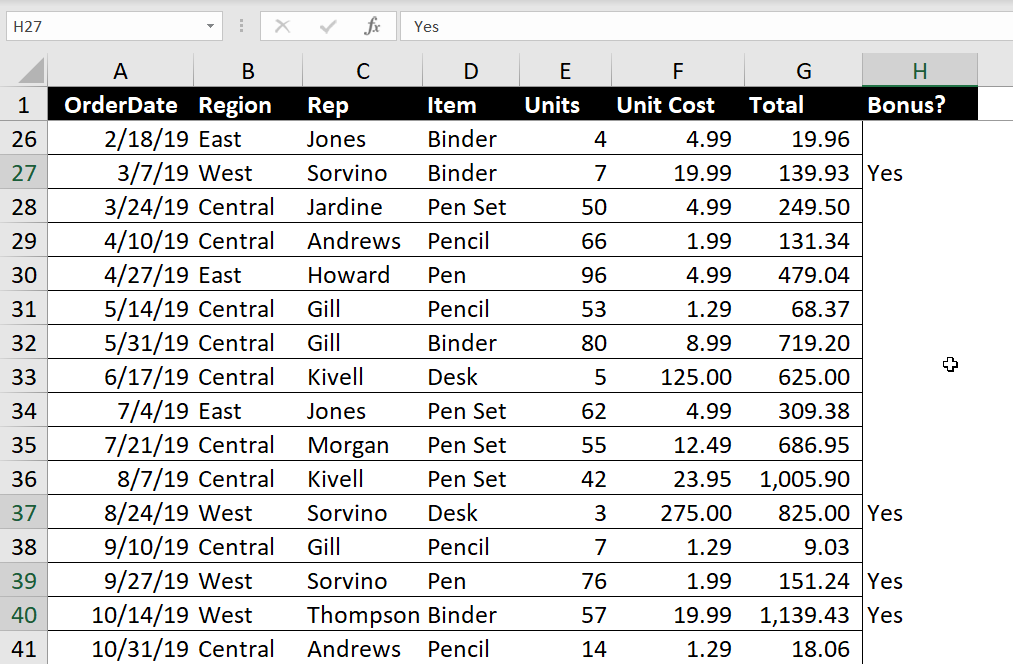 Final result showing the Bonus column updated with Yes
References
- Microsoft Support. “Select visible cells only.” Microsoft.com.
- Exceljet. “How to paste into visible cells only.” Exceljet.net.
- TechRepublic. “How to select visible cells in Excel.” TechRepublic.com.












Discussion about this post