


Handling raw data, particularly address lists, is a frequent challenge for data analysts and office administrators. You often receive a dataset containing full address strings—including house numbers, street names, wards, districts, and cities—all crammed into a single cell. The challenge arises when you need to filter or sort this data by specific administrative regions, requiring you to split these components into separate columns.
While Excel offers various tools for data manipulation, Vietnamese addresses present a unique difficulty due to inconsistent formatting. Some entries may use abbreviations (e.g., “P.7”, “Q Go Vap”, “Tp.HCM”), while others use full text (e.g., “Phuong”, “Quan”, “TP. Ho Chi Minh”). Furthermore, the character length of these addresses varies significantly, making standard fixed-width splitting impossible. This guide will demonstrate a professional, hybrid method using Excel functions and the “Text to Columns” tool to accurately separate Wards, Districts, and Cities.
Analyzing the Data Structure
Before applying any formulas, it is crucial to analyze the dataset to identify common patterns. In the example below, column A contains the full address strings. Our goal is to extract the administrative divisions (Ward, District, City) into columns C, D, and E.
 Spreadsheet example showing the requirement to split full addresses into separate columns for Ward, District, and City
The primary obstacle here is the inconsistency in how the street names and house numbers are separated from the administrative units. However, upon closer inspection of the data, a distinct “delimiter” or marker appears consistently across the entries.
To successfully separate the data, we must identify a unique character sequence that separates the “Street/House Number” part from the “Ward/District/City” part. In many Vietnamese address datasets, this separation is often marked by a comma followed by a space and the letter “P” (denoting “Phường” or Ward).
 Animation illustrating the process of analyzing and selecting address data cells in Excel
Visualizing the text string helps confirm this pattern. By isolating the transition point, we can define the logic for our Excel formulas.
 Close-up textual analysis highlighting the comma space and letter P as the separation point
This specific sequence—, P (comma, space, P)—will serve as our anchor point. We can divide the address into two main segments:
- Left Segment: House number and street name.
- Right Segment: Ward, District, and City.
Step 1: Locating the Split Point with the SEARCH Function
The SEARCH function is designed to locate the position of a specific text string within a larger string. It returns the numerical position of the first character of the found string. This is case-insensitive, which is advantageous if the data has inconsistent capitalization.
To find the start of the administrative section, we use the following formula:
=SEARCH(", P", A2)
Breakdown of the formula:
", P": This is the specific text string we are looking for (comma + space + P).A2: This is the cell containing the full address.
By applying this formula, Excel returns a number representing the character position where the Ward section begins. This number is the key to extracting the rest of the string.
 Excel table showing the numerical results returned by the SEARCH function in a helper column
Step 2: Extracting the Administrative String with RIGHT and LEN
Once we know where the administrative part starts, we need to extract everything to the right of that point. We achieve this by combining the RIGHT function with the LEN function.
The logic is straightforward: The number of characters we want to extract from the right side equals the Total Length of the string minus the Position of our split point.
The formula is:
=RIGHT(A2, LEN(A2) - B2)
Where:
LEN(A2): Calculates the total number of characters in the address cell.B2: Is the position number we found in the previous step usingSEARCH.RIGHT(...): Extracts the characters from the end of the text string based on the calculated count.
This effectively discards the house number and street name, leaving us with a string containing only the Ward, District, and City.
 Excel spreadsheet displaying the extracted administrative address text in a new column
Step 3: Converting Formulas to Static Values
Before we can split the extracted text into separate columns for Ward, District, and City, we must handle a critical technical detail. The results in column C are currently dynamic formulas. The “Text to Columns” feature works best on static text, not live formulas.
To fix this, we need to replace the formulas with their resulting values:
- Select the range containing the extracted text (e.g., C2:C5).
- Copy the cells (Ctrl + C).
- Right-click on the same selection and choose Paste Special.
- Select Values (indicated by the “123” icon).
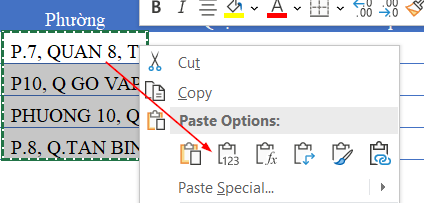 Context menu in Excel illustrating the Paste Values option to remove formulas
This action disconnects the data from the original address column, allowing us to manipulate it freely without errors.
Step 4: Splitting Components with Text to Columns
Now that we have a clean string containing “Ward, District, City”, we can use Excel’s powerful Text to Columns wizard. This tool splits content based on a delimiter—in this case, the comma separating the administrative units.
Procedure:
- Select the range of data you just converted to values (C2:C5).
- Navigate to the Data tab on the Ribbon.
- Click on Text to Columns.
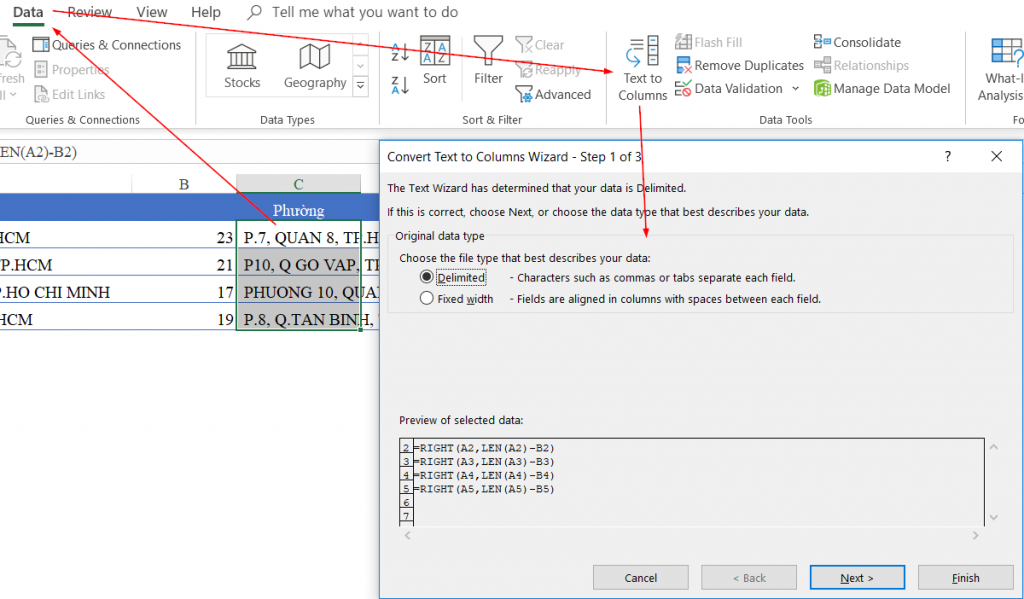 Excel ribbon interface highlighting the Data tab and Text to Columns button
A wizard will appear to guide you through the process:
- Step 1 of 3: Choose Delimited. This tells Excel that our data is separated by specific characters (commas), not by fixed widths. Click Next.
- Step 2 of 3: In the Delimiters section, check the box for Comma. You should see a preview of your data being separated into columns in the window below.
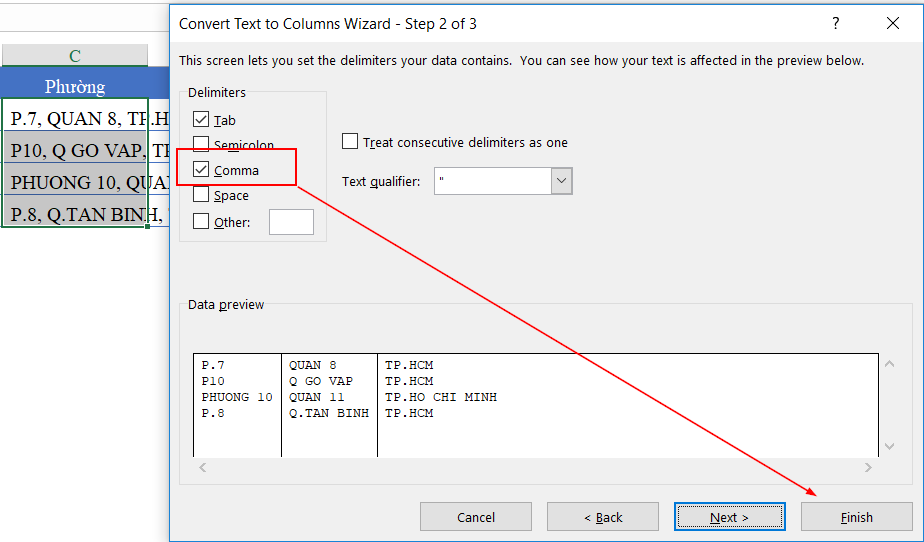 Text to Columns wizard step 2 showing the selection of Comma as the delimiter
- Step 3 of 3: You can format the columns if necessary, or simply click Finish.
Final Result and Conclusion
After clicking Finish, Excel will automatically distribute the Ward, District, and City into separate adjacent columns. You now have a structured dataset that can be easily sorted, filtered, or imported into other database systems.
 Final Excel table showing Ward District and City successfully separated into individual columns
By combining logical functions (SEARCH, LEN, RIGHT) with standard data tools (Text to Columns), we have solved a complex formatting problem without needing advanced VBA coding. This approach demonstrates that understanding the structure of your data is just as important as knowing the functions themselves.
Key Takeaways:
- Pattern Recognition: Always look for a consistent character sequence (like “, P”) to use as a “hook” for splitting data.
- Hybrid Approach: Don’t rely on a single tool. Combining formulas for pre-processing and built-in tools for final execution is often the most efficient workflow.
- Data Integrity: Always remember to convert formulas to values before performing destructive editing like “Text to Columns” to prevent data loss.
This method is highly scalable and can be adapted for other types of unstructured data cleaning, making it an essential skill for any Excel user.
References
- Microsoft Support: Split text into different columns with the Convert Text to Columns Wizard
- Microsoft Support: SEARCH, SEARCHB functions
- Microsoft Support: LEN, LENB functions












Discussion about this post