


Excel là công cụ mạnh mẽ, nhưng đôi khi bạn cần chuyển đổi dữ liệu sang định dạng CSV để tương thích với các ứng dụng khác. Bài viết này sẽ hướng dẫn bạn cách xuất dữ liệu từ Excel sang CSV, đảm bảo giữ nguyên ký tự đặc biệt và biểu tượng nước ngoài trên mọi phiên bản Excel (2007, 2010, 2013 trở lên).
Phần Mở Đầu
Chuyển đổi file Excel sang CSV là thao tác thường gặp khi cần xuất dữ liệu sang các ứng dụng như Outlook, Access, hoặc các phần mềm xử lý dữ liệu khác. Định dạng CSV đơn giản, gọn nhẹ, và dễ dàng tương thích với nhiều nền tảng. Tuy nhiên, việc chuyển đổi này đôi khi gặp khó khăn trong việc giữ nguyên các ký tự đặc biệt, đặc biệt là tiếng Việt có dấu. Bài viết này sẽ cung cấp các phương pháp chuyển đổi hiệu quả, giúp bạn xử lý vấn đề này.
Hướng Dẫn Chuyển Đổi Excel Sang CSV
Cách đơn giản nhất để chuyển đổi file Excel sang CSV là sử dụng tính năng “Save As”:
- Mở file Excel cần chuyển đổi.
- Chọn tab File và sau đó chọn Save As. Hoặc bạn có thể dùng phím tắt F12.
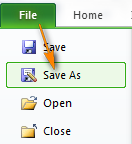 Lưu file Excel dưới dạng khác
- Trong mục Save as type, chọn CSV (Comma delimited).
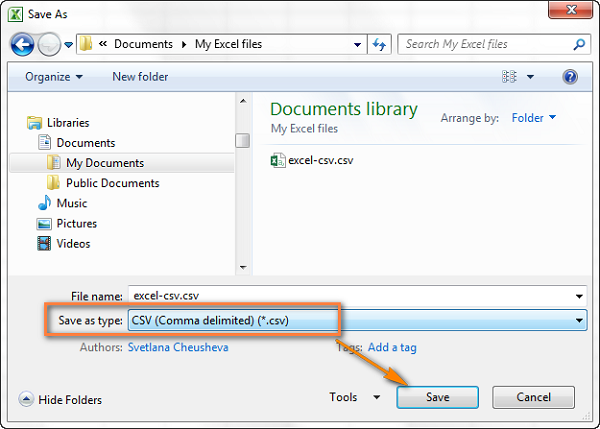 Chọn định dạng CSV
Excel cung cấp một số tùy chọn CSV:
- CSV (Comma delimited): Định dạng chuẩn cho Windows.
- CSV (Macintosh): Định dạng dành cho hệ điều hành Mac.
- CSV (MS-DOS): Định dạng cho MS-DOS.
- *Unicode Text (.txt):** Định dạng hỗ trợ nhiều ngôn ngữ, bao gồm cả tiếng Việt. Nếu file Excel chứa dữ liệu tiếng Việt, nên lưu dưới dạng này trước khi chuyển sang CSV.
Lưu ý: Các định dạng trên chỉ lưu trang tính đang hoạt động.
- Chọn thư mục lưu file và nhấn Save.
Excel sẽ hiển thị hai hộp thoại xác nhận.
- Hộp thoại đầu tiên nhắc nhở chỉ lưu trang tính hiện tại. Nhấn OK nếu bạn chỉ muốn lưu trang đang hoạt động. Nếu muốn lưu tất cả các trang tính, nhấn Cancel và lưu từng trang riêng lẻ.
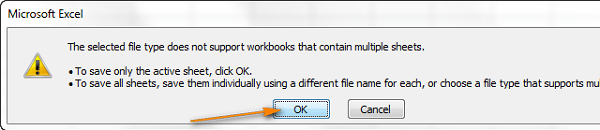 Xác nhận lưu trang tính
- Hộp thoại thứ hai thông báo về các tính năng không tương thích với CSV. Nhấn Yes để tiếp tục.
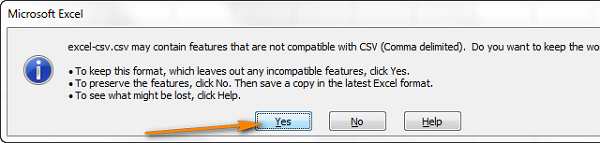 Thông báo tính năng không tương thích
Xuất Excel Sang CSV Với Mã Hóa UTF-8 Hoặc UTF-16
Nếu file Excel chứa ký tự đặc biệt, tiếng Việt có dấu, hoặc biểu tượng, bạn cần sử dụng mã hóa UTF-8 hoặc UTF-16 để tránh lỗi hiển thị.
UTF-8 vs UTF-16
UTF-8: Sử dụng 1-4 byte cho mỗi ký tự, phù hợp với văn bản chủ yếu là ASCII.
UTF-16: Sử dụng 2-4 byte cho mỗi ký tự, phù hợp với văn bản chứa nhiều ký tự tiếng Á, bao gồm tiếng Việt.
Chuyển Đổi Sang UTF-8
- *File > Save As > Unicode Text (.txt).**
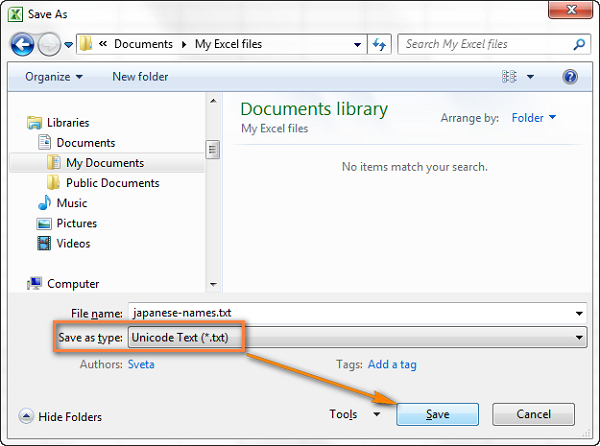 Lưu dưới dạng Unicode Text
Mở file .txt bằng Notepad hoặc Notepad++.
Thay thế tất cả ký tự tab bằng dấu phẩy (nếu cần): Ctrl+H > Find what (dán ký tự tab) > Replace with (,) > Replace All.
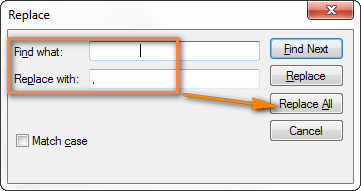 Thay thế tab bằng dấu phẩy
- File > Save As > Encoding: UTF-8 > Save. Đổi đuôi file từ .txt thành .csv.
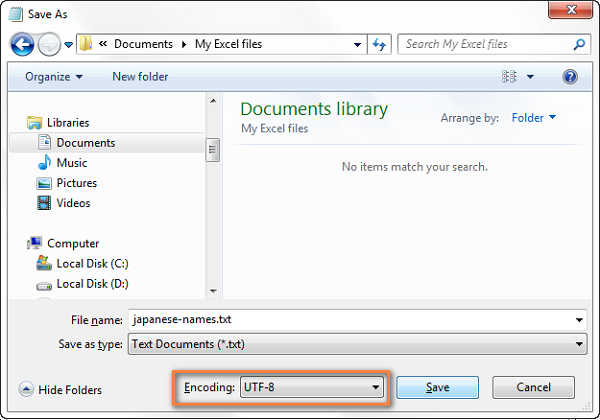 Lưu dưới dạng UTF-8
Chuyển Đổi Sang UTF-16
- *File > Save As > Unicode Text (.txt).**
- Đổi đuôi file từ .txt thành .csv.
Các Phương Pháp Khác
Google Sheets
- Tạo bảng tính mới trên Google Sheets.
- Import file Excel.
- File > Download as > Comma separated values (.csv).
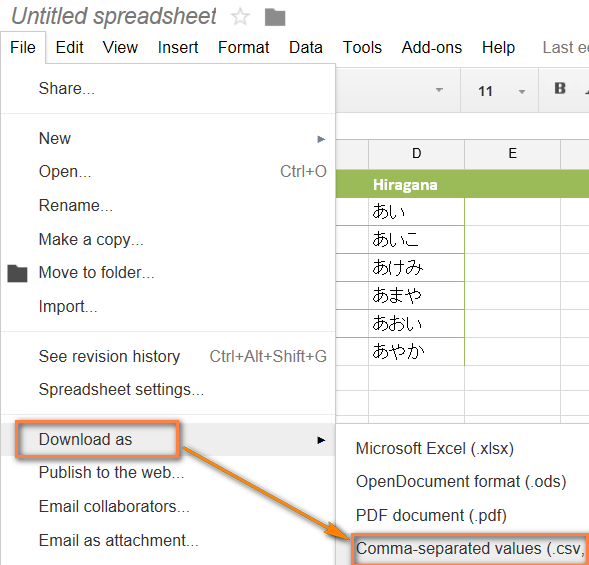 Tải xuống CSV từ Google Sheets
Lưu Dạng .xls Trước Khi Chuyển Sang .csv
Lưu file .xlsx thành .xls trước khi chuyển đổi sang .csv có thể giúp giữ nguyên ký tự đặc biệt trong một số trường hợp.
Kết Luận
Bài viết đã hướng dẫn chi tiết các phương pháp chuyển đổi file Excel sang CSV, đảm bảo giữ nguyên ký tự đặc biệt và tiếng Việt. Tùy vào nhu cầu và phiên bản Excel, bạn có thể lựa chọn phương pháp phù hợp nhất. Hãy nhớ kiểm tra lại file CSV sau khi chuyển đổi để đảm bảo dữ liệu hiển thị chính xác. Việc nắm vững các kỹ thuật này sẽ giúp bạn linh hoạt hơn trong việc xử lý và chia sẻ dữ liệu.


 Ví dụ về dữ liệu tiếng Nhật trong Excel
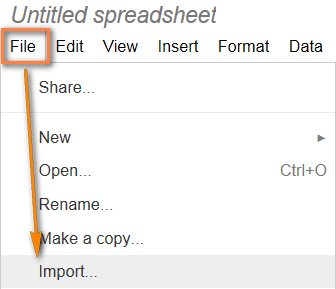 Chọn Import từ menu File
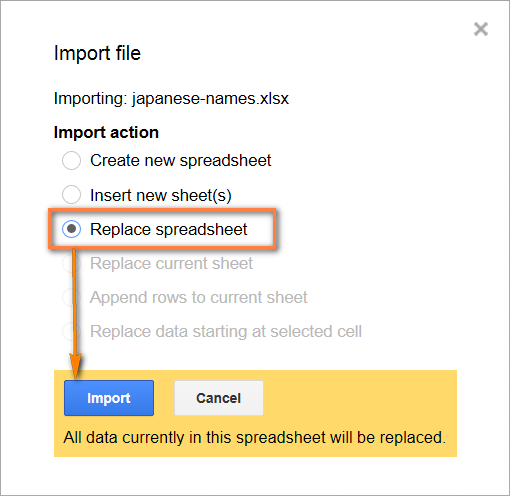 Chọn Replace spreadsheet và Import
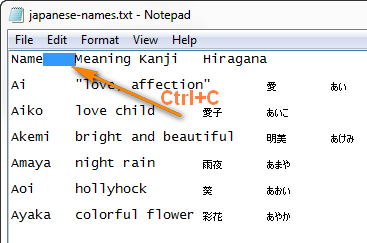 Sao chép ký tự tab
 File CSV trong Notepad













Discussion about this post