


Google Sheets has revolutionized the way teams handle data, establishing itself as a formidable cloud-based alternative to Microsoft Excel. Its strongest asset is real-time collaboration, allowing multiple users to work on a single spreadsheet simultaneously. However, with great collaboration power comes the critical need for control. Without proper management, sensitive formulas can be broken, and private data can be exposed.
To maintain data integrity while fostering teamwork, mastering the permissions hierarchy in Google Sheets is essential. This guide provides a comprehensive walkthrough on how to manage access rights, from sharing entire files to locking down specific cells, ensuring your workflows remain efficient and secure.
 Animated GIF showing a user navigating through a spreadsheet interface
Managing File-Level Sharing and Access
The most fundamental level of security in Google Sheets is controlling who can access the file itself. Unlike local files that require emailing copies, Google Sheets operates on a live link basis, meaning permissions must be set before distributing the link.
Adding Users and Assigning Roles
To initiate the sharing process, locate the prominent “Share” button at the top-right corner of the interface. This action opens the “Share with others” dialog box, which is the command center for your document’s external accessibility.
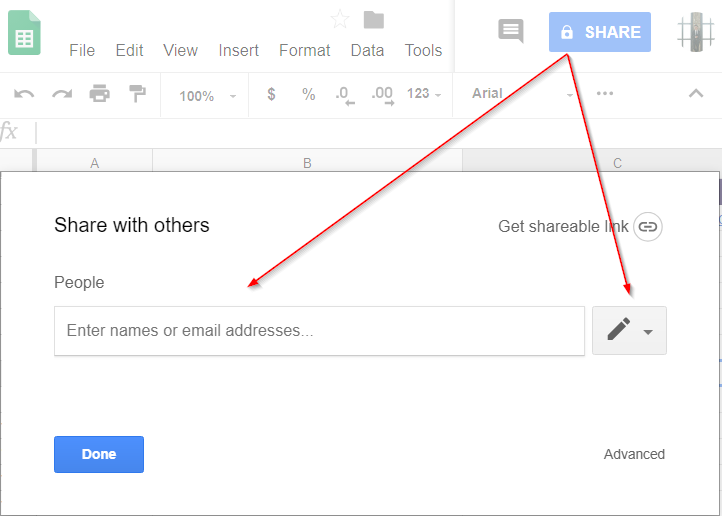 The Share with others dialog box in Google Sheets showing input fields for email addresses
In this window, you have two primary sections to configure. First, the “People” field allows you to input specific email addresses or Google Group names. This is the most secure method of sharing, as it restricts access to identified accounts rather than creating a public link.
Once you have added a recipient, you must define their role using the dropdown menu, represented by a pen icon. Google Sheets offers three distinct tiers of access to suit different collaboration needs:
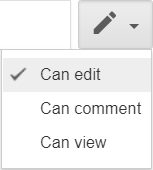 Dropdown menu displaying Editor, Viewer, and Commenter options
- Editor: This role grants full control over the content. Users can modify cells, add formulas, and even change the sheet’s structure. This is ideal for core team members.
- Commenter: This intermediate role allows users to view data and add comments or suggestions but prevents them from altering the actual cell values. This is perfect for reviewers or auditors.
- Viewer: The most restrictive role, permitting read-only access. Users cannot modify content or leave comments, making it suitable for sharing final reports with stakeholders.
Defining these roles correctly at the outset is crucial for preventing accidental data loss. For high-stakes documents, it is also recommended to familiarize yourself with the “Version History” feature to track changes made by editors.
Advanced Permission Settings
Collaboration needs often evolve. You might need to downgrade an editor to a viewer or remove access entirely. Google Sheets accommodates these changes through its advanced settings panel. By clicking the settings gear or “Advanced” options within the sharing dialog, you can view a granular list of all active users.
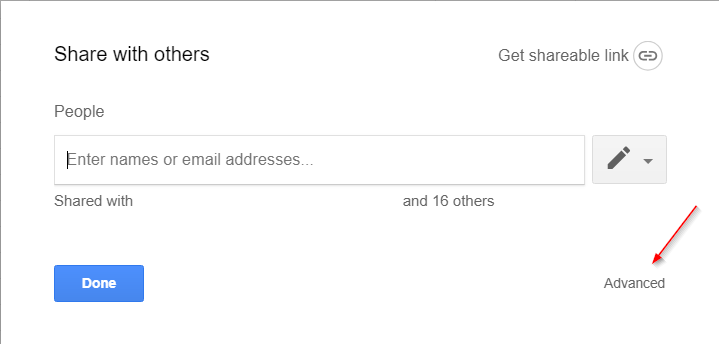 The Advanced sharing settings window showing link sharing options
This interface provides a comprehensive overview of the document’s security status. It displays the “Owner”—the creator of the file who holds the ultimate authority—and lists all other collaborators with their current privileges.
From here, you can modify individual permissions instantly. For example, if a project phase is complete, you can switch a contractor from “Editor” to “Viewer” to preserve the final state of the data. Furthermore, as an owner, you can prevent editors from changing access and adding new people, adding an extra layer of security.
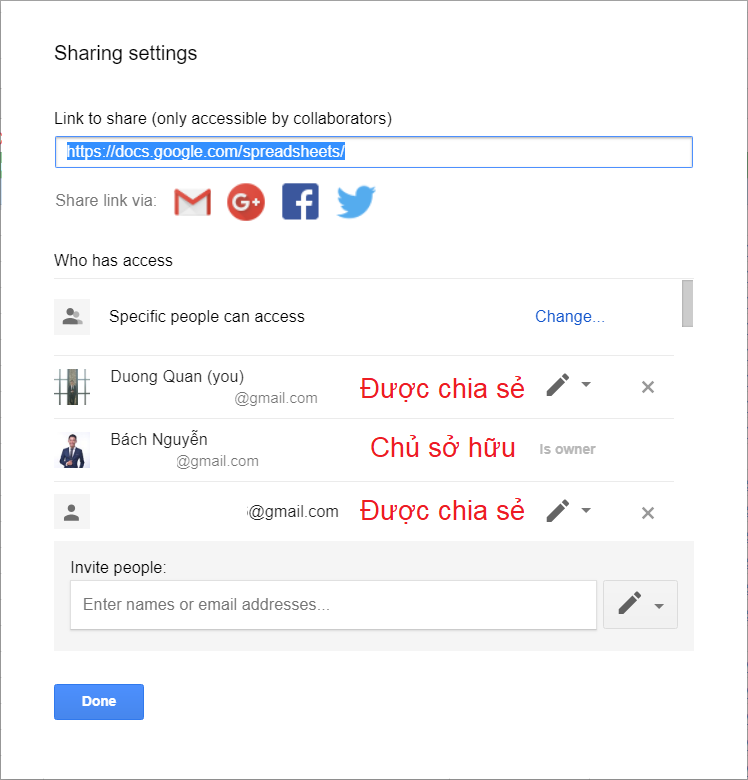 List of users with access to the document and their respective permission levels
Granular Control: Protecting Sheets and Ranges
While file-level sharing controls who can enter the building, sheet and range protection controls which rooms they can enter. This is particularly useful when you have a dashboard that everyone needs to see, but only a few should be able to edit, or when protecting complex formulas from accidental deletion.
Step 1: Initiating Sheet Protection
To lock a specific sheet, right-click on the sheet tab at the bottom of the screen. In the context menu that appears, select “Protect sheet.” This action opens the “Protected sheets and ranges” sidebar on the right side of your screen.
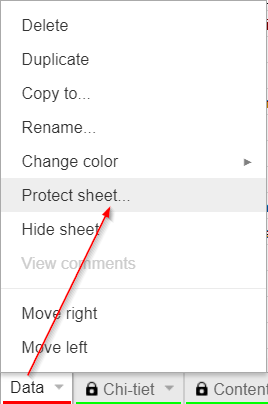 Context menu appearing after right-clicking a sheet tab with Protect sheet selected
Step 2: Configuring the Scope
The sidebar allows for precise configuration. You start by entering a description, which acts as a label for the protection rule (e.g., “Do Not Edit – Formulas”). Next, you define the scope in the “Range/Sheet” section. You can choose to lock the entire sheet or specific cells.
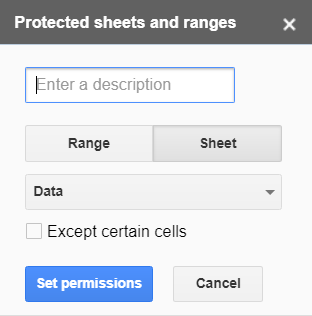 The Protected sheets and ranges sidebar allowing description input
A common practice is to lock a whole sheet but add “Exceptions.” For instance, you might lock a “Budget” sheet but exempt the input cells where users need to enter their expense figures. Once the range is defined, click “Set permissions.”
Step 3: Defining Exceptions and Access
The permission settings for protected ranges are independent of the file-level sharing settings. By default, protection restricts editing to “Only you” (the owner). However, you can choose “Custom” to allow specific collaborators to edit the protected area while keeping it locked for everyone else.
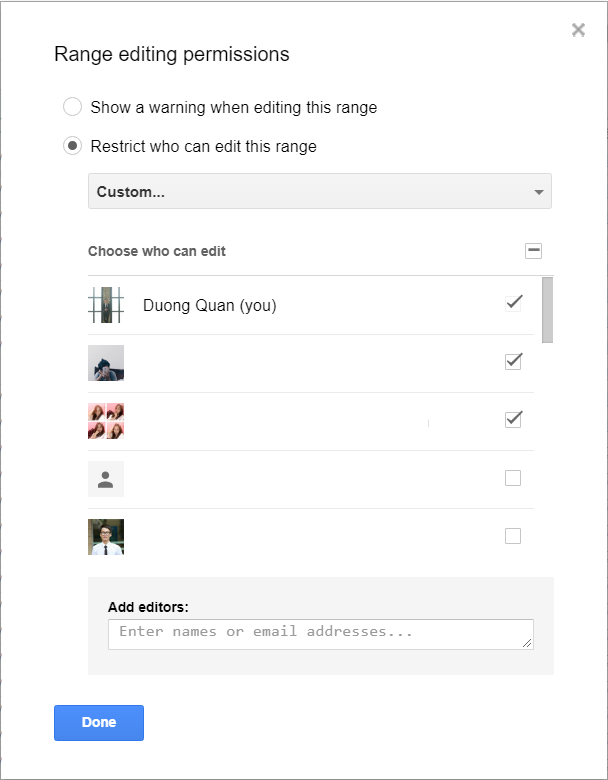 Dialog box for setting edit permissions for a protected range
This feature supports up to 20 distinct user accounts per protection rule. Once applied, a visual indicator—a small padlock icon—will appear on the sheet tab, signaling to all users that the sheet has restricted access.
 A Google Sheet tab displaying a small padlock icon next to the sheet name
Modifying and Removing Protection
Security requirements change, and you may eventually need to unlock a sheet or modify who can edit it. Managing existing protections is straightforward and accessed through the same sidebar used to create them.
To edit a rule, go to the “Data” menu and select “Protected sheets and ranges,” or simply click “View” > “Show protected ranges.” This will list all active protections. Click on the rule you wish to modify to expand its details.
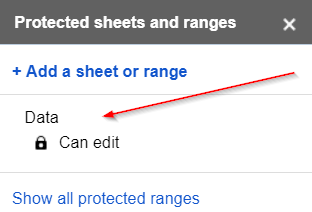 The sidebar showing a list of protected sheets with one selected
If a protection rule is no longer needed, you can delete it entirely. After selecting the specific rule from the list, look for the trash can icon next to the description.
Clicking this icon will prompt a confirmation. Once deleted, the restrictions are lifted immediately, and all users with “Editor” access to the file will regain the ability to modify those cells. Alternatively, you can simply click “Change permissions” to update the list of authorized editors without removing the protection entirely.
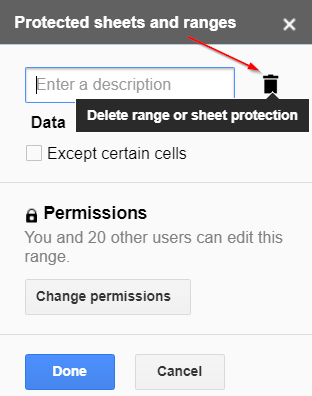 A confirmation prompt to remove the protection rule from the sheet
Conclusion
Effective data management in Google Sheets goes beyond simple data entry; it requires a robust understanding of permissions and security settings. By combining file-level sharing for broad access control with sheet-level protection for granular data security, you create a workspace that is both collaborative and secure.
These features make Google Sheets a powerful ally for professional environments, allowing teams to work together without the fear of compromising critical data. We encourage you to audit your current spreadsheets and apply these protection strategies today to streamline your team’s workflow.
References
- Google Workspace Learning Center. (n.d.). Share and collaborate in Sheets.
- Google Drive Help. (n.d.). Share files from Google Drive.
- Google Docs Editors Help. (n.d.). Protect content in a spreadsheet.












Discussion about this post