


In the dynamic landscape of data processing and reporting within Excel, the ability to extract precise information based on specific timeframes (e.g., a sales report from Day X to Day Y) is a critical skill. While traditional methods often relied on manual filtering tools that require constant readjustment, modern Excel versions (Office 365, Excel 2021, and later) have introduced the FILTER function. This powerful tool allows users to automate data extraction workflows with professional precision and efficiency.
This comprehensive guide will walk you through the technical process of filtering data within a date range using the FILTER function, helping you optimize your performance and create truly dynamic reports.
The Core Formula for Date Range Filtering
To isolate data falling between two specific points in time (Start Date and End Date), we must combine the FILTER function with Boolean logic. specifically using the multiplication operator (*) to represent the “AND” condition.
The generalized syntax for this operation is:
=FILTER(data_range, (date_column >= start_date) * (date_column <= end_date), "No results found")
Let’s apply this to a practical technical scenario. Assume you are managing a dataset located in the range B5:D13. The date information is stored in column D5:D13, your specific “Start Date” criteria is in cell F2, and the “End Date” criteria is in cell G2.
The specific formula to execute this query is:
=FILTER(B5:D13, (D5:D13>=F2) * (D5:D13<=G2))
When executed, this formula returns a dynamic array containing only the rows where the date satisfies both conditions: it is greater than or equal to the start date and less than or equal to the end date.
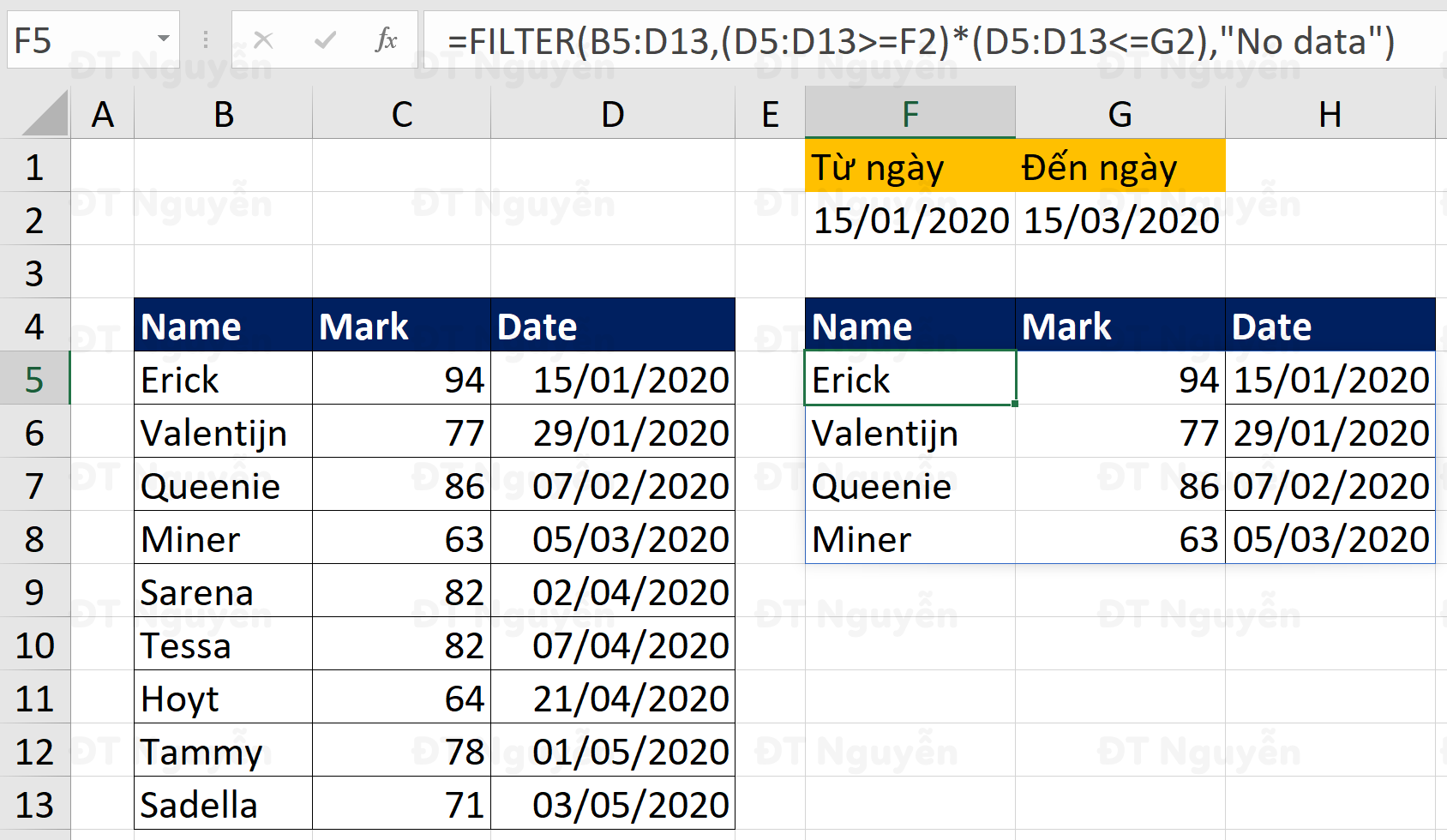 Excel spreadsheet demonstrating the result of the FILTER function extracting rows between two specific dates
Critical Prerequisite: Data Integrity and Formatting
One of the most frequent technical pitfalls that cause this formula to return a #CALC! error or incorrect empty sets is improper data formatting.
For the logic to function correctly, both the source date column (D5:D13) and your criteria cells (F2, G2) must be strictly formatted as Date types. If your data is stored as Text—even if it visually resembles a date—Excel cannot perform the mathematical comparison (greater than/less than) required for the filter.
Pro Tip: To verify the integrity of your data, utilize the
=ISNUMBER(cell_reference)function. If it returns TRUE, the data is a valid date (since Excel technically stores dates as serial numbers). If it returns FALSE, you are dealing with text strings that need conversion.
Deep Dive: Understanding the Boolean Logic
Advanced Excel users often ask why the asterisk (*) is used between the two date conditions instead of a standard AND function. The answer lies in the architecture of Dynamic Arrays.
In the formula component (D5:D13>=F2) * (D5:D13<=G2), Excel processes the logic in distinct stages:
- First Evaluation
(D5:D13>=F2): Excel checks every cell in the date column against the start date. This generates an internal array of boolean values (TRUE or FALSE). - Second Evaluation
(D5:D13<=G2): Similarly, it checks the dates against the end date, generating a second array of TRUE/FALSE values.
When you multiply these two arrays, Excel coerces the boolean values into integers:
- TRUE converts to 1
- FALSE converts to 0
The mathematical operation proceeds row by row:
- TRUE (1)
*TRUE (1) = 1 (Both conditions met → Keep this row) - TRUE (1)
*FALSE (0) = 0 (One condition failed → Discard) - FALSE (0)
*TRUE (1) = 0 (One condition failed → Discard) - FALSE (0)
*FALSE (0) = 0 (Both conditions failed → Discard)
 Animation showing the F9 key being used to reveal the underlying boolean array values in an Excel formula
As illustrated in the animation above, highlighting the condition within the formula bar and pressing F9 reveals the underlying array, such as {1;1;1;1;0;0;0;0;0}. The FILTER function then simply extracts the rows corresponding to the 1s.
Conclusion
Leveraging the FILTER function to organize data by timeframes represents a significant modernization of Excel reporting. Unlike the static legacy Filter feature, this dynamic array approach creates reports that update automatically as data changes, provided the logic is sound.
The key to mastering this technique lies in understanding the boolean array multiplication and ensuring absolute data consistency regarding date formats. By applying these principles, you can transform static data dumps into flexible, insightful dashboards.
References
- Microsoft Support: The FILTER function specifications.
- Excel Tech Documentation: Date & Time serial number formatting.
- Advanced Excel Resources: Dynamic Array behavior in Office 365.












Discussion about this post