


Sharing raw data directly from a database is rarely the most effective way to communicate information. Whether you are presenting sales figures to stakeholders or archiving inventory lists, you need a format that is readable, professional, and secure. This is where Microsoft Access Reports come into play. A Report allows you to organize and present data from your tables and queries in a visually appealing printer-friendly format, ensuring that users can view the information without accidentally altering the underlying database.
In this comprehensive guide, we will walk you through the essential steps to generate, customize, and print reports using Microsoft Access 2016. By mastering these techniques, you can transform complex datasets into clear, actionable insights.
Generating a New Report in Access
Creating a report in Access 2016 is a streamlined process, thanks to the built-in Report tool. This feature automatically generates a layout based on your selected data source, which you can then refine.
Step 1: Select Your Data Source
Before creating a report, you must identify the data you wish to present. This can be a raw table or a specific query. Open your database and select the desired table or query from the Navigation Pane on the left.
For this tutorial, we will use a query named “Cookies Sold” to generate a sales report.
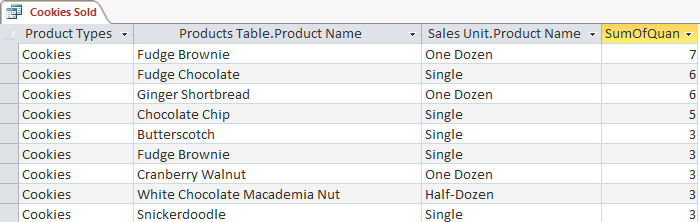 Selecting the Cookies Sold query in the Access Navigation Pane
Step 2: Utilize the Report Command
Once your data source is selected, navigate to the Create tab on the Ribbon interface. Locate the Reports group and click on the Report command. Access will immediately process the request and generate a new report containing all fields from your selected query or table.
 The Report command button located in the Create tab on the Ribbon
Step 3: Adjust Column Widths
The auto-generated report might not always fit perfectly within standard page margins. You may notice pound signs (#####) in some fields, indicating the column is too narrow to display the data, or a dotted line suggesting the report spills over to a second page.
To fix this, simply click and drag the edge of the column headers to resize them. Ensure all data is visible and the report fits within the page boundaries.
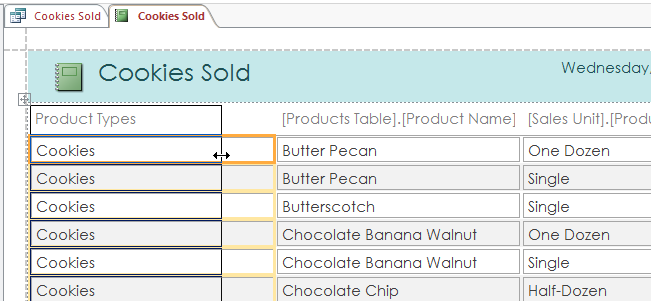 Resizing a column in the Access report layout view
Step 4: Save Your Report
After the initial layout is generated, it is crucial to save your work. Click the Save icon on the Quick Access Toolbar. A dialog box will appear prompting you to name the report. Enter a descriptive name—such as “Cookies Sold Report”—and click OK.
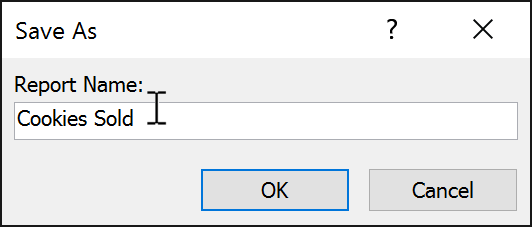 The Save As dialog box for naming the new report
Refining the Report Layout
Auto-generated reports often include every field from the source data, some of which may be unnecessary for the final audience. Cleaning up the report by removing unwanted columns improves readability.
Deleting Unwanted Columns
To remove a column, click on any cell within that column to select it. Press the Delete key on your keyboard. Note that this often leaves the column header behind.
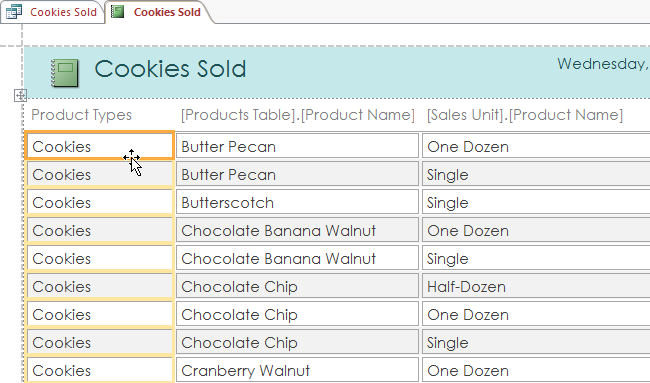 Deleting a specific data column from the report layout
You must also delete the header separately. Click on the header of the column you just removed and press Delete again to completely eliminate the field from the report layout.
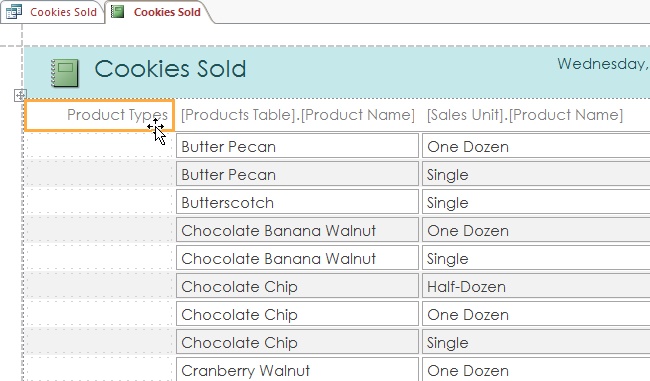 Removing the column header after deleting the data cells
Print Preview and Page Setup
Before sending your document to a physical printer or exporting it, it is essential to check how it will look on paper. The Print Preview mode is the best environment for this task.
Accessing Print Preview
Navigate to the Home tab, click the View dropdown menu, and select Print Preview. This view shows you exactly how the report will appear when printed, including page breaks and margins.
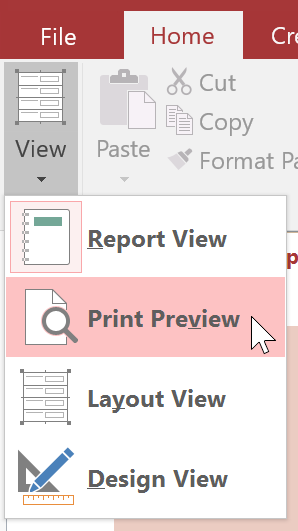 Selecting Print Preview from the View menu in the Home tab
Adjusting Page Layout
If your report is too wide for a standard portrait page, you can change the orientation or paper size directly within Print Preview. Look for the Page Layout group on the Ribbon. Here, you can switch from Portrait to Landscape or adjust the margins to fit more data on a single sheet.
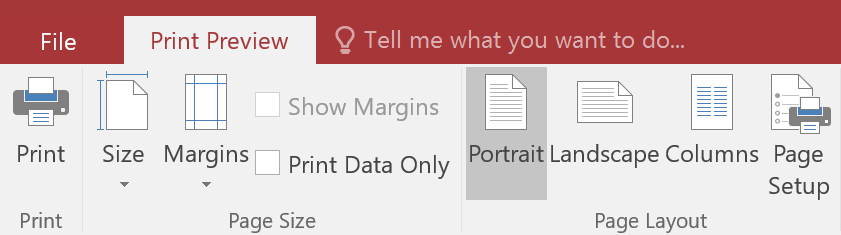 Adjusting page size and layout settings in the Ribbon
Printing the Document
Once you are satisfied with the layout, click the Print command on the Ribbon. This will open the standard Print dialog box where you can select your printer, define the page range, and set the number of copies.
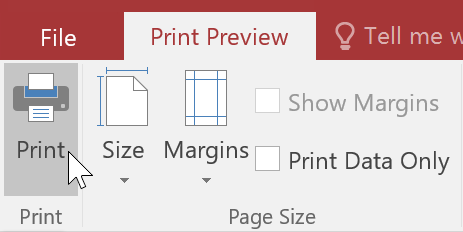 The Print command button in the Print Preview ribbon
Exporting Reports to Other Formats
One of the most powerful features of Access reports is the ability to export them into portable formats like PDF, Excel, or HTML. This allows you to share data with colleagues who may not have Microsoft Access installed on their computers.
Choosing an Export Format
While in Print Preview mode, locate the Data group on the Ribbon. You will see options to export to Excel, Text File, PDF, or Email. If you need other formats like Word or HTML, click the More dropdown arrow.
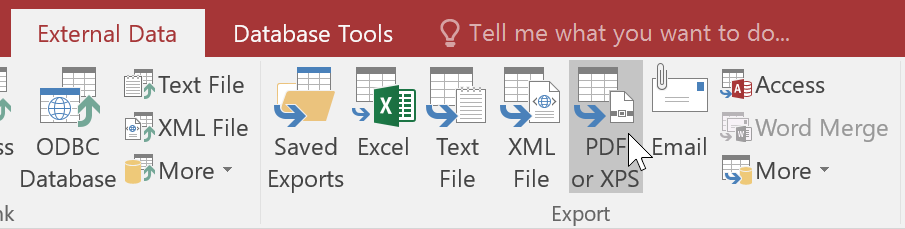 Selecting the export format from the Data group in the Ribbon
Finalizing the Export
After selecting your desired format (e.g., PDF or HTML), a “Save As” dialog box will appear. Navigate to the folder where you want to save the file, name it appropriately, and click Publish.
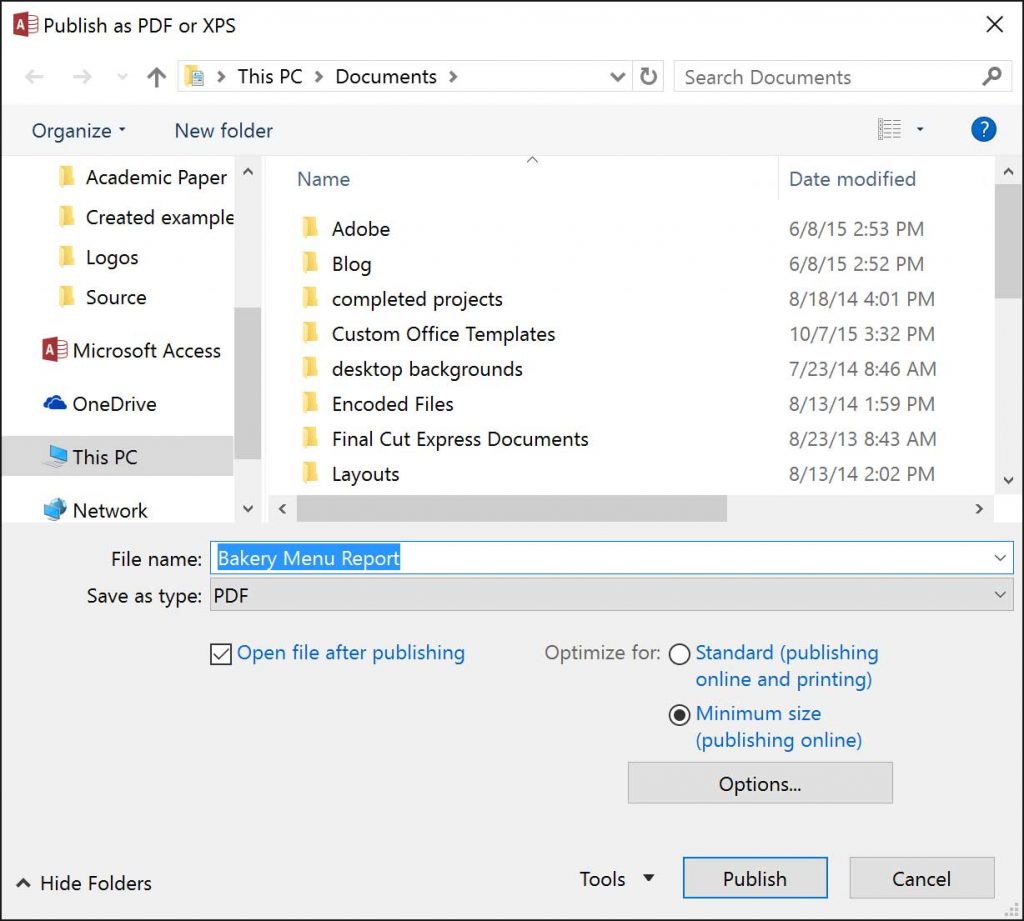 The Save As dialog for exporting the report to a specific file location
Depending on the format, an Export Wizard may pop up to guide you through specific settings. Follow the on-screen instructions and click Close once the export is complete.
Conclusion
Microsoft Access 2016 provides a robust set of tools for turning raw database entries into professional, readable reports. By following this workflow—selecting data, generating the layout, refining columns, and utilizing Print Preview—you ensure that your data is presented accurately and effectively. Whether you choose to print physical copies or export digital files, mastering these reporting features is essential for any efficient database administrator or office professional.
We encourage you to experiment with different layout views and export formats to find the workflow that best suits your organization’s needs.
References
- Microsoft Support: Introduction to Reports in Access
- GCFGlobal: Access 2016 – Creating Reports
- TechRepublic: Microsoft Access Tips and Tricks













Discussion about this post