


In the realm of data management, Excel stands as an indispensable tool, and mastering its functions can significantly elevate your productivity. While the VLOOKUP function is powerful on its own for retrieving data, its true potential is unlocked when combined with the logical capabilities of the IF function.
This guide explores the synergy between VLOOKUP and IF. By nesting these functions, you can move beyond simple data retrieval to perform dynamic checks, logical tests, and sophisticated error handling. We will delve into practical scenarios ranging from inventory management to automated commission calculations, ensuring you have the technical know-how to handle complex datasets with ease.
Understanding the Synergy: Why Combine Them?
VLOOKUP (Vertical Lookup) is designed to search for a value in the first column of a table and return a value in the same row from a specified column. The IF function, on the other hand, performs a logical test and returns one value if the result is TRUE and another if it is FALSE.
When combined, these two create a robust mechanism for decision-making. Instead of simply pulling a raw number or text, you can ask Excel to analyze that data immediately and provide a context-aware result. This technique is essential for creating dynamic reports and dashboards.
Case 1: Automating Inventory Status Checks
One of the most common applications of this combination is determining the status of items in an inventory list. Instead of manually checking stock numbers, you can configure Excel to display “In Stock” or “Out of Stock” automatically.
Scenario: You have a list of products and their current quantities. You want to instantly flag items that have run out.
The Logic: You use VLOOKUP to find the quantity of a specific item (e.g., “Grapes”). You then wrap this VLOOKUP inside an IF function to test if that quantity is greater than zero.
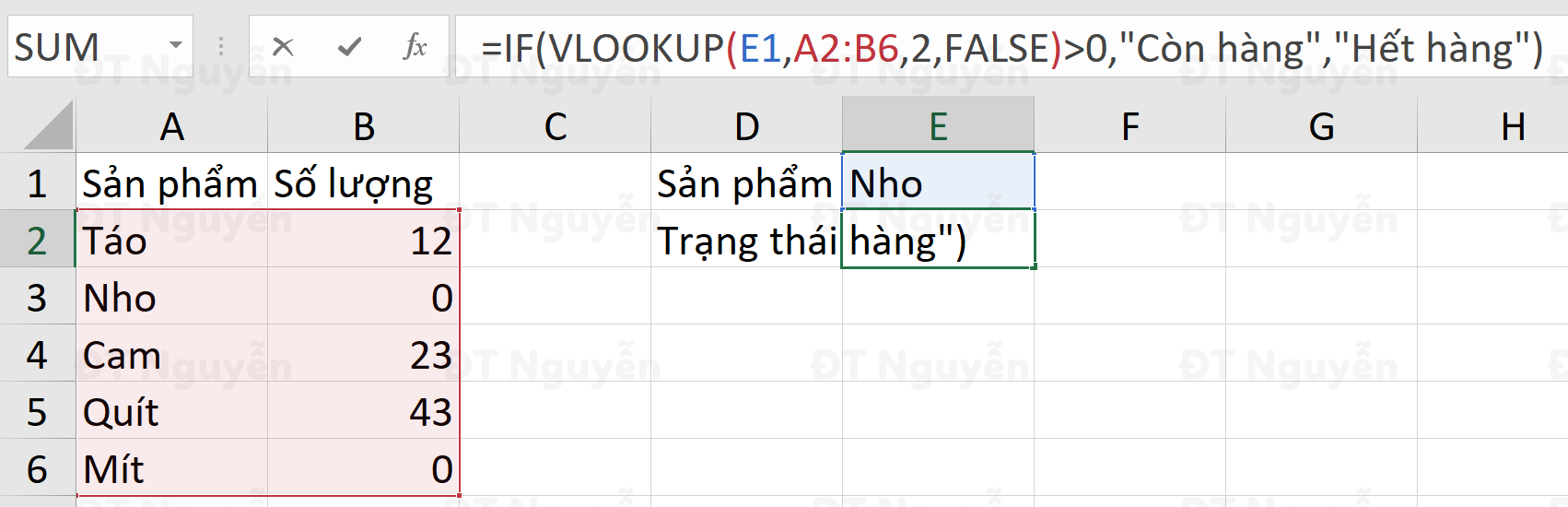 Excel spreadsheet showing inventory status calculation using nested IF and VLOOKUP formulas to determine if items are in stock
In the example above, the formula checks the retrieved quantity. If the VLOOKUP result is greater than 0, the IF function outputs “Còn hàng” (In Stock); otherwise, it outputs “Hết hàng” (Out of Stock). This effectively converts numerical data into actionable text status.
Case 2: Dynamic Safety Stock Analysis
Taking inventory management a step further, businesses often need to compare current stock levels against a dynamic “safety stock” threshold rather than just zero. Hardcoding numbers into formulas is bad practice; instead, we can reference a specific cell (e.g., G1) that contains our minimum safety threshold.
The Logic: The formula retrieves the current stock of a product (like “Apples”) and compares it against the value in cell G1.
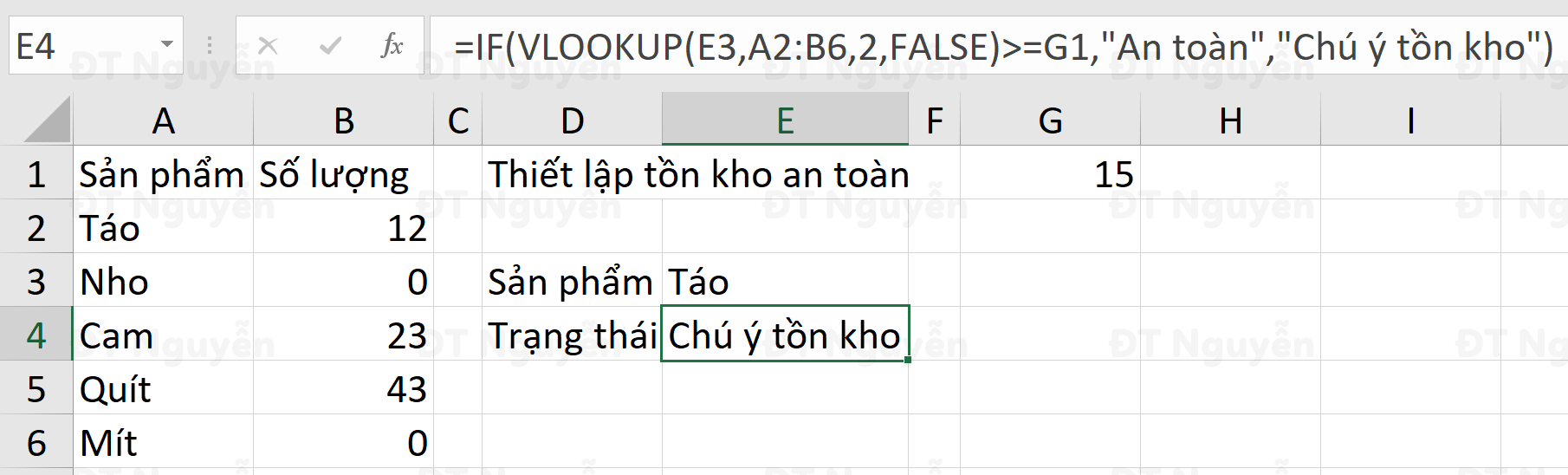 Excel worksheet demonstrating how to compare current stock levels against a safe stock threshold using VLOOKUP
This method allows for flexibility. If your safety stock requirement changes from 15 to 20, you only need to update cell G1, and the entire status column will update automatically without modifying the formulas.
Case 3: Advanced List Comparison and Reconciliation
A frequent challenge in data analysis is reconciling two different lists—for example, comparing a “Warehouse List” against an “Export Qualified List.” You need to identify which items from the main list exist in the secondary list.
To achieve this, we combine IF, VLOOKUP, and the ISNA function. VLOOKUP naturally returns an #N/A error if it cannot find a value. The ISNA function detects this error and returns TRUE.
The Workflow:
- VLOOKUP attempts to find the warehouse item in the export list.
- ISNA checks if VLOOKUP failed (returned #N/A).
- IF translates the ISNA result: if ISNA is TRUE (item not found), it returns “Not Qualified”; if FALSE (item found), it returns “Qualified.”

This approach is cleaner than seeing error codes scattered across your spreadsheet. It provides a binary status that is easy to filter and analyze.
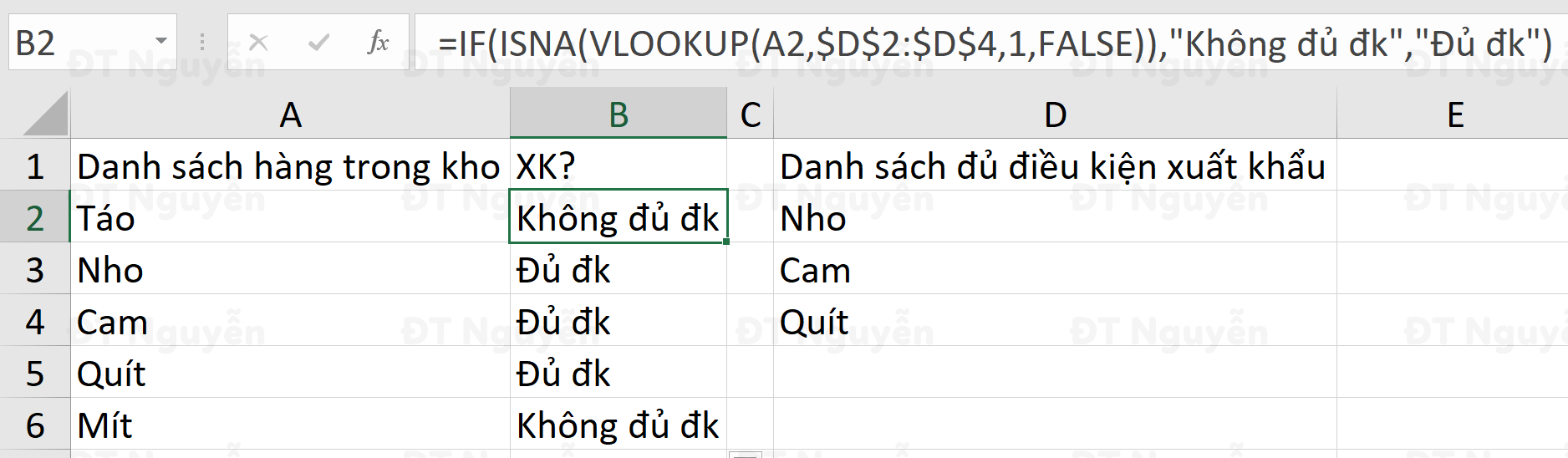 Screenshot of an Excel table utilizing IF, ISNA, and VLOOKUP to cross-reference two lists of products
Case 4: Conditional Calculation for Sales Commissions
Nested functions are not limited to text outputs; they are powerful tools for financial calculations. Consider a sales scenario where the commission rate changes based on revenue performance.
Scenario: Sales staff receive a 10% commission if revenue exceeds 200 units/currency, but only 5% if it is lower.
The Logic: The IF function checks the sales figure retrieved by VLOOKUP. Based on the result, it multiplies that same sales figure by either 10% or 5%. This ensures that the math adjusts dynamically based on the data associated with each salesperson.
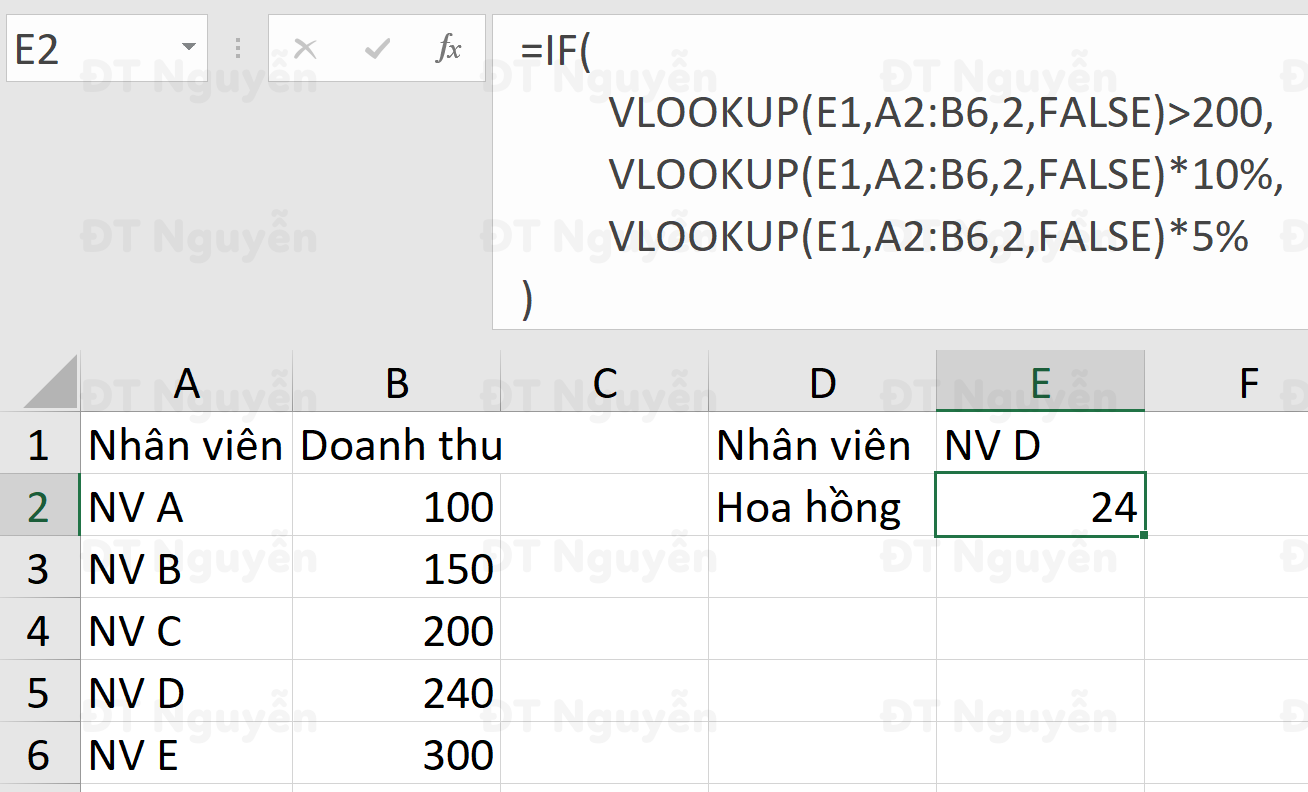 Data table showing commission calculations based on sales revenue using a conditional VLOOKUP formula
This eliminates the need for manual rate adjustments and ensures accuracy in payroll or performance tracking.
Modern Error Handling: Using IFNA
While the IF + ISNA combination mentioned earlier is effective, modern versions of Excel (2013 and later) introduced a more streamlined function: IFNA.
When VLOOKUP fails to find a lookup value, it returns the standard #N/A error. This can look unprofessional in reports. The IFNA function allows you to specify exactly what should be displayed if the error occurs, without needing a complex nested IF statement.
Syntax:
=IFNA(value, value_if_na)
- value: This is usually your VLOOKUP formula.
- value_if_na: The text or value you want to display if the lookup fails (e.g., “Not Found”, “0”, or “-“).
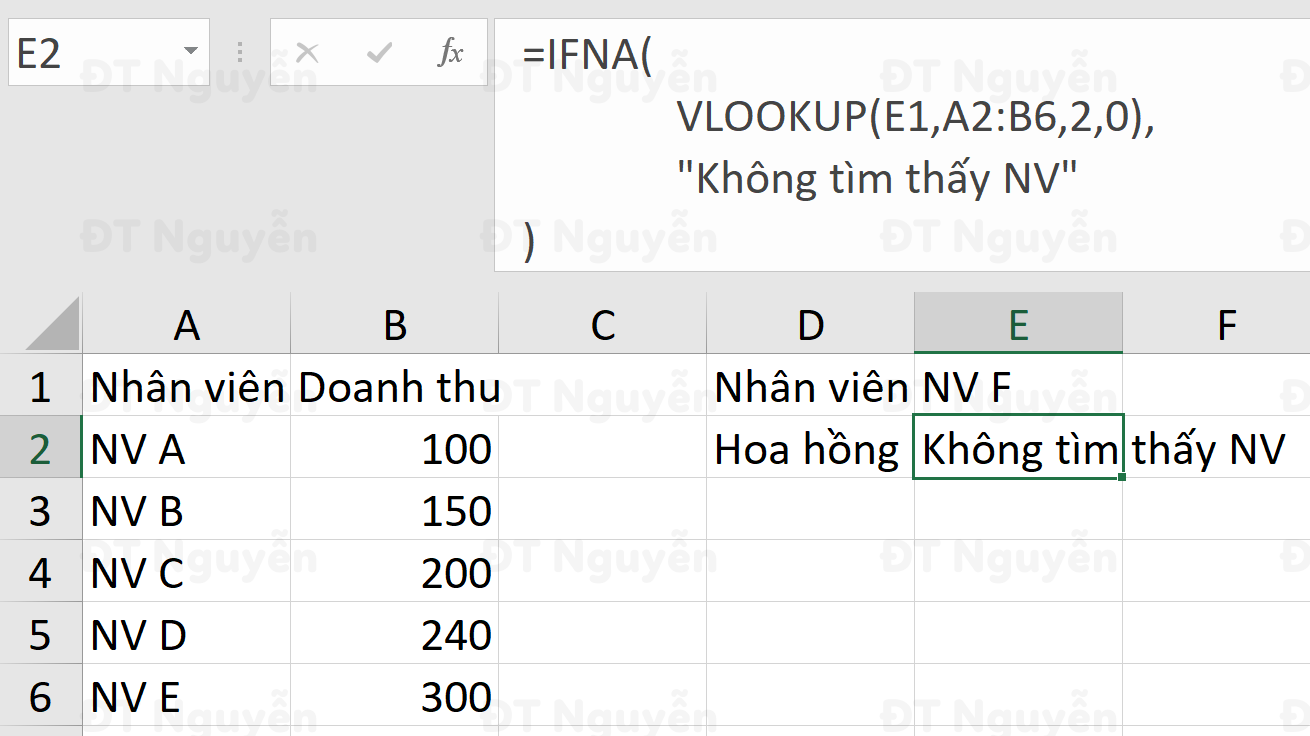 Excel interface displaying the syntax and application of the IFNA function combined with VLOOKUP
Using IFNA improves formula readability and reduces processing time compared to older methods, making your spreadsheets more efficient.
Conclusion
Combining VLOOKUP with logical functions like IF and IFNA transforms Excel from a simple spreadsheet tool into a powerful data processing engine. Whether you are managing inventory, reconciling complex datasets, or calculating conditional financial metrics, these nested formulas provide the flexibility and accuracy required for professional environments.
By mastering these techniques, you ensure your data is not only accurate but also presented in a way that is actionable and easy to understand. We encourage you to practice these examples to solidify your understanding. For more advanced Excel tutorials and tech tips, keep following Thủ Thuật!
References
- Microsoft Support: VLOOKUP function
- Microsoft Support: IF function
- TechCommunity: Excel Formula Nesting Best Practices












Discussion about this post