


In the fast-paced world of data analysis and office administration, efficiency is the currency of success. While the mouse is an intuitive tool, relying on it for every action in Microsoft Excel can significantly slow down your workflow. As technology experts at “Thủ Thuật,” we understand that mastering keyboard shortcuts is the dividing line between a casual user and a spreadsheet professional.
This guide expands upon fundamental Excel techniques, focusing on eight critical shortcut categories that transform how you interact with data. Whether you are an accountant, a data analyst, or a student, integrating these keystrokes into your daily routine will save hours of repetitive work.
1. Instant Calculations: The AutoSum Shortcut
Calculating totals is perhaps the most frequent task performed in Excel. Manually typing =SUM() or clicking through the ribbon menu is unnecessary time consumption.
The Solution: Alt + =
By selecting the cell immediately below a column of numbers (or to the right of a row) and pressing this combination, Excel automatically detects the range and inserts the SUM function. Press Enter, and your calculation is complete. This is arguably the most valuable shortcut for financial reporting.
2. Rapid Data Replication: Filling Formulas
Dragging the fill handle down a column is the standard method for copying formulas, but it can be imprecise when dealing with thousands of rows.
The Solution: Ctrl + D (Fill Down) or Ctrl + R (Fill Right)
To use this, select the cell containing the formula and the empty cells below it, then press Ctrl + D. Excel instantly copies the formula (and formatting) into the selected range. This ensures consistency and eliminates the risk of “overshooting” your data range with the mouse.
3. High-Speed Selection: Rows and Columns
Selecting entire datasets quickly is crucial for formatting or applying bulk changes. Trying to highlight a row by clicking and dragging across the screen is inefficient.
The Solutions:
- Select Entire Row:
Shift+Space - Select Entire Column:
Ctrl+Space
Once you have mastered these, you can combine them with Shift + Arrow Keys to expand your selection dynamically without ever lifting your hands from the keyboard.
4. Managing Visibility: Hiding and Unhiding Data
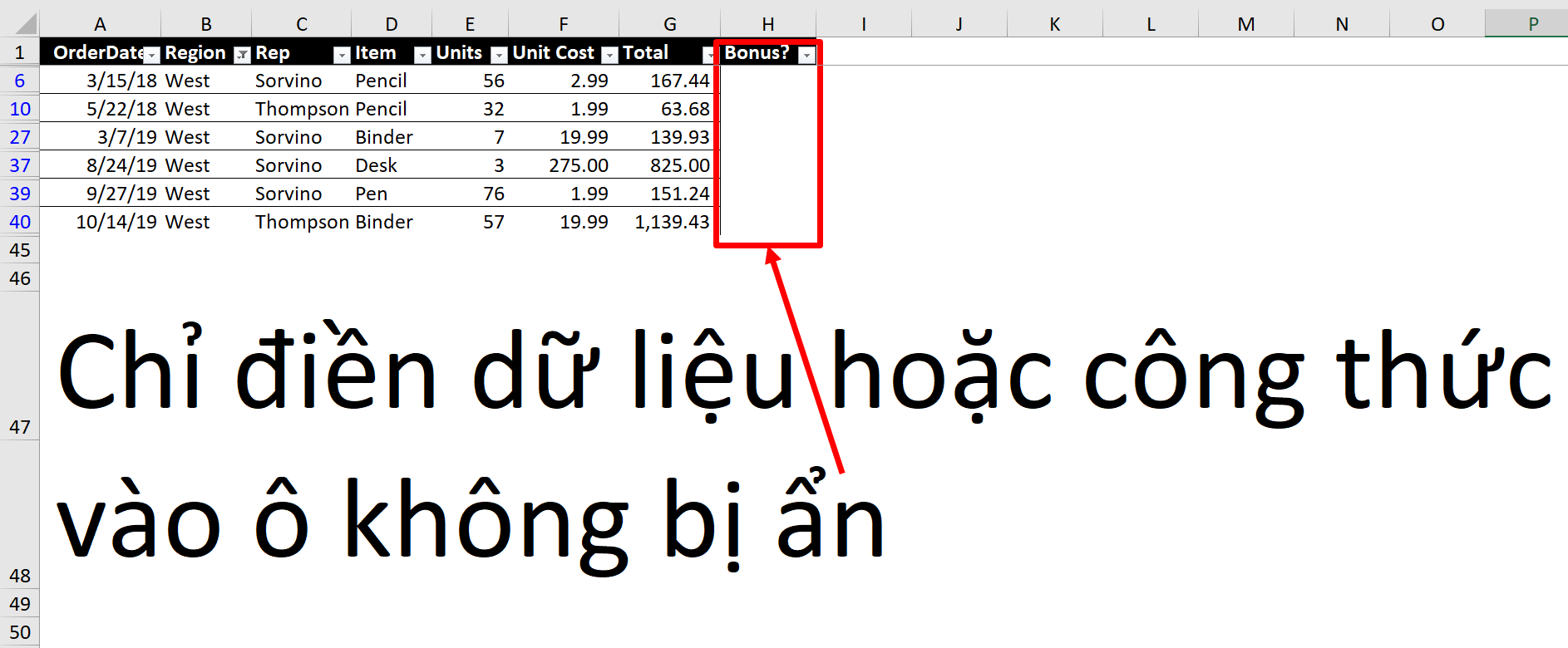
When presenting data or simplifying a view for analysis, you often need to temporarily hide specific rows or columns without deleting the data.
The Solutions:
- Hide Rows:
Ctrl+9 - Hide Columns:
Ctrl+0
To unhide, you generally add the Shift key to the combination (e.g., Ctrl + Shift + 9 to unhide rows). This allows for a clean presentation interface while keeping the backend data intact.
5. Structuring Data: Deleting Rows and Columns
Removing unnecessary data is just as important as adding it. Context menus (Right-click -> Delete) are slow.
The Solution: Ctrl + - (Minus key)
When you have a row or column selected (using the shortcuts mentioned in section 3), pressing Ctrl + - will immediately delete it and shift the remaining cells accordingly. If no entire row/column is selected, a dialog box will appear asking how you want to shift the cells.
 Animated demonstration of an Excel spreadsheet interface showing rows and columns
6. Time-Stamping: Inserting Date and Time
For logbooks, invoices, or tracking sheets, hard-coding the current date and time is a frequent requirement. Using functions like =NOW() or =TODAY() updates every time the sheet recalculates, which is not always desired for static records.
The Solutions:
- Insert Current Date:
Ctrl+;(Semicolon) - Insert Current Time:
Ctrl+Shift+;
These shortcuts insert a static timestamp that will not change, preserving the exact moment the data was entered.
7. Auditing: displaying All Formulas
When you inherit a spreadsheet from a colleague or need to debug your own complex sheet, seeing the results is not enough; you need to see the logic.
The Solution: Ctrl + ~ (Tilde / Grave Accent)
This toggle switch changes the view of the entire worksheet. Instead of showing the calculated results (e.g., “500”), Excel will display the underlying formulas (e.g., =A1+B1) in every cell. This is the fastest way to check for inconsistencies or hard-coded numbers hiding in formula columns.
8. The Ultimate Cheat Sheet: Finding Shortcuts
It is impossible to memorize every single shortcut immediately. Microsoft Excel has a built-in feature to help you learn as you work.
The Solution: Press and release the Alt key.
When you press Alt in Windows, Excel displays “Key Tips”—small letters or numbers over every tab and command in the Ribbon. For example, pressing Alt, then H, then A, then C might align your text to the center. This feature essentially allows you to navigate the entire menu system using only the keyboard, teaching you the sequences for your most-used tools.
[internal_links]
Conclusion
Mastering these eight categories of shortcuts is a significant step toward Excel fluency. While the learning curve may feel steep initially, the long-term payoff in speed and accuracy is undeniable. We recommend practicing one new shortcut a week until it becomes muscle memory.
By reducing reliance on the mouse, you not only work faster but also reduce physical strain, allowing you to focus on the analytical aspect of your work rather than the mechanical process of data entry.
References
- Microsoft Support: Keyboard shortcuts in Excel (Official Documentation).
- TechCrunch: Productivity hacks for modern software.
- The Verge: How to master spreadsheets for beginners.












Discussion about this post