


In the realm of Human Resources (HR) management, data volume can become overwhelming very quickly. Managers are tasked with tracking a myriad of details: labor contracts, work history, performance evaluations, salary adjustments, and leave records. This complexity multiplies when dealing with a large workforce comprising past, present, and future employees. The challenge lies not just in storing this data, but in retrieving it effectively—specifically, how do you generate a detailed, instant report for a single employee over a specific period?
This guide delves into the technical architecture of building a dynamic personnel reporting system in Excel. We will move beyond basic data entry to explore database structuring, dynamic lookups, and advanced filtering techniques to create a professional, automated dashboard.
1. Principles of Structuring HR Data in Excel
Before building a report, one must establish a robust database. A report is only as good as the data it pulls from. Many Excel users struggle because their source data is formatted for printing rather than processing. To create a scalable system, specific structural rules must be applied.
The “One Sheet, One Table” Rule
To maximize Excel’s data processing power, all related information should be consolidated into a single sheet with a consistent header row. Spreading data across multiple tabs based on months or years fragments the database, making functions like VLOOKUP or PIVOT TABLE nearly impossible to use effectively.
Database Normalization Best Practices
Based on professional experience in data management, adhere to these standards:
- Atomic Information: Each column should hold only one type of attribute (e.g., do not combine “Date” and “Reason” in one cell).
- No Merged Cells: Never merge cells within the data table or the header row. Merged cells break selection ranges and cause errors during sorting and filtering.
- Chronological Logging: Do not overwrite old data with new data. Instead, record every change (salary increase, position change) as a new row. This creates a historical timeline essential for detailed reporting.
For example, a work history table should look like a transaction log:
 Excel spreadsheet showing employee work history with columns for date, decision number, and status
In the structure above (Figure 1), every career event is recorded on a new line associated with an “Effective Date.” The “Current Status” column (Column 14) is used to flag the most recent active record, distinguishing it from historical data. This setup ensures that the history remains intact for reporting while keeping current status easily accessible.
If visual grouping is required for headers, use a secondary header row above the main data headers, but ensure the actual data headers (Row 6 in a typical setup) remain unmerged.
Managing Contract Information
In addition to the dynamic work history, HR departments typically maintain a master list of Labor Contracts. This table usually remains static compared to the work history log but is equally vital for retrieving personal details like Social Security numbers, dates of birth, and permanent addresses.
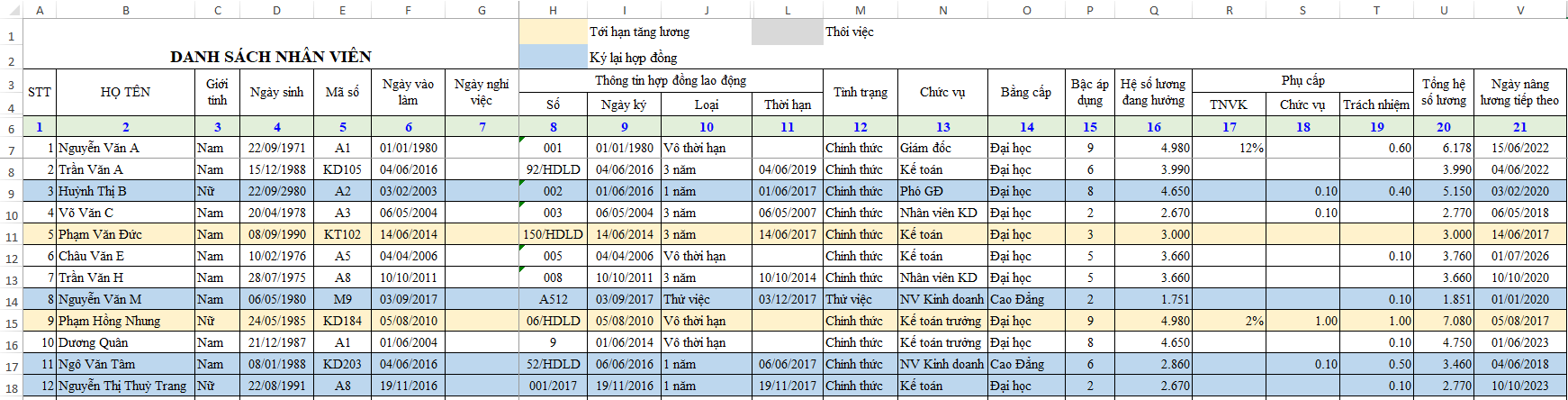 Employee contract details list including full name, birth date, and contract type
By keeping the Contract Table (static data) separate from the Work History Table (transactional data), you maintain a clean relational database structure within Excel.
2. Designing the Report Layout
A high-quality technical report must balance information density with aesthetics. If a report is cluttered or confusing, stakeholders will ignore the insights it provides. The goal is to design a dashboard that is intuitive and print-ready.
We recommend a three-part structure for the Personnel Report:
- General Information: Static details about the employee (Name, DOB, Contract Number) pulled from the Contract Table.
- Report Parameters: The specific time range or criteria for the report.
- Detailed History: A dynamic list of events (promotions, transfers, salary changes) extracted from the Work History Table.
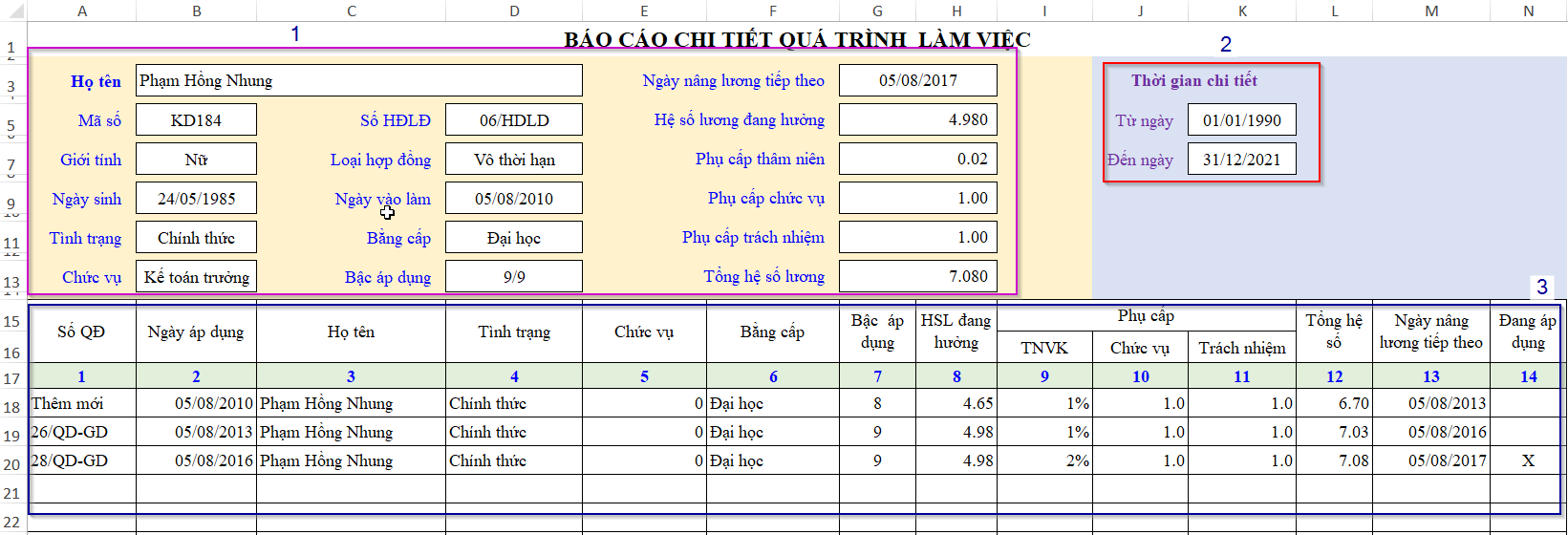 Diagram of personnel report structure divided into three distinct sections
This layout ensures a logical flow of information: Who are we looking at, When are we analyzing, and What happened during that time.
3. Creating a Dynamic Employee Selector
To make the report interactive, we need a mechanism to switch between employees without manually typing names. We will place a dropdown list in cell B3.
Implementing Data Validation
The most efficient way to create this selector is using Excel’s Data Validation feature.
- Select cell B3.
- Navigate to the Data tab on the Ribbon and click Data Validation.
- In the settings tab, under Allow, select List.
- In the Source box, reference the column containing employee names from your Master Employee List.
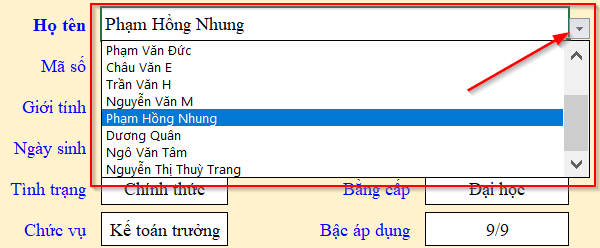 Selecting employee name from dropdown menu in cell B3
Once set up, clicking cell B3 reveals a dropdown menu of all employees. This eliminates spelling errors and ensures that the lookups in subsequent steps always find a valid match.
4. Automating Personal Data Retrieval with VLOOKUP
With the employee name selected in B3, the report needs to automatically populate their personal details (like Contract Number, DOB, Department). We utilize the VLOOKUP function for this vertical search.
For example, to find the Contract Number (HĐLĐ) in cell D5, use the following syntax:
=VLOOKUP($B$3, Bang_DSNV, DSNV!$H$5, 0)Technical Breakdown:
$B$3: The Lookup_value. This is the employee name selected in our dropdown. We lock the cell reference ($) so it doesn’t shift if we copy the formula.Bang_DSNV: The Table_array. This is the named range referring to your Employee List table.DSNV!$H$5: The Col_index_num. Instead of hardcoding a number (e.g., 5), we reference a cell in the source sheet that indicates the column number. This makes the formula dynamic if columns move.0: The Range_lookup. This specifies an “Exact Match,” ensuring we don’t pull data for a similarly named employee.
Error Handling:
To prevent the report from showing ugly #N/A errors when cell B3 is empty, wrap the formula in an IF statement:
=IF($B$3="", "", VLOOKUP($B$3, Bang_DSNV, DSNV!$H$5, 0))This logic checks if B3 is blank; if so, it returns a blank string; otherwise, it executes the lookup.
5. Extracting Work History with Advanced Filter
The most complex part of the report is Section 3: listing the chronological work history. VLOOKUP cannot easily return multiple rows of data for a single person. For this, we use Excel’s Advanced Filter feature.
Step 1: Setting up the Criteria Range
Advanced Filter requires a dedicated “Criteria Range” to define what data to extract. This range must include headers that match your source data exactly.
In this scenario, we are filtering by Employee Name (linked to cell B3) and potentially a Date Range.
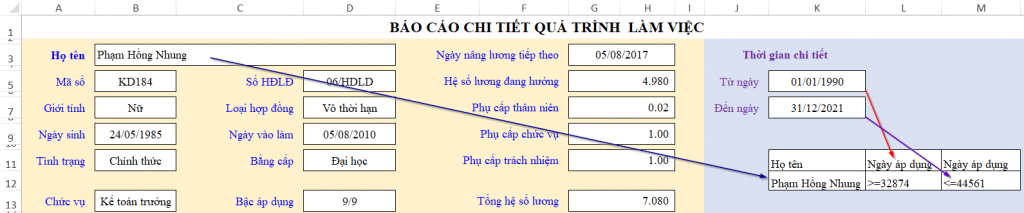 Setup of criteria range for filtering with specific headers
Step 2: Configuring the Filter
To extract the data:
- Go to Data > Advanced.
- Action: Select “Copy to another location”.
- List range: Select your source Work History table.
- Criteria range: Select the helper range you created in Step 1.
- Copy to: Select the header row of the history section in your report.
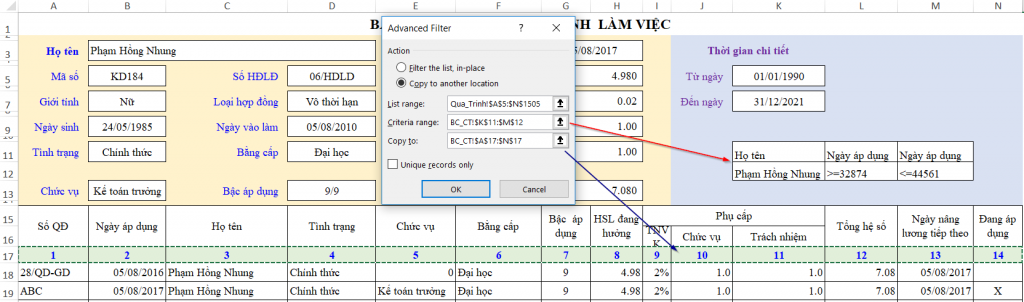 Advanced Filter dialog box settings for extracting data
Pro Tip: While Advanced Filter is powerful, it is not dynamic by default (it doesn’t auto-update when B3 changes). To fully automate this, you would record a simple VBA Macro that triggers the Advanced Filter whenever cell B3 is modified. This bridges the gap between a static spreadsheet and a functional software application.
Conclusion
Creating a detailed personnel report in Excel is less about complex coding and more about logical data organization. By strictly adhering to database principles—avoiding merged cells and separating historical data from static data—you lay the foundation for powerful automation.
The combination of Data Validation for user input, VLOOKUP for static data retrieval, and Advanced Filter for historical records allows you to build a robust dashboard that rivals dedicated HR software. Once mastered, these techniques can be applied to inventory management, sales tracking, and any other data-intensive reporting tasks.
References
- Microsoft Support: VLOOKUP function references and usage.
- Microsoft Support: Filter by using advanced criteria.
- TechCommunity: Best practices for data structuring in Excel.
- ExcelJet: Data Validation guide.












Discussion about this post