


In the world of data analysis and spreadsheet management, there is no function more fundamental or frequently used than the summation of numbers. Whether you are a financial analyst, a student, or simply managing a household budget, knowing how to accurately and efficiently add numbers in Microsoft Excel is a prerequisite for success.
This comprehensive guide by “Thủ Thuật” will take you from the basics of arithmetic to advanced techniques. We will explore the classic SUM function, the powerful AutoSum feature, and specific methods for calculating totals across rows, columns, and dynamic ranges. Furthermore, we will delve into troubleshooting why your formulas might not be working, covering issues from text formatting to circular references.
For quick, on-the-fly calculations, you don’t always need a formula. Simply selecting a range of cells allows you to view their sum, average, and count in the Status Bar located at the bottom right of the Excel window.
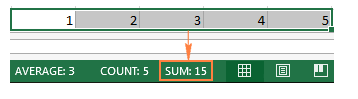 Excel Status Bar showing the sum of selected cells without a formula
However, for permanent records and dynamic reporting, formulas are essential. Let’s dive deep into the mechanics of Excel summation.
The Basics: Simple Arithmetic vs. The SUM Function
For beginners, the most intuitive way to add numbers in Excel mimics a standard handheld calculator. You can perform addition using the plus (+) operator. This method is straightforward for adding a very small number of individual cells.
For example, to add three specific numbers, you might type:
=1+2+3
Or, to add values from specific non-adjacent cells:
=A1+C1+D1
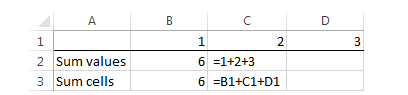 Simple addition formula using the plus sign in the formula bar
While this method works for trivial tasks, it becomes a nightmare when dealing with large datasets. Imagine trying to add a column of 500 rows using +A1+A2+.... It is error-prone and inefficient. This is where the SUM function becomes indispensable, designed specifically to aggregate vast ranges of data effortlessly.
Deep Dive: How to Use the SUM Function
The Excel SUM function is the industry standard for addition. It is versatile, accepting various types of arguments including individual numbers, cell references, and entire ranges.
The Syntax:
=SUM(number1, [number2], ...)
 Animation showing the syntax structure of the Excel SUM function
- number1: (Required) The first item, cell reference, or range you want to add.
- number2: (Optional) Additional items, cell references, or ranges to add. You can specify up to 255 arguments.
Practical Examples of SUM
The beauty of the SUM function lies in its flexibility. You can mix and match arguments based on your data structure.
- Summing a contiguous range:
=SUM(A1:A100)adds everything from A1 to A100. - Summing individual cells:
=SUM(A1, A2, A5)adds only those three specific cells. - Summing mathematical constants:
=SUM(1, 5, -2)results in 4.
You can also combine ranges and individual numbers within a single formula. This is particularly useful when you have scattered data points that need to be aggregated into a single total.
- Combining ranges:
=SUM(A2:A4, A8:A9) - Mixing data types:
=SUM(A2:A6, A9, 10)
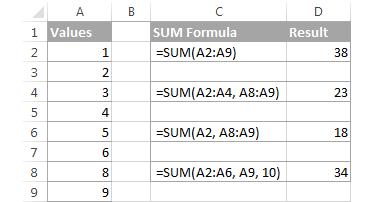 Using the SUM function to add non-adjacent ranges and cells
In professional environments, SUM is rarely used in isolation. It is often nested within logic functions. For instance, you might combine SUM with the IF function to handle data integrity checks—calculating a total only if all required input cells contain data.
=IF(AND($B2<>"", $D2<>""), SUM($B2:$D2), "Value missing")
This formula ensures that you don’t present partial totals based on incomplete records, maintaining the accuracy of your financial or technical reports.
Mastering AutoSum: The Fastest Way to Calculate
For users who prioritize speed, AutoSum is a game-changer. Microsoft Excel’s AutoSum feature detects adjacent numerical data and automatically inserts the SUM function for you, guessing the range you intend to calculate.
To use it, simply click on an empty cell adjacent to your numbers (below a column or to the right of a row), go to the Home tab, look for the Editing group, and click AutoSum. Alternatively, you can use the keyboard shortcut Alt + =.
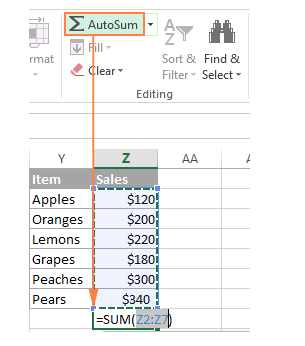 The AutoSum button location on the Home tab ribbon in Excel
When triggered, AutoSum highlights the proposed range with a “marching ants” border. If Excel guesses correctly (which it usually does), press Enter to confirm. If not, simply click and drag your mouse to correct the range before pressing Enter.
Advanced AutoSum Techniques
AutoSum is more than just a one-click wonder. It has several hidden capabilities that can save significant time when setting up a new spreadsheet.
1. Calculating Multiple Columns Simultaneously
You do not need to click AutoSum for every single column. If you have a table with data in columns A, B, and C, you can highlight the empty cells immediately below the data for all three columns.
When you click AutoSum (or press Alt + =), Excel calculates the total for each column individually and places the result in your selected cells.
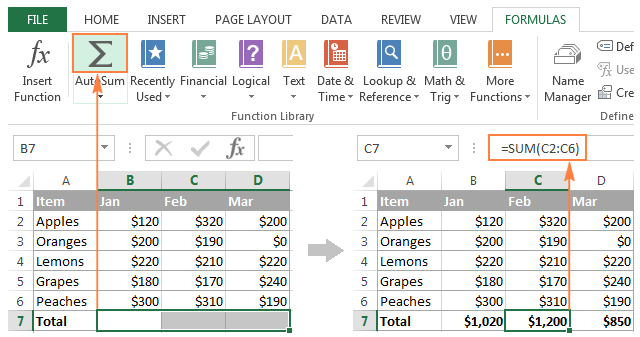 Selecting multiple empty cells to apply AutoSum to three columns at once
2. Summing Vertical Data
This is the standard use case. Select the cell below a column of numbers. AutoSum will look upward to find the continuous block of numbers to add.
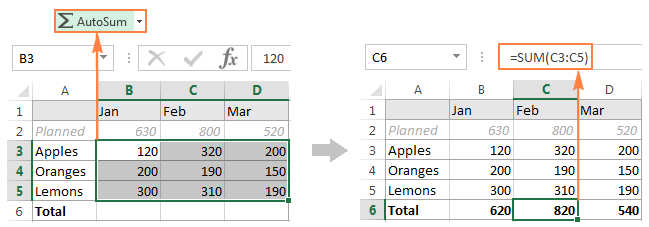 Summing a column of numbers vertically using the AutoSum feature
3. Summing Horizontal Rows
AutoSum is smart enough to detect data direction. If you select a cell to the right of a row of numbers, it will look to the left and propose a horizontal sum.
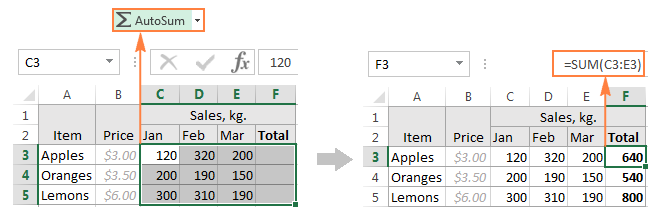 Summing a row of numbers horizontally using AutoSum
4. The “Grand Total” Grid (Rows and Columns)
This is a favorite trick among power users. If you have a block of data and you want totals for both the rows and the columns, select the entire data range plus one extra empty row at the bottom and one extra empty column to the right.
Press AutoSum, and Excel will fill in the bottom row with column totals and the rightmost column with row totals instantly.
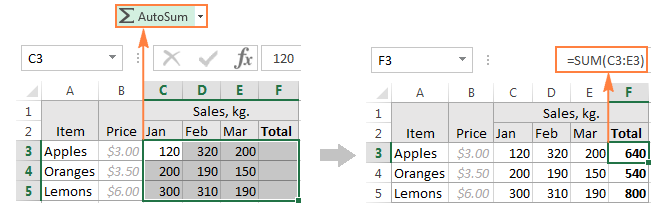 Calculating totals for both rows and columns simultaneously in a grid
5. Replicating AutoSum Formulas
Once an AutoSum formula is created, it behaves like any standard Excel formula. You can use the Fill Handle (the small square at the bottom right of the active cell) to drag and copy the formula to adjacent cells. Excel uses relative references (e.g., A1 becomes B1), so the formula automatically adjusts to calculate the new column or row.
When AutoSum Fails: The Text-Format Trap
A common frustration occurs when AutoSum produces a result of zero or ignores specific cells. This is often because the data is formatted as Text rather than Number. Even if a cell looks like it contains “100”, if Excel treats it as text, AutoSum will ignore it.
You can spot this by looking for a small green triangle in the top-left corner of the cell, or by noticing that the numbers are left-aligned (numbers are usually right-aligned by default).
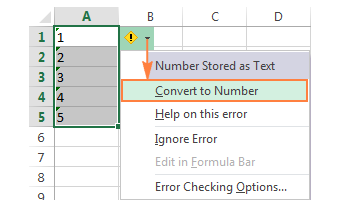 Excel warning indicator for numbers stored as text preventing AutoSum
Calculating Column Totals: Methods and Best Practices
Summing columns is perhaps the most frequent task in Excel. While AutoSum is great, manual formulas offer more precision for fixed reports.
To sum a specific range, such as B2 through B8, the formula is standard:
=SUM(B2:B8)
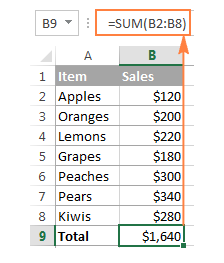 Standard SUM formula calculating a specific column range from B2 to B8
Handling Infinite or Dynamic Data
In dynamic datasets where new rows are constantly added, a fixed range like B2:B8 becomes obsolete quickly. To handle this, you can use a whole column reference.
=SUM(B:B)
Warning: Do not place this formula inside column B itself. Doing so creates a Circular Reference—an infinite loop where the formula tries to include itself in the total, resulting in an error or a zero value. Always place whole-column sums in a different column.
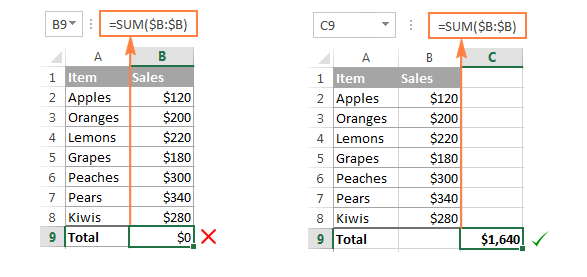 Using an infinite column reference for summation in a different column
Excluding Headers from Whole Column Sums
One downside of =SUM(B:B) is that it includes the header row (B1). If B1 contains text, SUM ignores it. However, if your header is a year (e.g., “2024”) or a numerical code, Excel will add it to your total, corrupting your data.
Since Excel doesn’t support a range like B2:B (unlike Google Sheets), you have to use a workaround. The most efficient method is to sum the whole column and subtract the specific cells you want to exclude.
=SUM(B:B) - SUM(B1:B3)
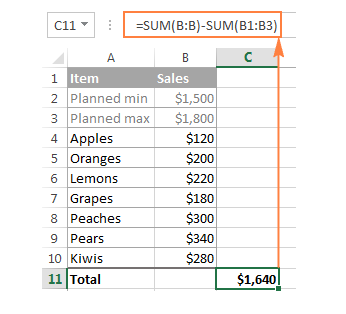 Formula subtracting header cells from a whole column sum calculation
Alternatively, you can specify the limit of Excel’s rows. For modern versions of Excel (2007 and later), the last row is 1,048,576.
=SUM(B2:B1048576)
Calculating Row Totals
Summing data across rows follows the same logic as columns. This is often used for calculating monthly totals for a specific item or aggregating scores for a student.
For a specific range:
=SUM(B2:D2)
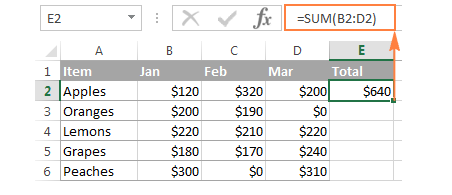 Formula showing how to sum data across a single row
Summing Multiple Rows
If you have a dataset where you need a total for every single row, you only need to write the formula once. Write =SUM(B2:D2) in cell E2, and then drag the fill handle down. Excel will update the row numbers for every subsequent line.
However, if you need to lock specific columns (for example, always summing from column B to column D even if you copy the formula elsewhere), use absolute references for the columns:
=SUM($B2:$D2)
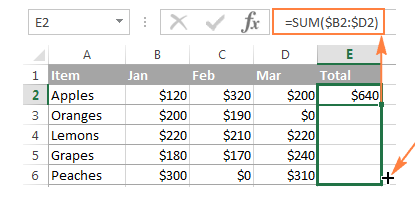 Dragging the SUM formula down to calculate totals for multiple rows
Summing Entire Rows
Just like columns, you can sum an infinite row, such as =SUM(2:2). Again, ensure you place this formula in a different row to avoid circular references. If you need to exclude the first column (labels/IDs), subtract it:
=SUM(2:2) - SUM(A2)
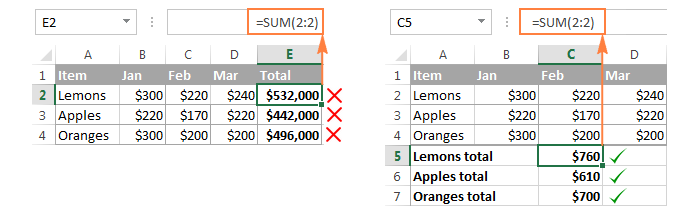 Summing an entire row using an infinite row reference
Excel Tables and the Total Row
For users handling structured data, converting a range into an Excel Table is a best practice. Tables offer dynamic ranges that expand automatically when data is added.
To create a table, select your data and press Ctrl + T.
Enabling the Total Row
Excel Tables have a built-in feature called the Total Row.
- Click anywhere inside your table.
- Go to the Table Design tab on the ribbon.
- Check the box for Total Row.
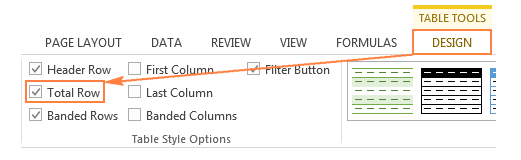 Enabling the Total Row option in the Table Design tab
Alternatively, you can right-click any cell in the table, select Table, and click Totals Row.
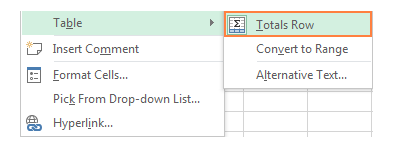 Right-click context menu to add a Total Row to an Excel table
A new row appears at the bottom of the table. By default, it usually sums the last column.
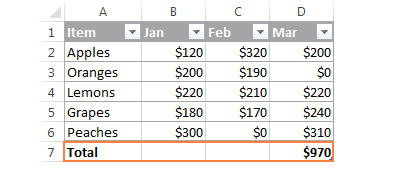 Automatic sum appearing in the newly added Total Row
The magic of the Total Row is its versatility. You can click on any cell in that row, open the dropdown menu, and select a different function, such as Average, Max, Min, or Count.
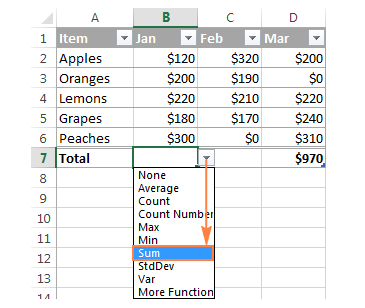 Selecting the SUM function from the Total Row dropdown list
Note: The Total Row actually uses the SUBTOTAL function (specifically function number 109), not the standard SUM. This is important because SUBTOTAL ignores hidden rows, ensuring that if you filter the table, the total updates to reflect only what is visible.
If you prefer a static total that doesn’t change when you filter, you should place a standard SUM formula outside the table.
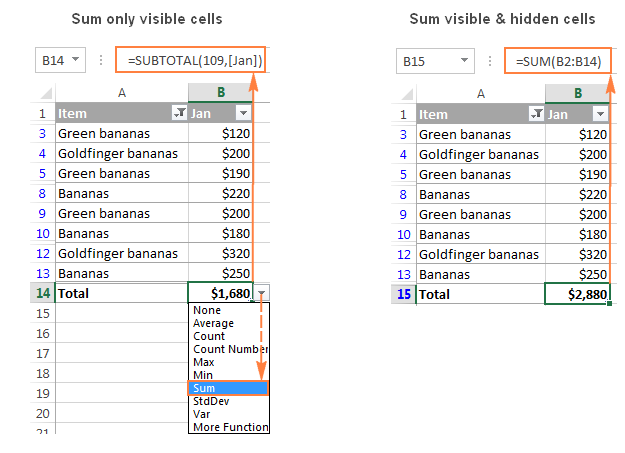 Using a standard SUM formula outside the table structure
Advanced Summation: Visible Cells and Subtotals
When analyzing data, you often need to filter lists to show specific categories. A standard SUM function is “blind” to filters—it adds everything in the range, whether hidden or visible. To sum only what you see, you need the SUBTOTAL function.
Syntax: =SUBTOTAL(function_num, ref1, ...)
The function_num tells Excel what math to perform. For addition (SUM), you have two choices:
- 9: Includes manually hidden rows (Format > Hide), but excludes filtered-out rows.
- 109: Excludes both manually hidden rows and filtered-out rows.
For most modern uses, 109 is the safer choice as it ensures the total matches exactly what is displayed on the screen.
=SUBTOTAL(109, B2:B14)
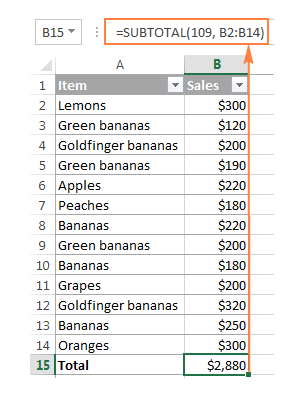 Subtotal function formula 109 used to sum only visible cells
In the example below, filtering for “Banana” updates the Subtotal automatically, whereas a regular SUM would still show the total of all fruits.
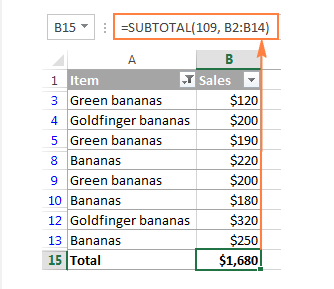 Filtered list showing only the sum of visible Banana items
Pro Tip: If you apply a filter to a standard range and then press the AutoSum button, Excel is smart enough to insert a SUBTOTAL function instead of a SUM function automatically.
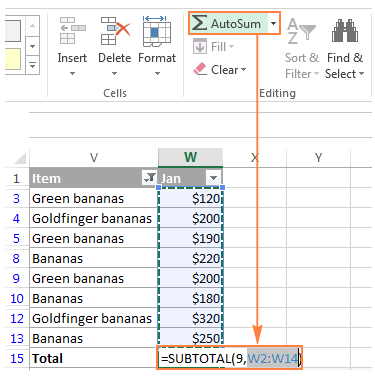 AutoSum automatically inserting a Subtotal formula for filtered data
Creating a Running Total (Cumulative Sum)
A running total shows the summation of a sequence of numbers which is updated each time a new number is added to the sequence. This is vital for tracking bank balances or inventory levels over time.
The trick lies in using Mixed References. You lock the starting cell of the range but leave the ending cell relative.
=SUM($B$2:B2)
- $B$2: This is an absolute reference. It locks the start of the sum at the top of your list.
- B2: This is a relative reference. As you drag the formula down to row 3, it changes to B3, then B4, and so on.
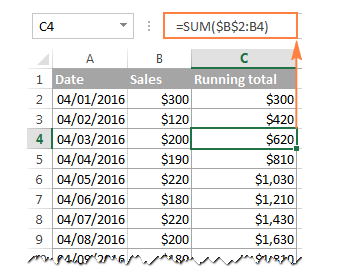 Formula for calculating cumulative running total in Excel
3D Sums: Calculating Across Multiple Sheets
If you manage monthly reports where every sheet (Jan, Feb, Mar) has the exact same layout, you can sum the same cell across all sheets using a 3D Reference.
Instead of typing =Sheet1!A1 + Sheet2!A1 + ..., use this syntax:
=SUM(Jan:Apr!B6)
This formula adds the value in cell B6 for every sheet situated between the “Jan” sheet and the “Apr” sheet inclusive.
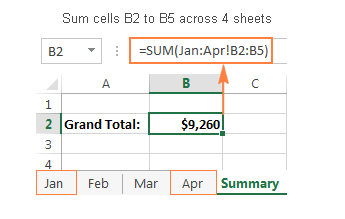 3D reference formula summing the same cell across multiple sheets
Conditional Summation: SUMIF and SUMIFS
Often, you don’t want to sum everything, but only items that meet specific criteria.
SUMIF (Single Condition):
Use this to sum values based on one criteria, such as “Sum sales where Status is Completed.”
=SUMIF(Range_to_check, Criteria, Range_to_sum)
Example: =SUMIF(C:C, "completed", B:B)
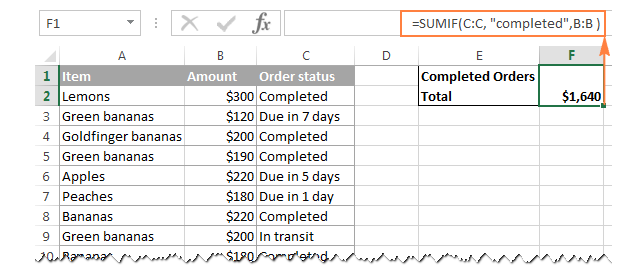 SUMIF formula calculating total based on Completed status
SUMIFS (Multiple Conditions):
Available in Excel 2007 and later, this allows for multiple criteria, such as “Sum sales where Status is Completed AND Amount is > $200.”
=SUMIFS(Range_to_sum, Criteria_range1, Criteria1, ...)
Example: =SUMIFS(B:B, C:C, "completed", B:B, ">200")
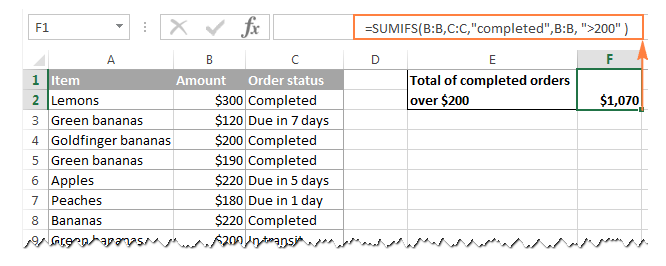 SUMIFS formula with multiple criteria including value greater than 200
Troubleshooting: Why is SUM Not Working?
Even the most experienced Excel users encounter errors. Here are the most common reasons why your SUM function might be failing.
1. The #NAME? Error
This usually indicates a typo. You might have typed =SU(A1:A5) instead of =SUM. Double-check your spelling.
2. Numbers Stored as Text
As mentioned in the AutoSum section, this is the #1 silent killer of Excel formulas. If numbers are imported from other software (like an accounting system), Excel often interprets them as text strings. A SUM formula simply skips text, leading to a result that is too low.
Look for the green triangles.
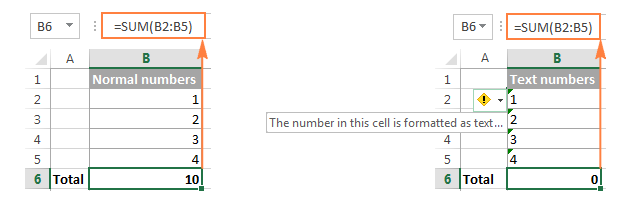 Visual indicator of numbers stored as text in Excel
Fix: Select the cells, click the yellow warning icon that appears, and select Convert to Number.
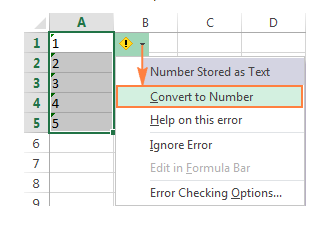 Converting text to numbers using the error checking menu
3. Circular References (Result is 0)
If your SUM formula returns exactly 0 when it should not, you may have included the cell containing the formula inside the range it is trying to sum (e.g., putting =SUM(A1:A10) inside cell A10).
To find these, go to the Formulas tab > Error Checking > Circular References. Excel will point you to the problematic cell.
4. Hidden Rows
If the sum is higher than you expect when visually adding numbers on screen, you likely have hidden rows. Remember, standard SUM includes hidden cells. Switch to SUBTOTAL(109, …) if you want to exclude them.
5. Calculation Set to Manual
If you update your data but the SUM total doesn’t change, your calculation mode might be set to Manual.
Fix: Go to Formulas > Calculation Options and ensure Automatic is selected. You can also press F9 to force a recalculation.
Conclusion
Mastering the SUM function and its variations is the first step toward Excel proficiency. From the basic AutoSum shortcut to handling complex 3D references and conditional logic with SUMIFS, these tools form the foundation of data analysis.
By understanding not just how to sum, but why errors occur and how to handle dynamic data structures like Tables, you elevate your skills from a casual user to a “Thủ Thuật” power user. We encourage you to open a spreadsheet and practice these techniques—specifically the Total Row and Subtotal features—to see how they can streamline your workflow immediately.
References
- Microsoft Support: SUM function
- Microsoft Support: Use AutoSum to sum numbers
- TechCrunch: Excel Tips and Tricks
- ExcelJet: Excel SUMIFS Function Guide













Discussion about this post