


Is your mailbox quota reaching its limit? Is your Outlook performance sluggish due to thousands of old emails? If you are managing a substantial volume of data, it is time to master the art of archiving. Whether you are looking to clean up old emails, tasks, or calendar entries, archiving is the most effective way to keep Outlook running smoothly without permanently losing your data.
This comprehensive guide will walk you through everything you need to know about Outlook archiving. We will cover how to configure global AutoArchive settings, how to apply specific rules to individual folders, how to perform a manual archive for immediate cleanup, and how to locate or restore your archive files if they go missing. These methods are applicable across Outlook 2019, Outlook 2016, Outlook 2013, Outlook 2010, and older versions.
Understanding Outlook Archiving Technology
Before diving into the configuration, it is crucial for tech-savvy users to understand what “Archiving” actually does at a technical level. Outlook Archiving (and AutoArchive) functions by moving older emails, tasks, and calendar items from your primary data file (usually your main .ost or .pst) to a separate storage file, typically named archive.pst.
This process reduces the size of your active mailbox, thereby improving synchronization speed and search performance, while storing the old data locally on your hard drive (or a designated network path).
Key Technical Distinctions:
- Archiving vs. Deleting: Archiving moves items; it does not destroy them (unless explicitly configured to delete expired items).
- Archiving vs. Exporting: Exporting creates a static copy of your data at a specific point in time. Archiving is a dynamic process that removes the item from the source and places it in the destination.
- Archiving vs. Backups: An archive file (
archive.pst) is a live data file. It is not a backup. If your hard drive fails, you lose both your active mail and your archive. You must backup your.pstfiles separately to a cloud service (like OneDrive or Dropbox) or an external drive. - Exchange Accounts: If you are using an Outlook Exchange account within a corporate environment that has an Online Archive enabled by the administrator, the local archiving features described here may be disabled or superseded by server-side retention policies.
 Animation showing the Exchange archive icon restriction
Configuring Outlook AutoArchive
For most users, setting up AutoArchive is the most efficient “set it and forget it” solution. This feature automatically manages your mailbox size by moving items that exceed a certain age to your archive file.
Setting Up AutoArchive in Outlook 2010, 2013, 2016, and 2019
In modern versions of Outlook (2010 and later), AutoArchive is often disabled by default. However, you may occasionally see a prompt from Outlook suggesting you archive old items.
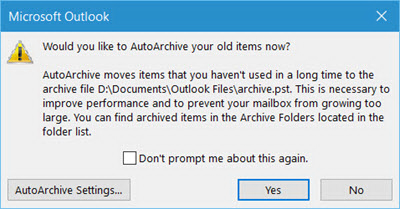 Prompt window asking user to archive old items
You can click “Yes” to run it immediately with default settings, but for a tech enthusiast, it is better to configure these settings precisely.
To access the configuration panel:
- Navigate to File > Options.
- Select the Advanced tab.
- Scroll down to the “AutoArchive” section and click the AutoArchive Settings… button.
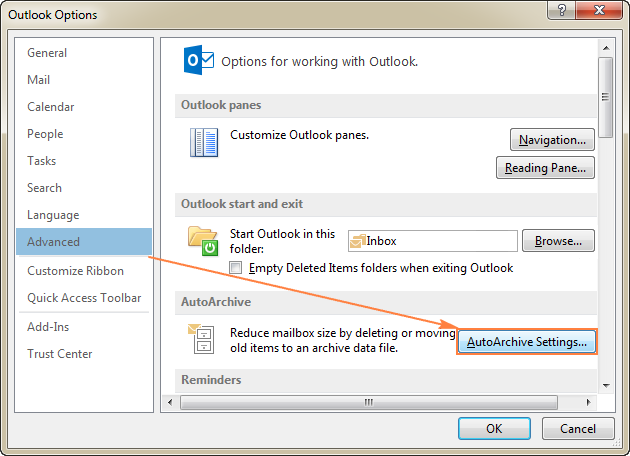 Navigation path to AutoArchive settings in Outlook Options
Deep Dive into AutoArchive Settings
The AutoArchive dialog box provides granular control over how your data is handled. Until you check the box labeled Run AutoArchive every n days, most options will remain grayed out.
Here is a technical breakdown of each parameter to help you optimize your setup:
- Run AutoArchive every [X] days: This determines the frequency of the operation. If you receive hundreds of emails daily, a shorter interval (e.g., 7 days) keeps your mailbox leaner. Note that the archiving process consumes system resources, so avoid setting this to run every single day on slower machines.
- Prompt before AutoArchive runs: Essential for users who want full control. Outlook will ask for permission before starting the process, allowing you to cancel if you are in the middle of a heavy workload.
- Delete expired items (e-mail folders only): This does not mean deleting old emails. It refers to emails that have a specific “Expiration Date” set in their message properties (a rare feature used in corporate environments). It is generally safe to leave this unchecked unless you use expiration tags.
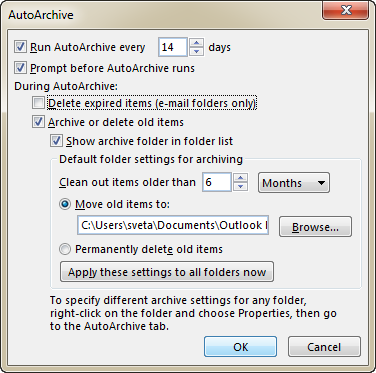 Detailed view of the AutoArchive configuration dialog
- Archive or delete old items: This is the master switch for the settings below.
- Show archive folder in folder list: Highly recommended. This ensures your
Archives(orarchive.pst) folder appears in the left-hand navigation pane, allowing instant access to historical data. - Clean out items older than: This is your retention policy. You can set this from 1 day up to 60 months. Common practice is setting this to 6 or 12 months for general email, keeping your active view focused on the current year.
- Move old items to: This defines the destination path. By default, it saves to a local user directory. You can click Browse to change this to a secondary hard drive partition if your system drive (C:) is running low on space.
- Permanently delete old items: Warning: Selecting this radio button will bypass the archive file and permanently destroy data older than the specified date. Only use this for folders like “Junk Email” or “Deleted Items.”
When the process initiates, Outlook will display the archiving status in the bottom right corner of the window.
 Status bar showing archiving progress
Legacy Configuration (Outlook 2007)
For those still maintaining legacy systems running Outlook 2007, the path is slightly different but the logic remains the same. Go to Tools > Options, select the Other tab, and click AutoArchive.
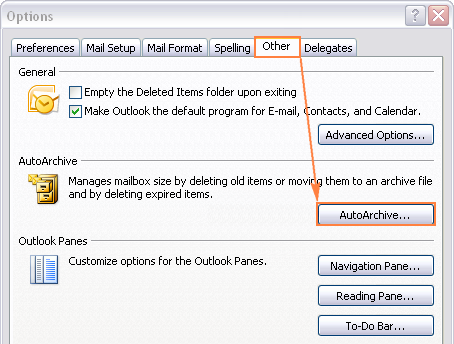 Legacy AutoArchive settings menu in Outlook 2007
Default Retention Policies and Folder Exclusions
Not all folders are treated equally. Outlook applies default retention periods (aging periods) to different item types. Understanding these defaults helps you predict when items will move.
- Inbox, Calendar, Tasks, Notes, Journal: 6 Months
- Sent Items, Deleted Items: 2 Months
- Outbox: 3 Months
- Contacts: Never auto-archived (by default)
How Outlook Calculates Item Age
A common point of confusion for users is why a specific email wasn’t archived. Outlook determines the “age” of an item differently based on its type:
- Email: Based on the Received date OR the Last Modified date (whichever is later). If you reply to, forward, or move an old email today, its “Modified” date resets, and it won’t be archived for another 6 months.
- Calendar: Based on the actual appointment date or the last modification. Recurring events are generally not archived until the entire series is complete or old enough.
- Tasks: Based on the completion date or the last modification. Open tasks are never archived.
excluding Specific Folders from AutoArchive
You may have specific folders—such as a “Reference” or “Ongoing Projects” folder—that contain old emails you need to access daily. You can exempt these from the global AutoArchive rules.
- Right-click the specific folder in your Outlook navigation pane.
- Select Properties.
- Navigate to the AutoArchive tab.
- Select Do not archive items in this folder.
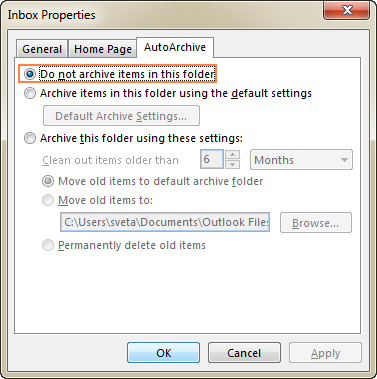 Properties window showing the exclusion option
Alternatively, you can use this same menu to enforce a stricter policy for specific folders (e.g., auto-archiving “Newsletters” every 30 days instead of the global 6 months).
Accessing and Managing Your Archive Data
Once AutoArchive runs, a new folder named Archives (or the name of your .pst file) should appear in your folder list. If it does not appear, or if you accidentally closed it, you need to manually mount the data file.
How to Open an Archive File
- Go to File > Open & Export.
- Click on Open Outlook Data File.
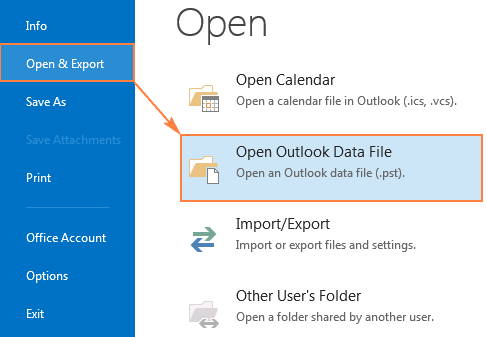 Menu option to open an Outlook Data File
- Navigate to your archive location (usually
DocumentsOutlook Files) and select yourarchive.pstfile.
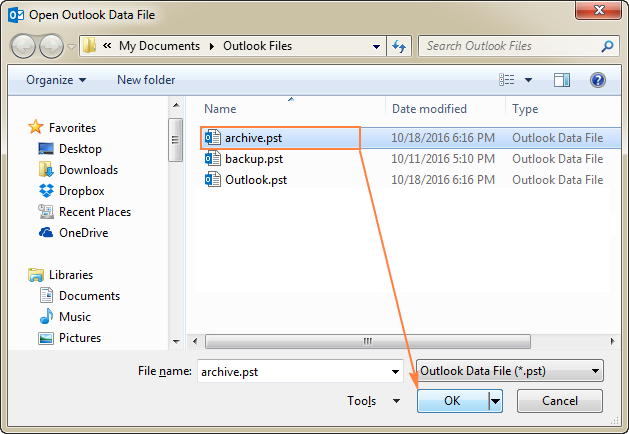 File explorer window selecting the PST file
Once loaded, the folder will appear in your left navigation pane, maintaining the exact folder structure of your original mailbox.
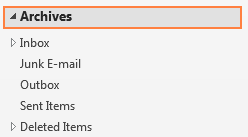 Archive folder visible in the Outlook navigation pane
Searching Within Archives
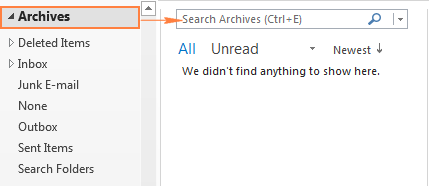
Searching through archives works exactly like searching your current mailbox. Simply click on the Archives folder in the navigation pane and type your query into the Instant Search bar.
 User searching for emails within the archive folder
If you wish to remove the archive from your view (without deleting the file), simply right-click the Archive root folder and select Close Archive.
Manual Archiving: Precision Control
AutoArchive is convenient, but sometimes you need to perform a one-time cleanup or archive a project immediately upon completion. Manual archiving gives you this control without altering your automated schedules.
Steps to Archive Manually:
- Outlook 2016/2019: Go to File > Info > Tools > Clean Up Old Items.
- Outlook 2010/2013: Go to File > Cleanup Tools > Archive.
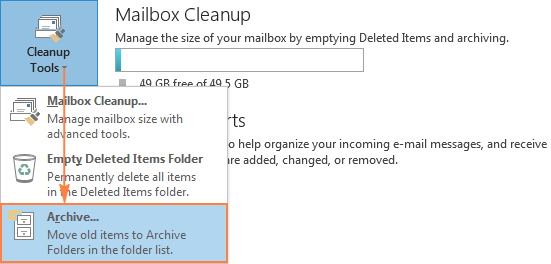 Menu path for manual archiving tools
In the dialog box that appears, you have several options. You can choose to “Archive this folder and all subfolders.” For example, selecting the Calendar folder allows you to offload years of old meeting data.
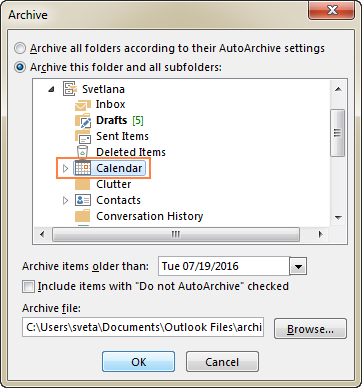 Selecting the Calendar folder for manual archiving
To archive everything (emails, tasks, calendar), select the root folder (usually your email address) at the very top of the list.
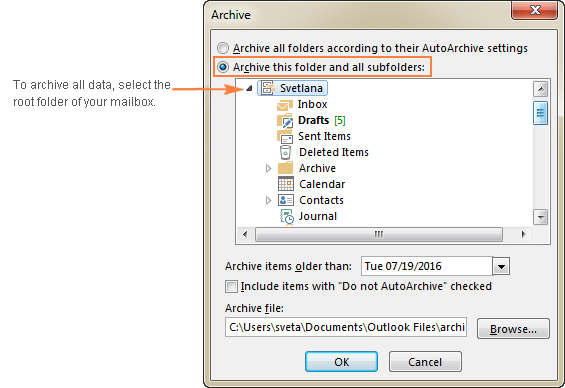 Selecting the root mailbox folder
Set your date in the “Archive items older than” field. Any item older than this date will be moved. This is particularly useful if your mailbox is full and you need to quickly free up space by moving everything older than 2 years to a local file.
Technical Details: File Locations and Management
As a tech administrator or power user, knowing exactly where these files reside is critical for backups and data migration.
Default Archive Locations
The path varies by Windows version, but for modern systems (Windows 10/11) running Outlook 2010 through 2019:
- Path:
C:Users<Username>DocumentsOutlook Filesarchive.pst
For older legacy setups (XP/Outlook 2007), the data might be hidden in AppData:
- Path:
C:Users<Username>AppDataLocalMicrosoftOutlookarchive.pst
Quickly Locating Your File
Instead of memorizing paths, you can find the file location directly through the Outlook interface. Right-click the Archives folder in your list and select Open File Location.
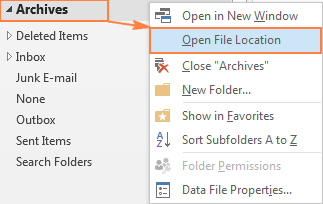 Context menu option to open file location
Alternatively, to see a list of all data files currently attached to your profile:
- Go to File > Account Settings > Account Settings.
- Click the Data Files tab.
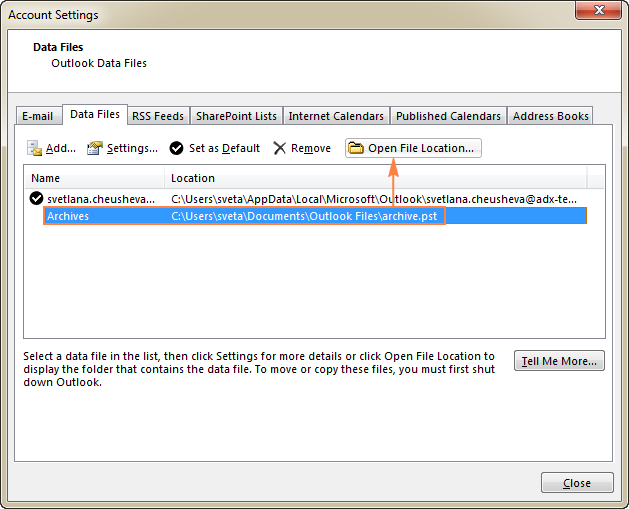 Account settings window showing list of data files
Moving an Archive File
If your C: drive is full, you might want to move your archive to a D: drive or a different partition.
- Close the Archive: Right-click the folder in Outlook and select Close “Archives”.
- Move the File: Cut and paste the
.pstfile from the default location to your new folder using Windows Explorer. - Reconnect: In Outlook, use File > Open & Export > Open Outlook Data File to point to the new location.
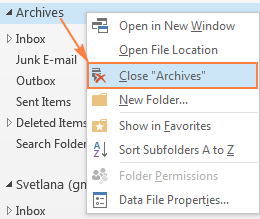 Right-click menu to close the archive folder
Note: Ensure you update your AutoArchive settings to point to this new path, otherwise Outlook may create a new, empty archive file at the old location next time it runs.
Advanced Tips and Troubleshooting
Automating Cleanup of Junk and Deleted Items
You can use the AutoArchive engine not just to save mail, but to aggressively clean trash. By configuring the Deleted Items and Junk E-mail folders separately, you can set them to permanently delete items older than 3-5 days.
- Right-click the Deleted Items folder > Properties > AutoArchive.
- Select Permanently delete old items.
- Set the duration to something short, like 5 days.
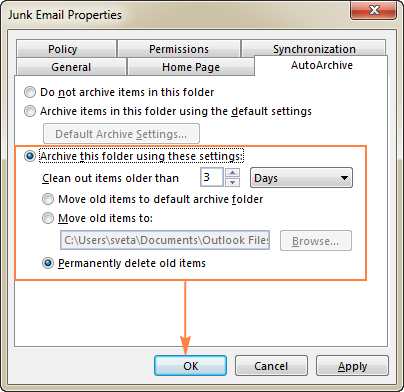 Configuring deletion settings for junk folders
The Registry Hack: Archiving by “Received Date”
As mentioned earlier, Outlook defaults to archiving based on the “Modified Date.” This is annoying when you import old emails and they all get a “new” modified date, preventing them from being archived.
To force Outlook to archive based on the original Received Date, you must modify the Windows Registry.
Warning: Only modify the registry if you are comfortable with system administration. Always backup the registry first.
- Press
Win + R, typeregedit, and hit Enter. - Navigate to:
HKEY_CURRENT_USERSoftwareMicrosoftOffice<Version>OutlookPreferences- (Use
16.0for Outlook 2016/2019/365,15.0for Outlook 2013,14.0for Outlook 2010).
- (Use
- Create a new DWORD (32-bit) Value.
- Name it:
ArchiveIgnoreLastModifiedTime - Set the value to 1.
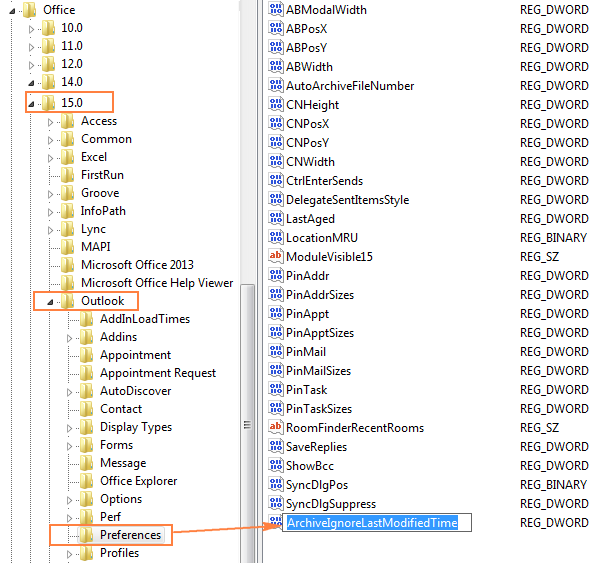 Registry Editor showing the ArchiveIgnoreLastModifiedTime key
After a restart, Outlook will ignore the modification timestamp and archive emails strictly based on when they were received.
Common Issues and Fixes
- Archive Folder Missing: Check if
Show archive folderis ticked in AutoArchive settings. If the file path is broken, use “Open Outlook Data File” to relink it. - File Too Large:
.pstfiles can become unstable if they exceed 50GB. If your archive is approaching this size, create a new archive file (e.g.,archive-2024.pst) in the settings to start fresh. - Corruption: If items are missing or the file won’t open, use the built-in Microsoft tool
scanpst.exe(Inbox Repair Tool) to scan and repair the archive file.
Conclusion
Mastering Outlook’s archiving capabilities is essential for maintaining a healthy, responsive email environment. By configuring AutoArchive effectively, you ensure that your active mailbox remains clutter-free while preserving your important history in a secure local file. Whether you choose the automated route or prefer the granular control of manual archiving, the techniques outlined above will help you manage your digital correspondence like a pro.
Take a moment today to check your mailbox size and configure these settings—your future self will thank you when Outlook opens instantly and searches complete in seconds.
Have you encountered issues with Outlook PST files before? Share your experience or questions in the comments below!
References
- Microsoft Support: Archive items manually
- TechRepublic: Managing Outlook Data Files
- Thủ Thuật: Original Vietnamese Guide












Discussion about this post