


Encountering errors in Excel is an inevitable part of data management, but identifying exactly what went wrong can often be a tedious process. While standard error handling functions like IFERROR are useful for sweeping problems under the rug, they don’t help you understand the nature of the problem. This is where the ERROR.TYPE function becomes an essential tool for advanced spreadsheet users.
The ERROR.TYPE function allows users to identify the specific numeric code associated with a particular error type. Instead of a generic alert, it returns a number (from 1 to 12) corresponding to the specific issue. If the cell contains no error, the function returns the #N/A value. By mastering this function, you can build sophisticated error-trapping mechanisms that react differently depending on whether a formula has a typo, a reference issue, or a calculation problem.
Understanding Error Codes in Excel
The core utility of this function lies in its ability to translate confusing error symbols into manageable numbers. This is particularly useful for debugging complex financial models or data analysis sheets where different errors require different solutions.
Here is the standard mapping table for Excel error values:
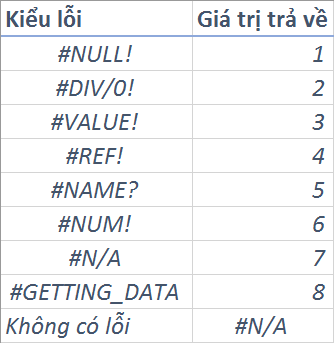 Table displaying the return values of the ERROR.TYPE function for standard Excel errors
Standard Error Codes:
- 1: #NULL! (Intersection of two ranges that do not intersect)
- 2: #DIV/0! (Division by zero)
- 3: #VALUE! (Wrong type of argument or operand)
- 4: #REF! (Invalid cell reference)
- 5: #NAME? (Excel doesn’t recognize text in a formula)
- 6: #NUM! (Invalid numeric values)
- 7: #N/A (Value not available)
- 8: #GETTING_DATA (Temporary error while data is loading)
New Dynamic Array Errors (Excel 365)
With the introduction of modern Excel features and Dynamic Array Ranges, Microsoft has expanded the list of error codes that ERROR.TYPE can identify. These are crucial for users working with functions like FILTER, UNIQUE, or SORT.
 Animation highlighting Excel 101 tips and tricks branding
The updated error codes for modern Excel versions include:
- 9: #SPILL! (A formula returns multiple results but there isn’t enough space to display them).
- 10: #UNKNOWN! (Used for unknown data types).
- 11: #FIELD! (Linked data type error).
- 12: #CALC! (Calculation error, often seen when an array calculation fails).
Syntax and Implementation
Using the function is straightforward. The syntax requires only one argument:
=ERROR.TYPE(error_val)
- error_val: This represents the error you want to test. It can be a direct cell reference (e.g., A1), a formula, or a specific value.
Important Note: If the referenced cell does not contain an error, ERROR.TYPE will return the #N/A error itself. This is normal behavior, as “No Error” is not one of the categorized types.
Practical Examples
1. Categorizing Errors for Reporting
One of the best ways to use ERROR.TYPE is to create a “Translation Table” for your spreadsheet. By referencing the error code, you can display a user-friendly message explaining exactly what went wrong, rather than confusing the end-user with cryptic symbols like #REF! or #NUM!.
In the example below, a lookup formula or a nested IF structure uses the return value of ERROR.TYPE to classify the specific problem occurring in the data set. This allows for targeted fixes—checking inputs for type mismatches versus checking formulas for broken links.
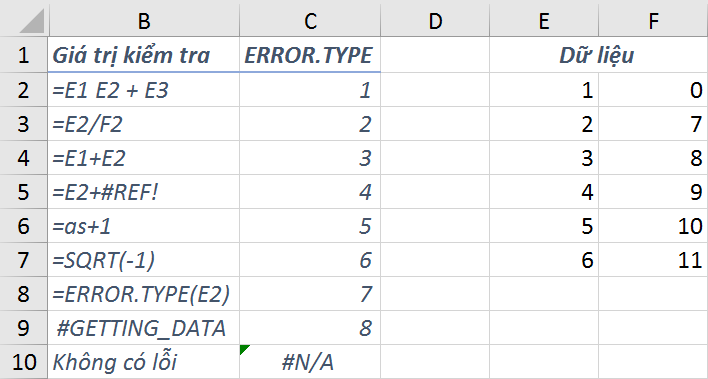 Spreadsheet example showing how to categorize specific Excel errors using ERROR.TYPE
2. Delivering Specific Error Notifications
You can combine ERROR.TYPE with the IF function to “trap” specific errors while ignoring others. This is highly effective when you want to alert a user about a specific mistake, such as dividing by zero, without flagging other potential issues.
Consider a scenario where you want to explicitly tell the user they have committed a “Division by Zero” error. Since the code for #DIV/0! is 2, you can use the following logic:
=IF(ERROR.TYPE(E2/F2)=2, “Error: Division by Zero”, “Normal Calculation”)
Note: In practice, because ERROR.TYPE returns #N/A for valid results, you may need to wrap this in an IFERROR handler for a fully robust solution.
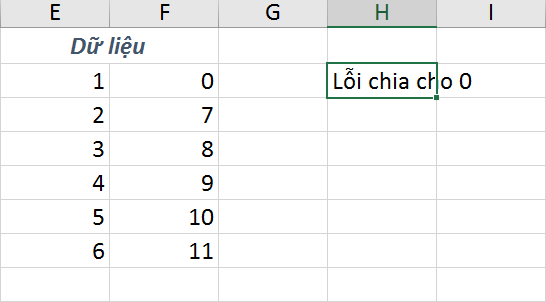 Excel worksheet demonstrating the IF function combined with ERROR.TYPE to detect division errors
Conclusion
The ERROR.TYPE function is a powerful diagnostic tool that goes beyond simple error hiding. By distinguishing between different types of failures—from standard calculation errors to modern Dynamic Array conflicts—it empowers you to build smarter, more resilient spreadsheets.
Whether you are auditing a complex financial report or creating a template for others to use, understanding these error codes ensures you can provide specific guidance on how to fix issues, rather than just knowing that an issue exists.
References
- Microsoft Support: ERROR.TYPE function specifications.
- TechCommunity: Handling Dynamic Array behaviors in Excel 365.
- ExcelJet: Guide to Excel Error Codes.





![[Course Review] Building a Smart Production Management System with Google Sheets, Apps Script, and QR Codes](https://thuthuat.com.vn/wp-content/uploads/2025/04/khoa-hoc-quan-ly-san-xuat.png "[Course Review] Building a Smart Production Management System with Google Sheets, Apps Script, and QR Codes")







Discussion about this post