


In the realm of data visualization, the Pie Chart remains one of the most recognizable and debated formats. While often criticized by data purists for their difficulty in comparing precise values, they are undeniably effective for showing a “part-to-whole” relationship at a glance. When used correctly, a pie chart can instantly communicate proportional data to stakeholders without the need for complex explanations.
This comprehensive guide by Thủ Thuật will walk you through every aspect of creating and mastering pie charts in Microsoft Excel. We will go beyond the basics of simply inserting a chart; we will explore how to customize legends, handle data labels, display percentages, explode slices for emphasis, and even rotate 3D models for the perfect perspective. Whether you are a student or a data analyst, this guide is designed to elevate your spreadsheet skills.
1. Preparing Your Data Source
Before clicking any buttons, the most critical step in creating a functional pie chart is structuring your data correctly. Unlike column or line charts, which can handle multiple data series simultaneously, a standard pie chart is designed to visualize one specific data series.
To ensure your chart is generated without errors, follow these strict data preparation rules:
- Single Series: Arrange your data in one column or one row.
- Non-Zero Values: Ensure all data values are greater than zero.
- Clean Data: Remove any empty rows or columns within the selection range.
- Category Limits: Ideally, limit your data to 7–9 categories. Having too many small slices makes the chart cluttered and unreadable.
If you include a column or row of text labels (Category Names) before your numerical data, Excel will automatically use these as the chart legend or slice titles.
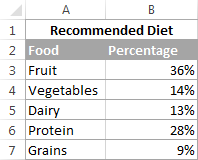 Source data table for creating an Excel pie chart
2. Inserting the Pie Chart
Once your data is structured, inserting the chart is a straightforward process. Excel provides a variety of built-in styles to get you started immediately.
Highlight your data range (including headers), navigate to the Insert tab on the Ribbon, and locate the Charts group. Click the Pie Chart icon to reveal the dropdown menu.
 Animation showing how to insert a pie chart in Excel
For this tutorial, we will select the standard 2-D Pie Chart. This is the most versatile option and serves as the foundation for further customization. Note that if you include headers in your selection, Excel will automatically use the header as the Chart Title.
After insertion, you can instantly change the aesthetic by using the Design tab. Here, you can browse through the Chart Styles gallery to find a look that matches your document’s theme.
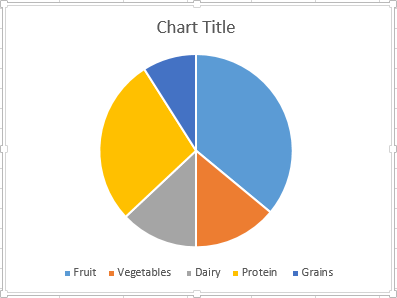 Default 2D pie chart style in Excel
3. Exploring Different Pie Chart Types
Excel offers several variations of the pie chart, each serving a specific analytical purpose. Choosing the right type depends on the complexity of your data.
Standard 2D and 3D Pie Charts
The 2D Pie is the standard for clean, flat design. The 3D Pie Chart adds depth and perspective. While 3D charts can look visually appealing, be cautious as the perspective can sometimes distort the perceived size of the slices, making data harder to compare accurately.
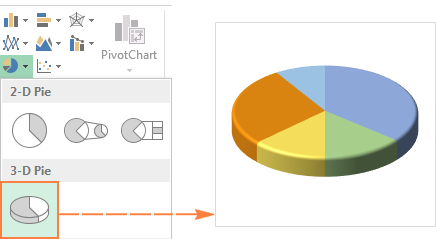 Example of a 3D pie chart in Excel
Handling Small Slices: Pie of Pie and Bar of Pie
A common issue with pie charts is the “clutter” caused by numerous small values that become indistinguishable. Excel solves this with the Pie of Pie and Bar of Pie charts. These specialized charts take the smallest slices from the main pie and magnify them in a secondary chart (either another pie or a stacked bar) next to the main one.
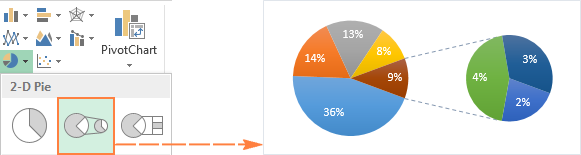 Pie of Pie chart separating small values
By default, Excel moves the last three data points to the secondary chart. However, this automated selection might not always fit your analytical needs. You can customize which slices move to the secondary plot to ensure the categorization makes sense.
Customizing the Split Series:
- Right-click on any slice of the chart and select Format Data Series.
- In the pane that appears, look for the Split Series By dropdown.
- Choose your preferred method:
- Position: Select a specific number of items from the bottom of the list.
- Value: Move all items below a specific numerical threshold.
- Percentage Value: Move all items comprising less than X% of the total.
- Custom: Manually point and click to move slices between the main and secondary plots.
Using the Percentage Value is often the most dynamic method, as it adapts if your data changes.
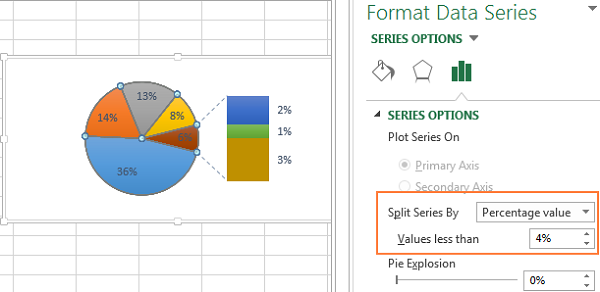 Menu for splitting data series by percentage value
Doughnut Charts
The Doughnut Chart functions similarly to a pie chart but with a hollow center. Crucially, unlike standard pie charts, doughnut charts can technically support more than one data series (concentric rings). However, for clarity, it is often best used with a single series.
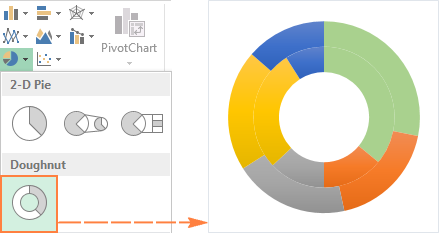 Excel Doughnut chart example
You can adjust the thickness of the ring to change the visual weight of the chart. Right-click the data series, select Format Data Series, and adjust the Doughnut Hole Size slider. A smaller hole makes the segments wider and easier to read.
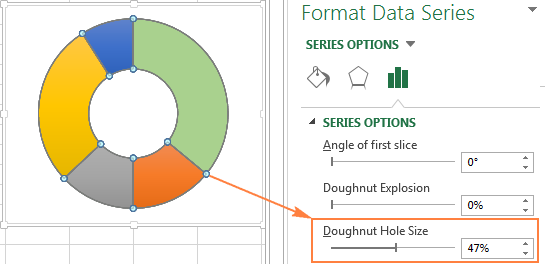 Adjusting the hole size of a doughnut chart
4. Mastering Data Labels
A pie chart without labels is often just a colorful circle. To make your chart informative, you need to add precise labels. Click the Chart Elements icon (the green plus sign) and check the Data Labels box.
Excel is quite flexible regarding label placement. By clicking the arrow next to Data Labels, you can choose positions such as Center, Inside End, Outside End, or Best Fit.
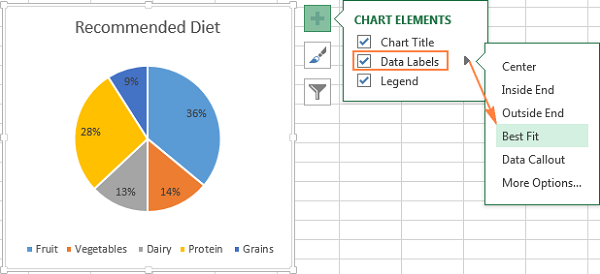 Adding data labels to a pie chart
For a more detailed look, consider using Data Callouts. This option wraps the label in a text bubble and places it outside the chart, which is excellent for highlighting specific data points without cluttering the graphic.
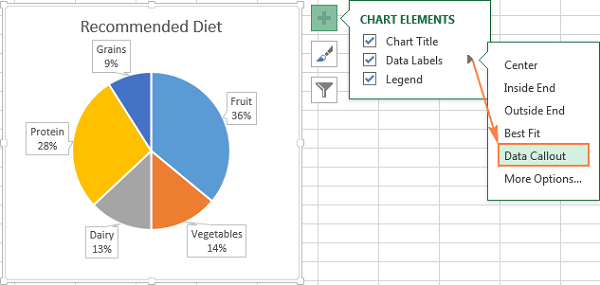 Using data callouts for pie chart labels
Showing Category Names in Labels
Reading a legend requires the viewer’s eye to travel back and forth between the color key and the chart. To improve readability, you can display the Category Name directly on the slices.
Quick Layouts are the fastest way to achieve this. Go to the Design tab > Quick Layout and select Layout 1 or Layout 4.
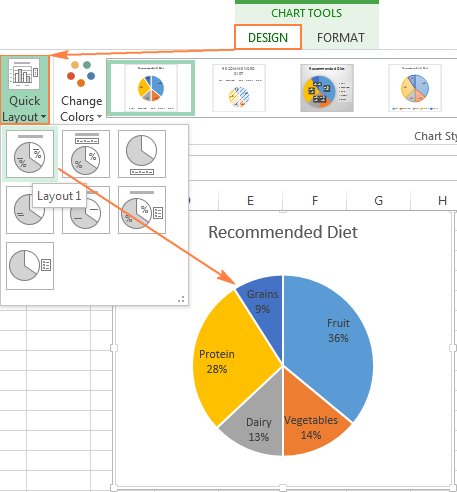 Selecting a quick layout with category names
For granular control, access the Format Data Labels pane. Here you can check multiple boxes under “Label Options,” such as Category Name, Value, and Percentage. You can also define a Separator (e.g., a new line) to keep the text neat.
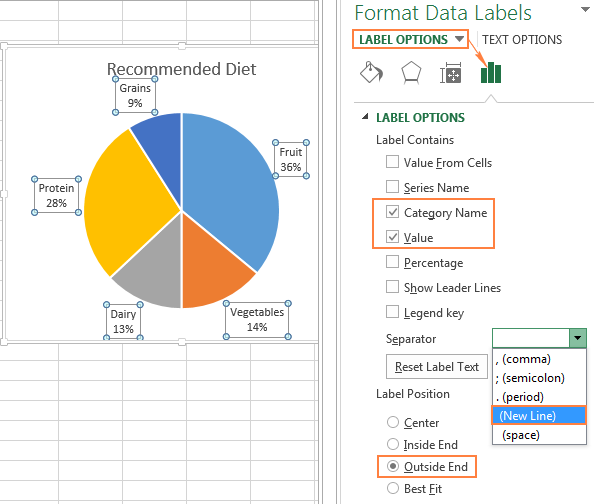 Customizing label content and separators
Pro Tip: Once your direct labels are set up, the Legend becomes redundant. Remove it to reclaim whitespace and make your chart larger.
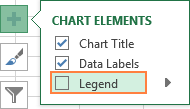 Removing the chart legend via Chart Elements
5. displaying Percentages
One of the main reasons to use a pie chart is to show percentage contributions. If your raw data is already in percentages, Excel displays them as is. However, if your data is in absolute numbers (e.g., revenue in dollars), Excel can automatically calculate and display the percentage share of each slice.
In the Format Data Labels pane, simply check the Percentage box. Excel calculates this based on the sum of all values in the series equaling 100%.
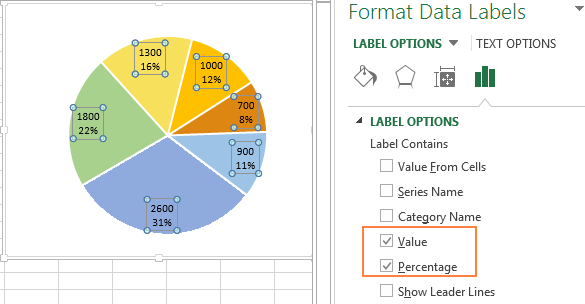 Pie chart showing both value and percentage
6. Exploding the Pie Chart
“Exploding” a pie chart involves separating the slices from the center. This visual technique is powerful for emphasis. You can explode the entire chart or just a single slice to draw attention to a specific category (e.g., highlighting a specific region’s sales).
 Example of an exploded pie chart
Exploding the Entire Chart
To separate all slices, click the pie chart to select the entire series, then click and drag any slice away from the center. Alternatively, use the Pie Explosion slider in the Format Data Series pane.
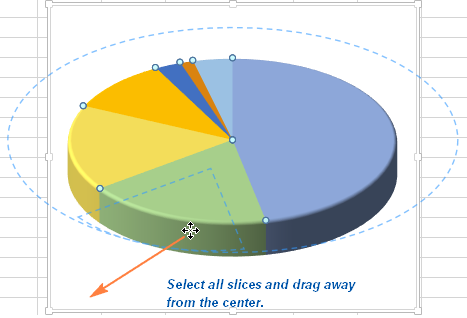 Result of exploding all slices in a pie chart
Precise control is available in the settings pane, where you can enter an exact percentage for the explosion distance.
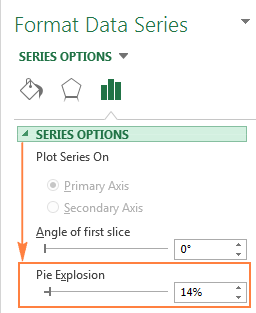 Setting the pie explosion percentage
Exploding a Single Slice
To highlight a single data point, click the pie once to select the series, then click the specific slice again to select only that piece. Drag it outwards with your mouse. This “hero slice” technique is very effective for presentations.
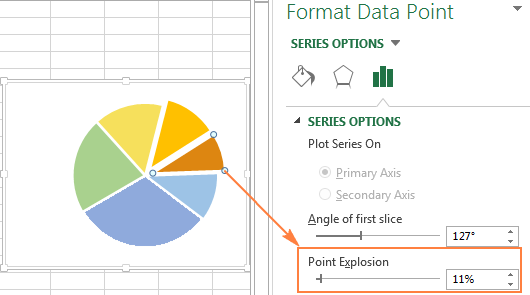 Pulling out a single slice for emphasis
7. Rotating the Chart for Better Angles
The order of slices in a pie chart is determined by the order of your data in the spreadsheet. Sometimes, the most important slice appears at the bottom or side, where it has less visual impact. You can rotate the chart to position your key slice (usually the largest one) at the top or right side (the 12 o’clock or 3 o’clock position).
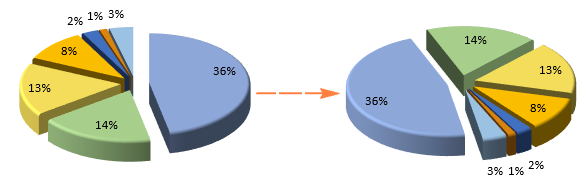 Rotating a pie chart to change the angle
To do this, open the Format Data Series pane and adjust the Angle of first slice slider. This rotates the entire chart clockwise.
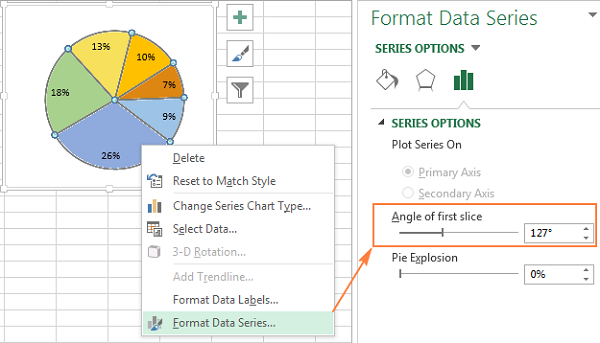 Adjusting the angle of the first slice
3D Rotation
For 3D Pie Charts, you have additional axes of control. You can rotate the chart around the X-axis (to tilt it up or down) and the Y-axis (to spin it). Note that Excel does not support Z-axis rotation for charts.
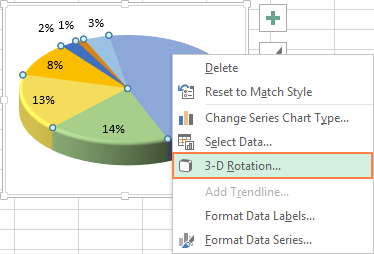 3D rotation settings panel
Adjusting the Perspective setting can also change the apparent depth of the chart, making it look more dramatic or more flattened.
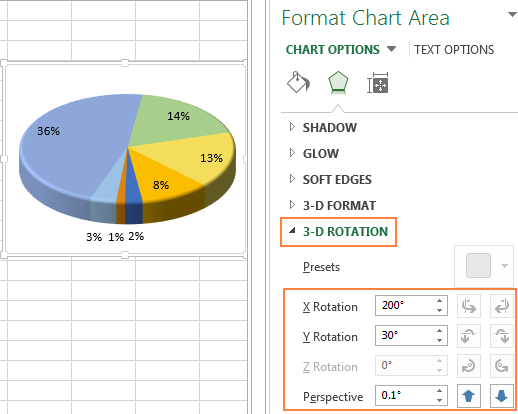 Visual result of 3D rotation
8. Sorting Data for Logical Layout
A professional pie chart is usually sorted by size, typically with the largest slice starting at 12 o’clock and proceeding clockwise. Since Excel plots data in the order it appears in the sheet, you should sort your source data.
If you cannot rearrange your source table, a PivotTable is the best workaround:
- Select your data and insert a PivotTable.
- Place Category names in Rows and Values in the Values field.
- Click the filter arrow next to “Row Labels” and choose More Sort Options.
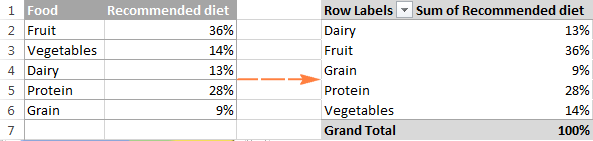 Sorting options in PivotTable
- Select to sort by the Value field (e.g., “Sum of Sales”) in Descending or Ascending order.
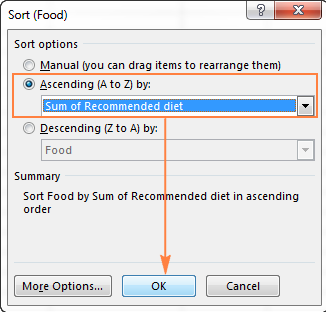 Selecting value-based sorting
- Create your pie chart from this sorted PivotTable. When your data updates, simply refresh the PivotTable, and the chart will maintain its sorted order.
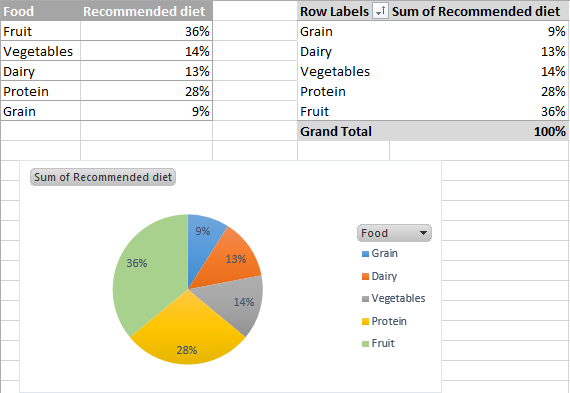 Final PivotTable ready for charting
9. Customizing Colors and Styles
The default Excel color schemes are functional but often generic. To align with your company branding or presentation theme, you can customize colors extensively.
Click the Chart Styles icon (paintbrush) next to the chart to access the Color tab. Here you can choose from pre-set monochromatic or colorful palettes.
 Chart Styles icon menu
Alternatively, use the Change Colors button on the Design ribbon tab.
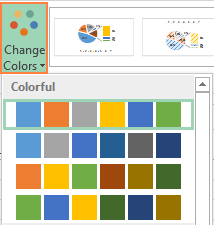 Change Colors menu on the ribbon
Manual Coloring:
For specific emphasis, you can color slices individually. Select a single slice (double-click method), go to the Format tab, and use Shape Fill. This allows you to set a specific RGB value or standard color for that specific data point.
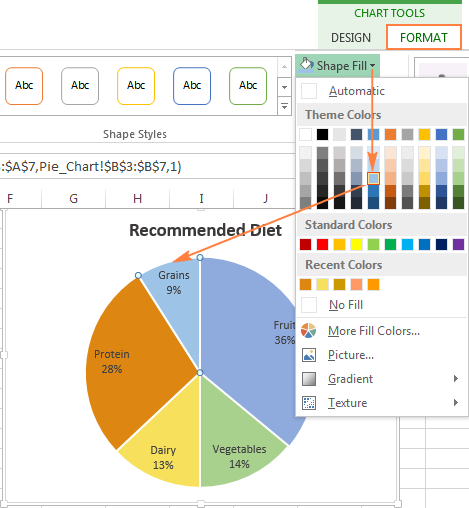 Changing the color of a specific slice
Design Tip: If you have many small, less important slices, consider coloring them all in varying shades of gray, while using a bright, contrasting color for your main data point. This guides the viewer’s eye immediately to the insight you want to share.
10. Advanced Formatting Effects
To give your chart a polished, high-end look, explore the Effects tab (pentagon icon) in the Format Data Series pane. You can add:
- Shadows: To give the chart a “floating” appearance.
- Glow: To highlight the edges of the pie.
- Soft Edges: For a more subtle, integrated look.
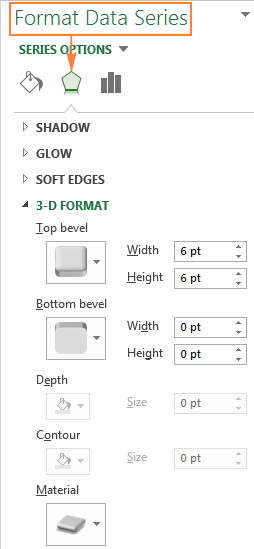 Effects tab in Format Data Series
Remember that less is often more. Overusing 3D bevels and heavy shadows can distract from the data. Use formatting to enhance readability, not just for decoration.
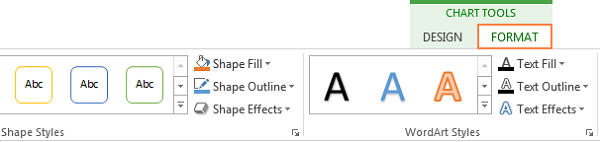 General formatting options for chart area
Conclusion
Mastering the Excel pie chart is about more than just selecting data and clicking “Insert.” It involves understanding how to present data clearly using sorting, labels, and strategic formatting. By utilizing features like Point Explosion, 3D Rotation, and PivotTable sorting, you can transform a basic graphic into a compelling data story.
While pie charts have their limitations, applying the techniques outlined in this guide ensures that your charts are not only visually professional but also analytically sound. Whether you are presenting financial reports or academic data, these skills will help you communicate your insights effectively.
We encourage you to experiment with these settings in your next spreadsheet. If you found this guide helpful, please share it with your colleagues and check out our other deep dives into Excel data visualization.
References
- Microsoft Support: Present data in a pie chart
- Excel Easy: Pie Charts in Excel
- HubSpot: How to Make a Pie Chart in Excel












Discussion about this post