

In the realm of business intelligence and data visualization, effectively manipulating text strings is a critical skill. Within Power BI, the CONCATENATEX function stands out as a versatile tool in the Data Analysis Expressions (DAX) library. While standard concatenation combines specific cells, CONCATENATEX allows you to iterate over an entire table to join text strings from a column into a single, cohesive text string.
This function is particularly useful when you need to create dynamic summaries, comma-separated lists for tooltips, or combine values from multiple rows into a single cell for reporting purposes. Understanding how to control delimiters and sort orders within this function enables developers to present data in a much more readable and logical format.
Understanding the CONCATENATEX Syntax
The CONCATENATEX function belongs to the “iterator” category of DAX functions. It evaluates an expression for each row of a table and then joins the resulting values.
The syntax is structured as follows:
CONCATENATEX(<table>, <expression>, [delimiter], [orderBy_expression], [order])
Parameter Breakdown
- Table: The table containing the rows to be iterated over. You can also use a DAX expression that returns a table.
- Expression: The expression to be evaluated for each row. This is usually a reference to a specific column containing the text you want to join.
- Delimiter (Optional): A text string used to separate the concatenated values (e.g., “, ” or ” – “). If omitted, values are joined without separation.
- OrderBy_Expression (Optional): The column or expression used to determine the sort order of the joined text. Defaults to the
<expression>if not specified. - Order (Optional): Sorts the values in Ascending (ASC) or Descending (DESC) order. The default is ASC (A to Z).
Practical Example: Combining Product Data
To fully grasp the power of this function, let’s look at a practical scenario. Imagine you have a dataset named Products that lists various items alongside their specific attributes, such as color. Your goal is to create a summary string that lists all products and their colors in a specific format.
Below is the initial data structure we will be working with:
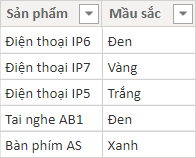 Table data in Power BI showing Product and Color columns for DAX demonstration
The Objective
We want to generate a single text string that combines the “Product” and “Color” for every row, separated by a hyphen and ordered alphabetically. The desired format for each item is Product Name Color Name, and these items should be separated by " - ".
Constructing the DAX Formula
To achieve this, we can write a measure or a calculated column using CONCATENATEX. In this specific example, we also nest the standard CONCATENATE function to merge the product name and color within the row before the iterator joins them all together.
The Formula:
Product Summary =
CONCATENATEX(
    Products,
    CONCATENATE(
        Products[Product],
        CONCATENATE(" ", Products[Color])
    ),
    " - ",
    Products[Product],
    ASC
)
Formula Explanation:
- Products: This tells Power BI to iterate through the ‘Products’ table.
- CONCATENATE(…): For every row, this section runs first. It joins the
[Product]name with a space" ", and then joins that result with the[Color]. - ” – “: This is the delimiter that will be placed between the results of the different rows.
- Products[Product]: This argument dictates that the final string should be sorted based on the Product name.
- ASC: Ensures the sorting is alphabetical from A to Z.
Analyzing the Result
Once the formula is applied, Power BI processes the table row by row, builds the individual strings, sorts them, and finally concatenates them into one long text string.
This capability is essential for creating “Card” visualizations that summarize selections or for building complex tooltips that show all underlying data points for a specific category without taking up table space.
 DAX formula result showing concatenated text string with hyphen delimiters
As seen in the result above, the function successfully iterated through the list, combined the attributes, and presented them as a single, formatted text entry.
Why Choose CONCATENATEX Over CONCATENATE?
It is important not to confuse CONCATENATE with CONCATENATEX.
- CONCATENATE is a scalar function that simply joins two specific text strings (or columns in a row context). It is limited to two arguments.
- CONCATENATEX is an iterator function. It can handle dynamic tables, filter contexts, and join an indefinite number of row values into one result.
If you are building reports where you need to show a list of selected filters (e.g., “Selected Cities: Hanoi, Da Nang, Ho Chi Minh City”) or summarize distinct values, CONCATENATEX is the mandatory choice.
Further Learning and Resources
Mastering text functions is just the beginning of DAX proficiency. For those looking to deepen their understanding of Power BI, exploring related functions such as EXACT (to compare two text strings) or UNICODE (to identify character codes) can be very beneficial. Comprehensive courses often cover these nuances in detail to help you build robust data models.
 Hoc Excel Online logo white text on transparent background
Conclusion
The CONCATENATEX function is a robust tool in the Power BI arsenal, bridging the gap between raw data rows and readable text summaries. By understanding its parameters—specifically the delimiter and ordering options—you can transform how users interact with text data in your reports. Whether for debugging, creating dynamic titles, or summarizing detailed data, this function provides the flexibility needed for high-level reporting.
References
- Microsoft. (n.d.). CONCATENATEX function (DAX). Microsoft Learn.
- Ferrari, A., & Russo, M. (2019). The Definitive Guide to DAX. Microsoft Press.
- Power BI Community. (2023). String manipulation best practices.













Discussion about this post