

In the world of data analytics and business intelligence, ensuring data quality is paramount. When building reports in Power BI, you often need to verify that your data types are consistent to prevent calculation errors. This is where Information Functions in DAX (Data Analysis Expressions) come into play.
In this article, Thủ Thuật explores the ISNONTEXT function, a straightforward yet essential tool for data validation. Whether you are debugging a dataset or creating dynamic logic based on data types, understanding how ISNONTEXT works is a valuable skill for any Power BI developer.
Understanding the ISNONTEXT Function
The ISNONTEXT function is used to check the data type of a specific value or column. Its primary role is to determine if a value is not text.
- If the value is not text (e.g., a number, a date, or a blank), the function returns TRUE.
- If the value is text (including valid strings or empty strings), the function returns FALSE.
Essentially, it answers the question: “Is this value something other than text?”
Syntax
The syntax for the function is simple and follows standard DAX patterns:
ISNONTEXT( )
Parameters
- : This is the value or column reference you want to test. It can be a static value, a measure, or a calculated column reference.
Return Values and Logic
The function returns a Boolean value (TRUE or FALSE). To use this function effectively, it is crucial to understand exactly how Power BI interprets different data states:
- Returns TRUE: When the
<value>is a number, a date, a time, or a blank cell (null). - Returns FALSE: When the
<value>is a text string or an empty text string ("").
The Distinction Between Blanks and Empty Strings
A common point of confusion in DAX is the difference between a BLANK() and an empty string.
- Blank Cells: These are treated as non-text data (absence of data). ISNONTEXT returns TRUE.
- Empty Strings: An empty string (often resulting from a formula like
IF(Condition, "Value", "")) is technically a text string with zero characters. Consequently, ISNONTEXT returns FALSE.
Practical Examples
To visualize how this function operates in a real-world Power BI report, let’s look at two distinct scenarios using a sample dataset.
Case 1: Verifying Text Columns
Suppose you have a column named NAME. You expect this column to contain names (text). You want to create a check to see if any non-text data has slipped in.
When you apply the function ISNONTEXT( 'Table'[Name] ) to a standard text column, the result will consistently be FALSE. This confirms that the data is indeed text. Even if a cell looks empty but contains a text string format, the function identifies it as text.
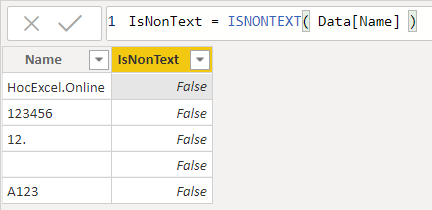 Power BI table showing the ISNONTEXT function applied to a Name column returning False
In the example above, because every entry in the ‘Name’ column is a text string, the validation column returns False.
Case 2: Identifying Non-Text Data (Numbers and Blanks)
Now, let’s look at a column containing numerical data, such as AMOUNT. This column contains currency values, integers, and potentially blank cells where data is missing.
If you apply ISNONTEXT( 'Table'[Amount] ), Power BI analyzes the content. Since numbers are not text, and blank cells are treated as non-text, the function will return TRUE.
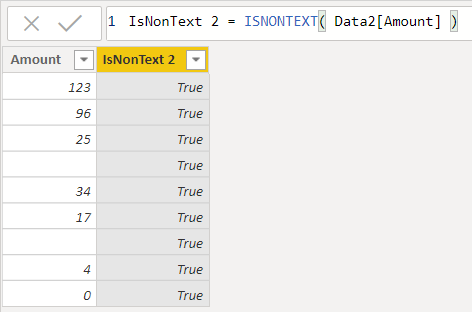 Power BI table demonstrating ISNONTEXT returning True for numeric and blank values
As shown in this second scenario, the function correctly identifies that the values in the ‘Amount’ column are not text, returning True for every row, including the blank entries.
When to Use ISNONTEXT
While simple, this function is powerful in error handling and conditional formatting:
- Data Cleaning: Filter out rows that have incorrect data types before performing aggregations.
- Error Prevention: Use inside an
IFstatement to prevent math operations on text strings, which would cause the visual to crash (e.g.,IF( ISNONTEXT([Column]), [Column] * 2, 0 )). - Auditing: Quickly audit large datasets to ensure a column imported from Excel or SQL matches the expected data type.
Conclusion
The ISNONTEXT function is a reliable utility in the Power BI DAX library. By distinguishing effectively between text and non-text types—and handling the nuances of blank cells versus empty strings—it helps developers maintain cleaner, more robust data models.
Whether you are a beginner or an experienced analyst, incorporating these validation checks ensures your reports remain accurate and trustworthy.
References
To further enhance your mastery of DAX information functions, consider exploring these related functions:
- ISBLANK: Checks specifically for blank (null) values.
- ISERROR: Checks if an expression returns an error.
- ISNUMBER: Checks if a value is a number (the functional opposite of ISNONTEXT regarding numbers).
- ISTEXT: The direct opposite of ISNONTEXT; checks if a value is text.
For more in-depth Power BI tutorials and technical tips, stay tuned to Thủ Thuật.













Discussion about this post