


In the modern corporate landscape, the efficient management of official documents, contracts, and administrative records is the backbone of organizational stability. For many Small and Medium Enterprises (SMEs) or specific administrative departments, investing in expensive Enterprise Resource Planning (ERP) software is not always feasible. This is where Microsoft Excel shines as a powerful, flexible, and cost-effective tool.
Managing official dispatches (công văn) and contracts effectively helps optimize workflows, saves significant retrieval time, minimizes legal risks associated with lost documents, and ensures strict compliance with internal regulations. This guide will demonstrate how to build a professional document management system using Excel, transforming a chaotic pile of paperwork into a streamlined digital database.
1. Understanding Document Classification and Workflows
Before diving into spreadsheets, it is crucial to understand the nature of the documents you are managing. A robust system must categorize data logically to facilitate easy filtering and reporting later.
Generally, administrative documents in an organization are divided into three primary categories:
- Incoming Dispatches (Công văn đến): Documents received from external agencies, partners, or government bodies.
- Outgoing Dispatches (Công văn đi): Documents drafted and sent by your organization to external parties.
- Internal Documents: Memorandums, decisions, and policies circulated within the organization.
The lifecycle of these documents follows a specific process that your Excel sheet must reflect:
- Creation/Reception: Determining the source, content, and urgency.
- Processing: Circulation for approval, signing, and stamping.
- Distribution & Storage: Sending to the recipient and archiving the physical/digital copy.
2. Designing the Management Logic on Excel
2.1. Mapping the Process Flow
To create an effective Excel tracker, you must first visualize the journey of a document. A clear flowchart helps identify which data points need to be recorded (e.g., “Date Received,” “Current Handler,” “Deadline”). This schematic approach acts as the blueprint for your Excel columns.
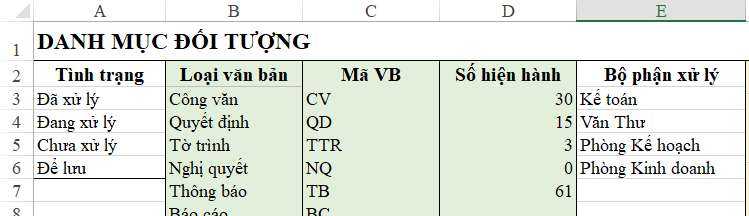 Diagram illustrating the flow of document management from reception to storage
By visualizing the process as shown above, you can determine necessary checkpoints. For instance, if a document requires approval from the Board of Directors, your Excel sheet needs a “Status” column to track this specific stage.
2.2. Establishing the Stakeholder Database (Object List)
One of the most common mistakes in Excel management is manual data entry for repeating names, leading to inconsistencies (e.g., typing “TechCorp” vs. “Tech Corp”). To prevent this, you should build a “Lists” or “Settings” sheet.
This sheet should contain:
- Internal Departments: HR, Accounting, IT, Sales.
- External Partners: List of frequent vendors, clients, and government agencies.
- Document Types: Contract, Decision, Announcement, Proposal.
This “Master Data” approach ensures that when you enter a new document, you are selecting from a standardized list rather than typing manually.
3. Building the Master Tracking Register
Once the planning is complete, the next step is constructing the actual tracking sheets. It is recommended to separate Incoming, Outgoing, and Contracts into different tabs within the same workbook, as they require slightly different data fields.
However, the core structure usually includes:
- ID/Code: Unique identifier (e.g., IC-2023-001).
- Date: Date of document/Date received.
- Abstract: A brief summary of the content.
- Department/Person in Charge: Who is holding the ball?
- Status: Pending, Approved, Sent, Archived.
- Link: Hyperlink to the scanned PDF file on the server.
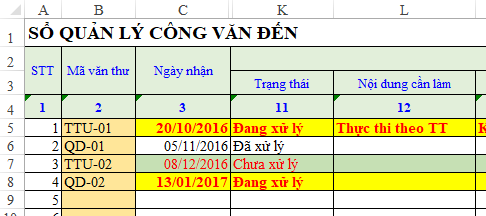
 Screenshot of a sample Excel template for managing outgoing official documents
The template above illustrates a clean layout where every document has a dedicated row. Note the use of clear headers and freeze panes to keep track of data as the list grows.
4. Advanced Excel Features for Automation and Control
To elevate your spreadsheet from a simple list to a “smart” system, you must utilize Excel’s advanced data tools.
4.1. Data Validation for Integrity
Data Validation is essential for maintaining a clean database. It restricts what users can enter into a cell, forcing them to choose from the “Master Data” lists you created earlier.
- How to apply: Go to Data tab > Data Validation > List. Select the source range from your “Lists” sheet.
- Benefit: Prevents typos and ensures that when you filter by “Accounting Dept,” you get all results, not missing those labeled “Acc Dept” or “Accting”.
 User interface showing the Data Validation settings in Excel
4.2. Visual Management with Conditional Formatting
For an administrator, knowing which contracts are about to expire or which dispatches are overdue is critical. Use Conditional Formatting to highlight these rows automatically.
- Example: Highlight the “Deadline” cell in red if the date is today or in the past and the status is not “Completed.”
4.3. Automating Document Codes (ID Generation)
Manually typing document codes (like CV-001, CV-002) is prone to duplication. You can use formulas to automate this.
The Formula Combination: VLOOKUP, COUNTIF, and TEXT.
- Scenario: You want to generate a code like “2024-IN-001” automatically.
- Logic: Use
COUNTIFto count how many documents of a specific type exist, add 1, and then format it. - Formula Example:
="2024-IN-" & TEXT(COUNTIF($B$2:B2, "Incoming")+1, "000")
This ensures that every new entry gets a unique, sequential identifier without manual intervention.
5. Conclusion
Managing official documents and contracts on Excel is a highly effective solution for organizations looking to balance cost and efficiency. By structuring your data correctly, utilizing Data Validation to ensure integrity, and applying formulas for automation, you can create a system that rivals paid software in terms of utility.
The key to success lies not just in the setup, but in the discipline of usage. Ensure regular backups of your Excel file (preferably to a cloud solution like OneDrive or Google Drive) to prevent data loss. We encourage you to start building your template today to experience a more organized and professional workflow.
6. References
- Microsoft Support: Create a drop-down list – support.microsoft.com
- Harvard Business Review: The efficiency of digital document management systems.
- TechRepublic: Best practices for Excel database management.











Discussion about this post