


Bạn thường xuyên làm việc với dữ liệu trải dài trên nhiều sheet trong cùng một file Excel? Việc chuyển đổi qua lại giữa các sheet bằng cách click chuột vào tab sheet có thể tốn thời gian và kém hiệu quả, đặc biệt khi số lượng sheet lớn. Bài viết này sẽ hướng dẫn bạn cách tạo liên kết giữa các sheet trong Excel một cách tự động và nhanh chóng bằng hàm HYPERLINK, giúp bạn tối ưu hóa quy trình làm việc và tiết kiệm thời gian quý báu.
Trong ví dụ này, chúng ta sẽ giả định một công ty đang theo dõi dữ liệu bán hàng của 10 khách hàng. Mỗi khách hàng có một sheet riêng biệt trong cùng một workbook, và các sheet này đều có cấu trúc dữ liệu giống nhau. Việc chuyển đổi giữa các sheet để xem dữ liệu của từng khách hàng có thể trở nên phức tạp nếu thao tác thủ công. Hàm HYPERLINK sẽ giúp chúng ta giải quyết vấn đề này.
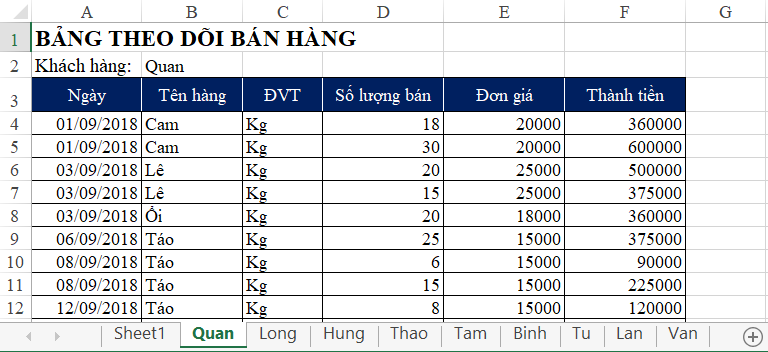 Dữ liệu khách hàng trên các sheet khác nhau
Bước 1: Tạo Danh Sách Tên Sheet
Trước tiên, chúng ta cần tạo một danh sách chứa tên của tất cả các sheet trong workbook. Bạn có thể tham khảo bài viết về “Hàm lấy tên Worksheet đang làm việc” để biết cách thực hiện. Kết quả sẽ như hình minh họa bên dưới (vùng A1:B11):
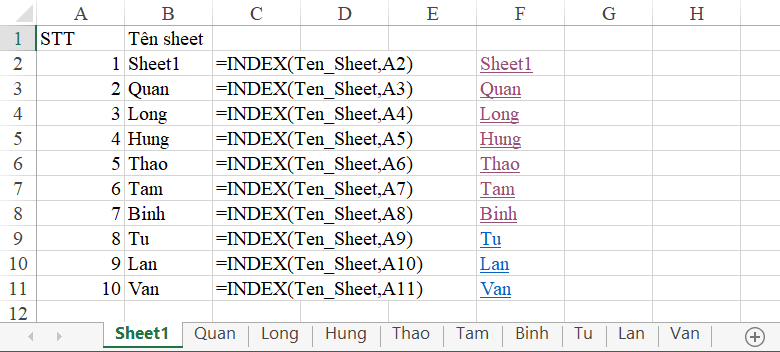 Danh sách tên sheet


Lưu ý: Việc lấy tên sheet là bước quan trọng vì chúng ta sẽ sử dụng tên sheet trong hàm HYPERLINK.
Bước 2: Tạo Liên Kết với Hàm HYPERLINK
Cú pháp của hàm HYPERLINK như sau:
=HYPERLINK(link_location, [friendly_name])Trong đó:
link_location: Địa chỉ cần liên kết tới.friendly_name: Tên hiển thị của liên kết (tùy chọn). Đây là tên mà người dùng sẽ nhìn thấy và click vào.
Để liên kết tới một ô cụ thể trong sheet khác, chúng ta sử dụng cấu trúc sau cho link_location:
'Tên Sheet'!Tọa độ ôVí dụ: Để liên kết tới ô A1 của sheet “Khách hàng 1”, link_location sẽ là 'Khách hàng 1'!A1.
Vì chúng ta đã có danh sách tên sheet ở cột B, nên có thể kết hợp với hàm HYPERLINK như sau:
=HYPERLINK("#'&B2&"'!A1",B2)Trong công thức này:
"#'&B2&"'!A1": Đây làlink_location. Chúng ta sử dụng dấu&để nối các chuỗi lại với nhau.B2sẽ được thay thế bằng tên sheet tương ứng trong cột B. Dấu nháy đơn'được sử dụng để bao quanh tên sheet, phòng trường hợp tên sheet có chứa dấu cách.B2: Đây làfriendly_name. Trong trường hợp này, chúng ta sử dụng chính tên sheet làm tên hiển thị cho liên kết.
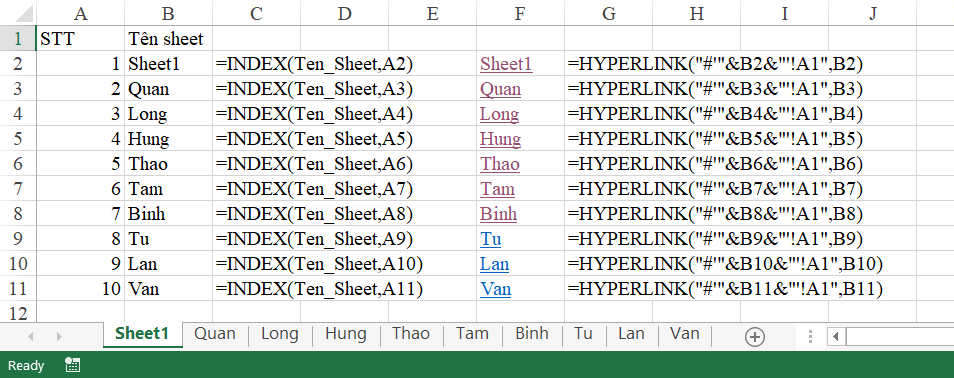 Ví dụ hàm HYPERLINK
Áp dụng công thức này cho tất cả các sheet trong danh sách, bạn sẽ có một bảng chứa các liên kết tới từng sheet. Chỉ cần click vào liên kết, bạn sẽ được chuyển đến sheet tương ứng.
Kết Luận
Hàm HYPERLINK là một công cụ mạnh mẽ giúp bạn điều hướng giữa các sheet trong Excel một cách hiệu quả. Bằng cách kết hợp với việc lấy tên sheet tự động, bạn có thể tạo ra một hệ thống liên kết linh hoạt và tiết kiệm thời gian, đặc biệt hữu ích khi làm việc với nhiều sheet dữ liệu. Phương pháp này giúp tối ưu hóa quy trình làm việc và nâng cao năng suất trong Excel.












Discussion about this post