In the realm of digital documentation and professional correspondence, protecting the integrity of your content is just as crucial as the content itself. Whether you are drafting a confidential business proposal, a legal contract, or simply want to brand your creative work, a watermark is an essential tool.
A watermark is a faint design—typically text or an image—that appears behind the primary text of your document. While often overlooked, mastering this feature in Microsoft Word can significantly elevate the professionalism of your documents. It serves dual purposes: security (deterring unauthorized copying) and branding (reinforcing corporate identity). This guide will walk you through the precise steps to create, customize, and manage watermarks effectively.
Understanding the Utility of Watermarks
Before diving into the technical execution, it is important for tech-savvy users to understand the specific applications of this feature. In a professional environment, watermarks are generally categorized into three types:
- Status Indicators: Markings like “DRAFT,” “URGENT,” or “SAMPLE” inform the reader about the document’s stage in the lifecycle.
- Security Measures: “CONFIDENTIAL” or “DO NOT COPY” warnings help in maintaining information security compliance.
- Branding: Placing a company logo or slogan faintly in the background ensures brand recall without obstructing readability.
Step-by-Step Guide to Inserting Watermarks
Microsoft Word has streamlined the process of adding watermarks, placing it intuitively within the design ribbon. Follow these steps to access and apply these background elements.
Step 1: Accessing the Design Interface
To begin, open the document you wish to edit. Navigate to the main ribbon at the top of the window. Click on the Design tab. In the “Page Background” group located on the far right, you will see the Watermark option.
User clicking on the Watermark option within the Design tab in Microsoft Word
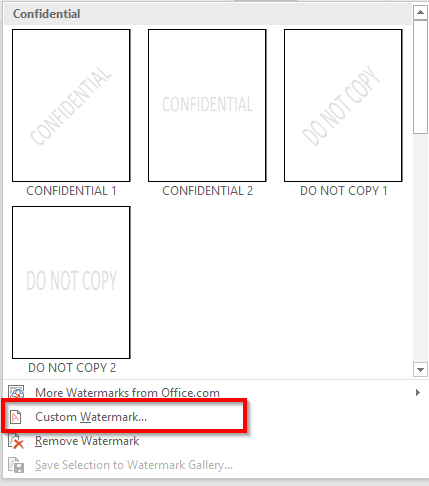
Clicking this button reveals a drop-down menu containing a gallery of pre-designed watermarks. These cover common needs such as disclaimers and urgency notices.
Step 2: Selecting a Preset or Customizing
For many users, the default options provided by Microsoft are sufficient. You will see diagonal and horizontal versions of “Confidential” and “Do Not Copy.” Simply clicking one of these will immediately apply it to every page of your document.
However, for a tailored experience—such as adding your specific company name—you will want to bypass the presets. Click on Custom Watermark… at the bottom of the drop-down menu to open the detailed configuration dialog.
The dropdown menu showing various watermark presets and the Custom Watermark option
Advanced Customization: Text Watermarks
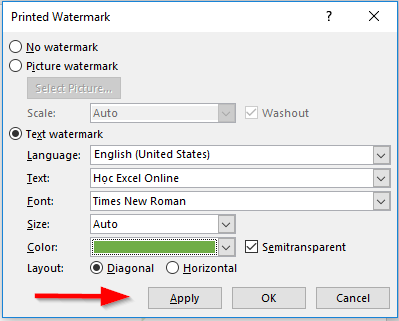
The “Printed Watermark” dialog box gives you granular control over the appearance of your background element. If you wish to use text, select the Text watermark radio button. This activates several fields for modification:
- Language: Ensure this matches your document’s language for spell-checking consistency.
- Text: You can select a standard phrase from the list or type your own custom text (e.g., “Thủ Thuật Internal”).
- Font & Size: Professional documents often use serif fonts like Times New Roman, but sans-serif fonts like Arial or Calibri are better for modern readability. Leaving the size on “Auto” allows Word to scale the text to fit the page margins automatically.
The Printed Watermark dialog box showing settings for text configuration
- Color & Transparency: By default, Word uses a light gray. You can change this to match your brand colors. The Semitransparent checkbox is crucial; keeping it checked ensures the watermark does not overpower the main text.
- Layout: Choose between Diagonal (dynamic, spans the page) or Horizontal (static).
Once you have configured these settings, the result will be a professional background text that claims ownership without hindering the reading experience.
A sample document displaying a custom text watermark in the background
Advanced Customization: Picture Watermarks
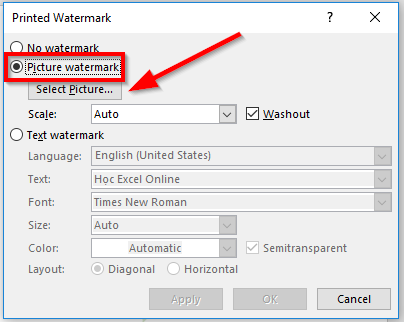
For branding purposes, a logo is often more effective than text. To insert an image, select the Picture watermark radio button in the same dialog box.
- Click Select Picture… to browse your local files or OneDrive storage for your logo file.
- Scale: “Auto” is usually the safest bet, but you can manually set percentages (e.g., 50%, 200%) if you need the logo to cover a specific area.
- Washout: This is the most critical setting for images. Checking Washout fades the image significantly, ensuring that black text typed over the image remains legible. If you uncheck this, the image appears in full color, which may make the document difficult to read.
The file selection interface for choosing an image to use as a watermark
Finalizing and Saving
After you have adjusted your settings—whether text or image—it is good practice to click Apply first rather than OK. This applies the watermark to the document while keeping the dialog box open, allowing you to preview the look. If the text is too dark or the image is too small, you can adjust it immediately.
The Apply button highlighted in the Printed Watermark dialog box
Once satisfied, click Close. Remember that the watermark is part of the header/footer layer. If you need to edit its position manually, you can double-click the header area of your page, click the watermark image/text, and drag or resize it like any other object.
Conclusion
Mastering the watermark feature in Word is a simple yet powerful skill for any technology enthusiast or office professional. It adds a layer of sophistication and security to your digital paperwork, ensuring your intellectual property is respected and your brand is recognized. Whether you are using a subtle “Draft” notice or a bold company logo, these tools allow you to communicate the status and ownership of your documents effectively.
We encourage you to experiment with different fonts and transparency levels to find the style that best suits your needs.
References
- Microsoft Support. (2024). Insert a watermark in Word. Microsoft.com.
- TechRepublic. (2023). How to manage document backgrounds in Microsoft Office.
- Thủ Thuật. (2025). Word Tips and Tricks Archive.


Discussion about this post