Thủ Thuật
  • TOP Thủ Thuật
    • Thủ Thuật Internet
    • Thủ Thuật Máy Tính
    • Thủ Thuật Tiện Ích
    • Thủ Thuật Phần Mềm
  • Chia Sẻ Kiến Thức
    • Học Excel
    • Học Word
    • Học Power Point
  • Games
  • Kênh Công Nghệ
  • Facebook
  • WordPress
  • SEO
No Result
View All Result
Thủ Thuật
  • TOP Thủ Thuật
    • Thủ Thuật Internet
    • Thủ Thuật Máy Tính
    • Thủ Thuật Tiện Ích
    • Thủ Thuật Phần Mềm
  • Chia Sẻ Kiến Thức
    • Học Excel
    • Học Word
    • Học Power Point
  • Games
  • Kênh Công Nghệ
  • Facebook
  • WordPress
  • SEO
No Result
View All Result
Thủ Thuật
No Result
View All Result
Home Chia Sẻ Kiến Thức Học Excel

How to Customize Excel Charts: A Comprehensive Guide to Professional Data Visualization

How to Customize Excel Charts: A Comprehensive Guide to Professional Data Visualization
6k
SHARES
19.5k
VIEWS
Share on Facebook

Nội Dung Bài Viết

Toggle
  • Three Primary Methods to Customize Charts
  • Mastering Chart Titles
    • Adding and Positioning Titles
    • Dynamic Titles: Linking to Cells
    • Removing or Moving Titles
    • Formatting Typography
  • Optimizing Chart Axes
    • Adding Axis Titles
    • adjusting Axis Scales
  • Enhancing Data Visibility with Labels and Legends
    • Data Labels
    • Legend Customization
  • Conclusion
  • References

Microsoft Excel is undeniably a powerhouse for data analysis, but raw numbers often fail to tell a compelling story. This is where charts come in. However, a default chart generated by Excel rarely fits presentation standards immediately. To truly communicate your insights, you must master the art of chart customization. Whether you are preparing a financial report or a technical dashboard, the ability to tweak titles, axes, legends, and data labels is a critical skill for any tech-savvy professional.

In modern versions of Excel (from 2013 through 2019 and Office 365), Microsoft has significantly streamlined the customization process. While the default settings are a good starting point, “Thủ Thuật” recommends diving deeper into the settings to create visualizations that are not only accurate but also aesthetically professional. This guide will walk you through the essential techniques to transform your Excel charts from basic to brilliant.

Three Primary Methods to Customize Charts

Before diving into specific elements, it is essential to understand how to access Excel’s customization tools. There are three main workflows to edit your charts, allowing you to choose the one that fits your working style best:

  1. The Ribbon Interface: When you select a chart, the Chart Tools context menu appears on the Ribbon, featuring the Design and Format tabs. This is ideal for broad changes like chart styles or layouts.
  2. Context Menus: Right-clicking on any specific element within the chart (such as a bar, line, or axis) opens a menu with immediate options relevant to that object.
  3. On-Chart Shortcuts: In modern Excel versions, clicking a chart reveals three floating buttons at the top-right corner. The “Plus” icon (+) is particularly useful for quickly adding or removing chart elements.

For advanced users, the Format Chart Pane is the control center. You can access this docked pane on the right side of your screen by selecting “More options…” from any menu or simply by double-clicking a chart element. This pane offers granular control over every aspect of the visual design.

Mastering Chart Titles

A clear, descriptive title is the first thing a viewer looks for. By default, Excel may insert a generic “Chart Title” placeholder, or none at all. Customizing this is the first step in contextualizing your data.

Xem thêm:  Tự Tạo Công Cụ Theo Dõi Danh Mục Đầu Tư Tiền Điện Tử Bằng Excel và Power Query

Adding and Positioning Titles

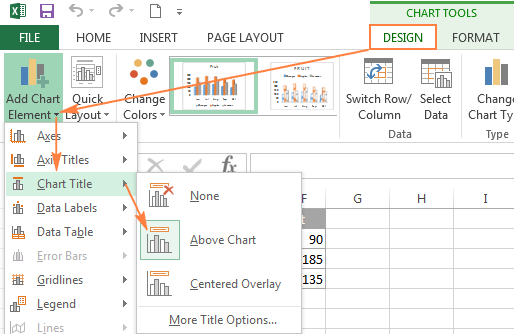
In Excel 2013 and later, if your chart lacks a title, select the chart and click the Chart Elements button (the green plus sign). Check the Chart Title box. You can hover over the arrow next to it to choose between “Above Chart” (which resizes the plot area) or “Centered Overlay” (which floats over the data).

For those still using older versions like Excel 2010, this is found under the Layout tab on the Ribbon.

User selecting the Chart Elements button to add a title option in ExcelUser selecting the Chart Elements button to add a title option in Excel

Dynamic Titles: Linking to Cells

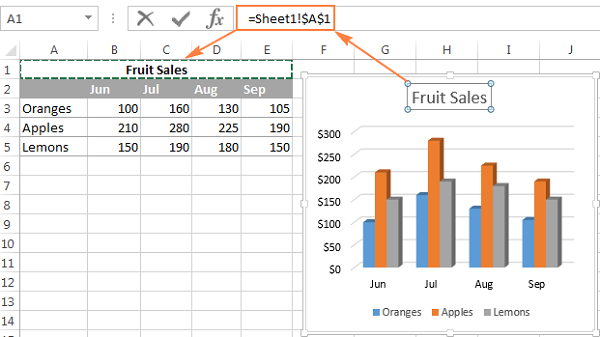
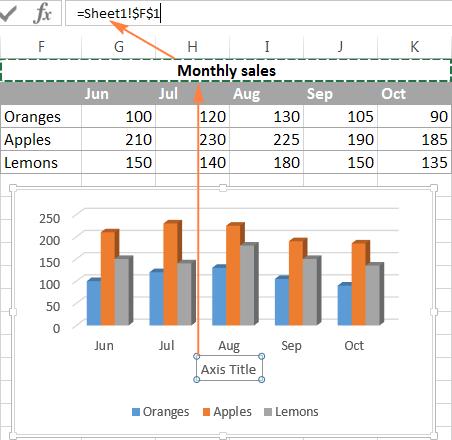
One of the most powerful “pro tips” in Excel is creating a dynamic chart title. Instead of typing static text, you can link the title to a specific cell on your worksheet. When the data in that cell changes, your chart title updates automatically—perfect for dashboards.

To do this:

  1. Click the chart title label once to select it.
  2. Type an equal sign (=) in the Formula Bar (not directly in the text box).
  3. Click the cell containing your desired text.
  4. Press Enter.

Screen showing the formula bar being used to link a chart title to a cellScreen showing the formula bar being used to link a chart title to a cell

Removing or Moving Titles

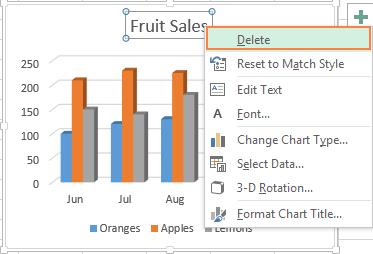
If you need to declutter your chart, removing the title is simple. You can uncheck it in the Chart Elements menu, or simply right-click the title box and select Delete. Positioning can also be adjusted manually by dragging the title box to any location within the chart area, though standard positions are usually best for readability.

Context menu showing the delete option for a selected chart titleContext menu showing the delete option for a selected chart title

Formatting Typography

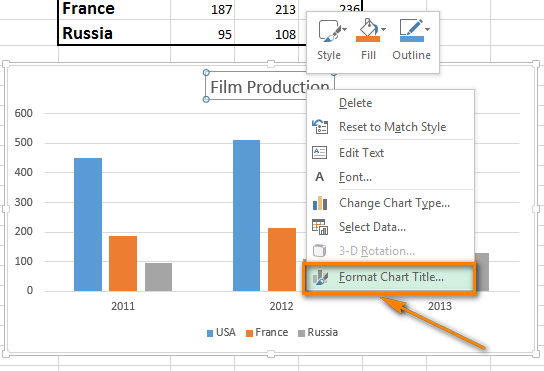
To make your title stand out, right-click it and select Font to adjust the typeface, size, and style. Alternatively, the Format tab on the Ribbon provides WordArt styles and shape fills to make the text pop.

Font formatting dialog box open for a chart titleFont formatting dialog box open for a chart title

Optimizing Chart Axes

The axes (the vertical Y-axis and horizontal X-axis) provide the scale and category context for your data. Excel attempts to guess the best scale, but manual intervention is often required for precision.

To manage which axes are visible, use the Chart Elements button and navigate to Axes. For complex visualizations, such as Combo Charts, you might need to enable a Secondary Axis to display data series with vastly different scales simultaneously.

Menu displaying various axis elements available for selectionMenu displaying various axis elements available for selection

Adding Axis Titles

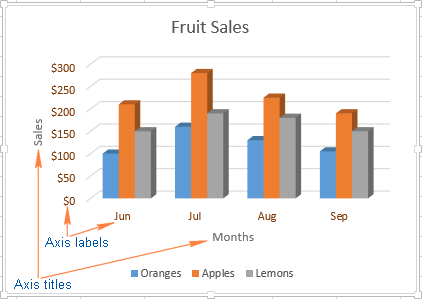
Data values are meaningless without units. Always add axis titles to specify if you are looking at currency, time, percentages, or quantities. Enable this via Chart Elements > Axis Titles. Just like the main chart title, these text boxes can be formatted or linked to worksheet cells for dynamic updating.

Xem thêm:  Master Efficiency: 8 Essential Excel Shortcuts You Must Know to Boost Productivity

Example of a chart with a newly added vertical axis title linked to a cellExample of a chart with a newly added vertical axis title linked to a cell

adjusting Axis Scales

This is a crucial step for technical accuracy. Sometimes, Excel’s default auto-scale makes trends look flatter or more dramatic than they really are.

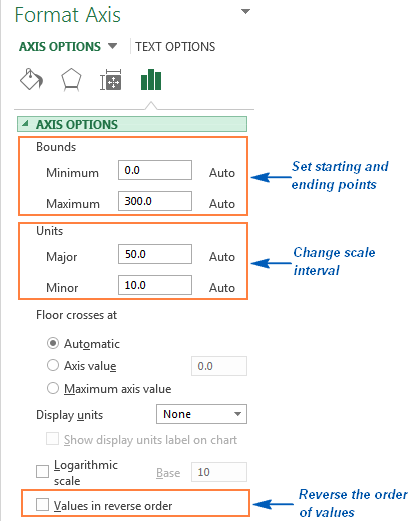
To fix this, select the vertical axis, right-click, and choose Format Axis. In the pane that appears, you can manually set the Minimum and Maximum bounds. For example, if your data ranges from 90% to 100%, a chart starting at 0% will look like a flat line. Setting the minimum to 80% will highlight the variance. You can also adjust the “Major” and “Minor” units to control the gridline intervals.

Format Axis pane showing options to change bounds and unitsFormat Axis pane showing options to change bounds and units

Enhancing Data Visibility with Labels and Legends

Data Labels

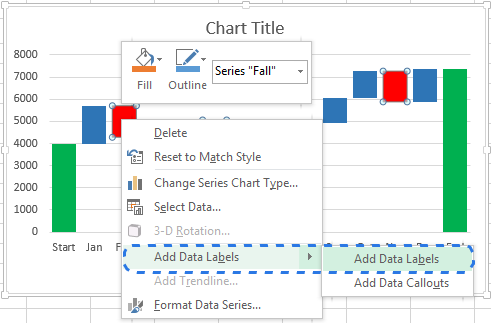
For precision, sometimes you need the exact number displayed right on the chart element. This is where Data Labels come in. By selecting Chart Elements > Data Labels, you project the value of each data point directly onto the visual.

This is particularly useful for Pie charts or when the exact value matters more than the general trend. You can position these labels inside, outside, or centered on the data points depending on the chart type.

Chart showing specific data values added to the columnsChart showing specific data values added to the columns

Legend Customization

The legend identifies which color represents which data series. While usually necessary, it can take up valuable screen real estate. You can toggle it via Chart Elements > Legend.

Using the Format Legend pane, you can move the legend to the top, bottom, left, or right. Placing the legend at the top or bottom is often preferred in modern reporting as it allows the chart plot area to expand horizontally, making the data easier to read.

Conclusion

Mastering chart customization in Excel is about finding the balance between aesthetics and information. By effectively utilizing titles, refining axis scales, and strategically placing data labels, you transform a generic spreadsheet export into a professional data visualization asset.

We encourage you to experiment with the Format Chart Pane to discover the depth of control Excel offers. These skills are fundamental for anyone looking to present data with authority and clarity in a professional environment.

References

  • Microsoft Support: Change the format of text in a chart.
  • Excel Easy: Chart Elements and Styles.
  • TechCommunity: Visualizing Data with Modern Excel Charts.
Đánh Giá Bài Viết
Tuyết Nhi

Tuyết Nhi

Tôi là Tuyết Nhi - Nữ phóng viên trẻ đến từ Hà Nội. Với niềm đam mê công nghệ, khoa học kỹ thuật, tôi yêu thích và muốn chia sẻ đến mọi người những trải nghiệm, kinh nghiệm về các lĩnh vực công nghệ, kỹ thuật... Rất mong được quý độc giả đón nhận ❤️.

Related Posts

How to Generate Unique Random Numbers in Excel: A Comprehensive Guide
Học Excel

How to Generate Unique Random Numbers in Excel: A Comprehensive Guide

Master the Excel ERROR.TYPE Function to Categorize and Fix Formula Errors
Học Excel

Master the Excel ERROR.TYPE Function to Categorize and Fix Formula Errors

How to Print A5 Pages on A4 Paper: A Complete Guide
Học Excel

How to Print A5 Pages on A4 Paper: A Complete Guide

How to Create a Professional Plan vs. Actual Chart in Excel
Học Excel

How to Create a Professional Plan vs. Actual Chart in Excel

Discussion about this post

Trending.

Trích Xuất Dữ Liệu từ Báo Cáo Power BI Đã Xuất Bản Trên Web

Trích Xuất Dữ Liệu từ Báo Cáo Power BI Đã Xuất Bản Trên Web

Hướng Dẫn Cách Livestream Trên Facebook Bằng Điện Thoại Và Máy Tính Đơn Giản, Sắc Nét Từ A-Z

Hướng Dẫn Cách Livestream Trên Facebook Bằng Điện Thoại Và Máy Tính Đơn Giản, Sắc Nét Từ A-Z

World War 2: Strategy Games – Game Chiến Thuật Thế Chiến II Hấp Dẫn Trên Mobile

World War 2: Strategy Games – Game Chiến Thuật Thế Chiến II Hấp Dẫn Trên Mobile

Download Your Uninstaller Pro 7.5 Full Key 2025 – Giải Pháp Gỡ Cài Đặt Phần Mềm Tận Gốc

Download Your Uninstaller Pro 7.5 Full Key 2025 – Giải Pháp Gỡ Cài Đặt Phần Mềm Tận Gốc

Hướng dẫn Đọc Số thành Chữ trong Google Sheets với Add-on Docso

Hướng dẫn Đọc Số thành Chữ trong Google Sheets với Add-on Docso

Giới Thiệu

Thủ Thuật

➤ Website đang trong quá trình thử nghiệm AI biên tập, mọi nội dung trên website chúng tôi không chịu trách nhiệm. Bạn hãy cân nhắc thêm khi tham khảo bài viết, xin cảm ơn!

Chuyên Mục

➤ TOP Thủ Thuật

➤ Chia Sẻ Kiến Thức

➤ Kênh Công Nghệ

➤ SEO

➤ Games

Liên Kết

➤ Ketquaxskt.com

➤ TOP Restaurants

➤ Here Restaurant

➤

➤

Liên Hệ

➤ TP. Hải Phòng, Việt Nam

➤ 0931. 910. JQK

➤ Email: [email protected]

Website này cũng cần quảng cáo, không có tiền thì viết bài làm sao  ” Đen Vâu – MTP ”

DMCA.com Protection Status

© 2025 Thủ Thuật - Website chia sẻ kiến thức công nghệ hàng đầu Việt Nam

No Result
View All Result
  • TOP Thủ Thuật
    • Thủ Thuật Internet
    • Thủ Thuật Máy Tính
    • Thủ Thuật Tiện Ích
    • Thủ Thuật Phần Mềm
  • Chia Sẻ Kiến Thức
    • Học Excel
    • Học Word
    • Học Power Point
  • Games
  • Kênh Công Nghệ
  • Facebook
  • WordPress
  • SEO

© 2025 Thủ Thuật - Website chia sẻ kiến thức công nghệ hàng đầu Việt Nam