In the era of big data, the ability to organize and analyze information efficiently is a prerequisite for productivity. Google Sheets stands out as a powerful cloud-based tool, offering robust features for managing extensive datasets. However, raw data is often overwhelming and difficult to interpret without proper organization. This is where the art of sorting and filtering comes into play, transforming chaotic spreadsheets into actionable insights.
Whether you are managing a simple inventory list or analyzing complex financial reports, understanding how to manipulate data views is essential. This guide will take you through the technical steps of sorting entire sheets, organizing specific ranges, and utilizing advanced filters to isolate the exact information you need. By mastering these tools, you will significantly enhance your workflow and data analysis capabilities.
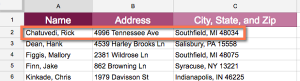
Spreadsheet interface showing data organization options
The Fundamentals of Sorting Data
Sorting is the process of arranging data in a specific order, typically alphanumerically or numerically. In Google Sheets, it is crucial to distinguish between sorting an entire sheet and sorting a specific range. Making the wrong choice here can lead to data misalignment, a common pitfall for beginners.
Sorting the Entire Sheet vs. Sorting a Range
When you sort a whole sheet, Google Sheets reorganizes every cell in the grid based on the column you select. This ensures that data integrity is maintained across rows. For instance, if you sort by “Last Name,” the corresponding “Address” and “Phone Number” cells for that person will move with the name, keeping the record intact.
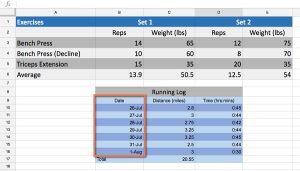
Example of a dataset before sorting operations
Conversely, Sorting a Range is a more granular approach. This function allows you to select a specific block of cells to organize without affecting the rest of the spreadsheet. This is particularly useful when your sheet contains multiple independent tables or summary data that should remain static while you manipulate a specific list.
Step-by-Step: Sorting an Entire Sheet
Let’s walk through a practical scenario. Suppose you have a customer database and need to organize it alphabetically by last name. To do this effectively and prevent your header row (the row containing labels like “Name,” “Date,” “Email”) from being sorted into the data, you must first prepare the sheet.
Step 1: Freezing the Header Row
Before applying any sort command, it is best practice to “freeze” your header row. Freezing locks the row at the top of the screen, ensuring it remains visible as you scroll and, crucially, tells Google Sheets that this row contains labels, not data to be sorted.
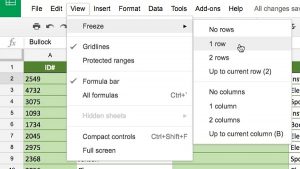
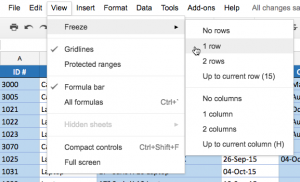
To do this, navigate to the menu bar, select View, then hover over Freeze, and select 1 row.
Menu path to freeze the top row in Google Sheets
Once frozen, a thick gray line will appear below the first row, indicating that it is now locked. This simple step prevents the frustration of finding your “Name” label sorted halfway down the list under the letter “N”.
Visual confirmation of a frozen header row
Step 2: Selecting the Target Column
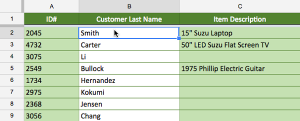
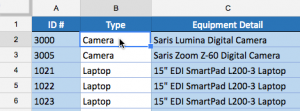
Next, identify the column that will serve as the basis for your sort. You do not need to highlight the entire column; simply clicking a single cell within that column is sufficient to indicate your intent to Google Sheets. For this example, click any cell in the “Last Name” column.
Clicking a cell to select the sort column
Step 3: Executing the Sort Command
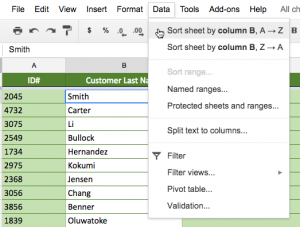
With the cell selected, navigate to the Data tab in the main toolbar. You will see options to Sort sheet. You can choose Sort sheet by column A to Z (ascending order) or Sort sheet by column Z to A (descending order).
Data menu showing options to sort the sheet
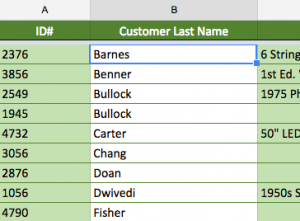
Upon selection, Google Sheets will instantly rearrange the rows. Notice that the header row remains at the top because we froze it earlier, maintaining the structure of your database.
The spreadsheet after applying the sort command
Step-by-Step: Sorting a Specific Range
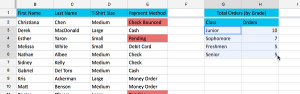
There are scenarios where sorting the whole sheet is destructive. For example, if you have a summary table on the right side of your main data, sorting the sheet would scramble that summary. In such cases, you must use the Sort Range feature. Let’s assume we want to sort a specific table of shirt orders without disturbing other data on the sheet.
Step 1: Defining the Data Range
First, highlight exactly the cells you wish to sort. Be careful to include all columns that relate to the dataset so that rows remain intact, but do not select headers if you don’t plan to use the advanced sorting options.
Highlighting a specific range of cells
Step 2: Accessing Advanced Range Options
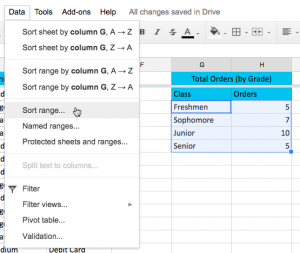
With the data highlighted, go to Data and select Sort range. For more control, it is often better to choose Advanced range sorting options (often labeled simply as “Sort range” followed by “Advanced” in newer updates, or accessible via the right-click context menu).
Menu selection for sorting a specific range
Step 3: Configuring Sort Criteria
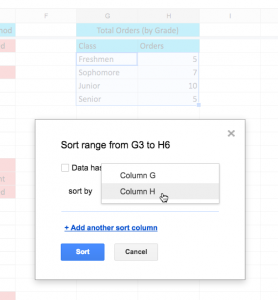
A dialog box will appear, offering precise control. Here, you can check a box if your “Data has a header row.” This is crucial; if checked, Google Sheets will display the column names instead of Column A, Column B, etc., making it easier to select the correct criteria.
Selecting the primary column for sorting
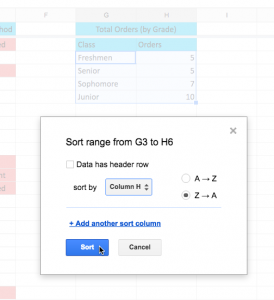
You can then select the column you wish to sort by and choose the order (A-Z or Z-A). Advanced sorting also allows you to add multiple sort columns (e.g., sort by “Class” first, and then by “Quantity” within that class).
Choosing ascending or descending order
Step 4: Finalizing the Sort
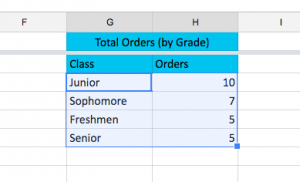
Click the Sort button to apply the changes. Only the data within the highlighted rectangle will move; the rest of your spreadsheet remains untouched.
Final result of the range sort operation
Filtering Data: The Power of Visibility
While sorting organizes data, Filtering allows you to narrow it down. Filtering hides rows that do not meet specific criteria without deleting them. This is invaluable for analyzing subsets of data, such as viewing only “Electronics” in a sales report or identifying “Pending” tasks in a project tracker.
How to Create a Filter
To activate filtering, ensure your data has a clear header row. Click anywhere inside your dataset.
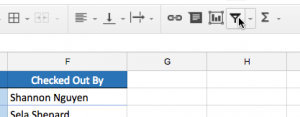
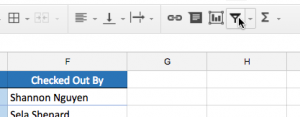
Toolbar icon for creating a filter
Navigate to the toolbar and click the Create a filter icon (which looks like a funnel). Alternatively, you can go to Data > Create a filter.
Visual indicator that filters are active
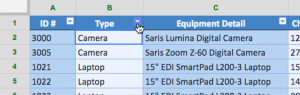
Once activated, you will notice small inverted triangle icons (drop-down arrows) appearing in the header cell of every column. These are your control points for filtering.
Close up of the filter dropdown arrow
Applying Filter Criteria
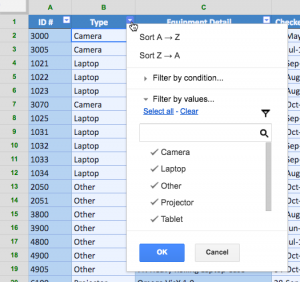
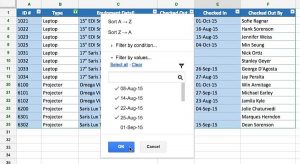
Let’s say we want to view only laptops and projectors from an equipment log. Click the filter icon in the “Equipment Type” column to reveal the menu.
Filter menu expanded showing options
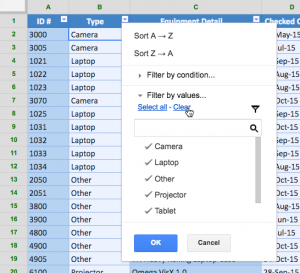
In the dropdown menu, you will see a list of all unique values present in that column. By default, everything is checked. To filter specific items, it is often faster to first click Clear to uncheck all options.
Clearing all selected filter items
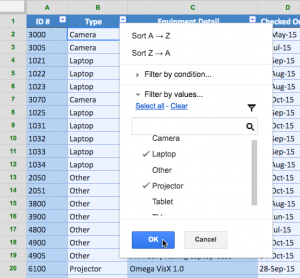
Now, manually check the boxes for the items you want to see—in this case, “Laptop” and “Projector.”
Selecting specific items to filter
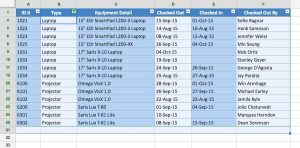
Click OK to apply the filter. The spreadsheet will instantly hide all rows that do not match your selection. You will notice the row numbers on the left turn green or are non-sequential, indicating that hidden rows exist.
Data view restricted to selected items
Advanced Filtering: Multiple Criteria
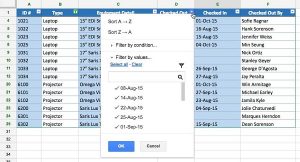
The true power of Google Sheets filters lies in layering them. You can apply filters to multiple columns simultaneously to drill down deep into your data. For instance, after filtering for “Laptops,” you might want to see only those checked out on a specific date.
Move to the “Date” or “Time” column and click the filter icon again.
Preparing to filter by a second column
Select the specific date you are interested in from the list.
Selecting a date from the filter list
The sheet will now update to show rows that meet both criteria: Equipment type is “Laptop” AND Date is the one selected. This “AND” logic allows for highly specific data retrieval.
Result of multi-column filtering
Collaboration and Filter Views
One common issue in collaborative environments is that when you filter data, it changes the view for everyone currently in the sheet. This can disrupt your colleagues’ work. To solve this, Google Sheets offers Filter Views.
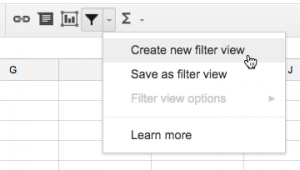
A Filter View creates a saved state of filters that only you see (or that others can switch to voluntarily). It does not affect the master view of the data. To use this, go to the Data menu or the Filter dropdown and select Create new filter view. You will see a black border appear around your sheet headers, indicating you are in a temporary view.
Filter views option in menu
Removing Filters
When you have finished your analysis and wish to return the sheet to its original state, you need to turn off the filter. Simply click the Filter icon on the toolbar again.
Toolbar with filter active
This action unhides all rows and removes the drop-down arrows from the headers, restoring the full dataset visibility.
Conclusion
Mastering the sort and filter functions in Google Sheets is a fundamental skill for anyone looking to transition from basic data entry to data analysis. By understanding the nuances between sorting sheets versus ranges, and leveraging the power of multi-criteria filtering, you can handle large datasets with confidence and precision.
We encourage you to practice these techniques on your own spreadsheets. Experiment with Filter Views to collaborate more effectively without disrupting your team’s workflow. As you become more comfortable with these tools, you will find that Google Sheets becomes not just a place to store data, but a powerful engine for uncovering the story behind the numbers.
References
- Google Workspace Learning Center: Sort and filter your data.
- Google Docs Editors Help: Sort & filter data.
- TechCrunch & The Verge (General Tech Productivity best practices).


Discussion about this post