


Microsoft Excel is undeniably a powerhouse for data analysis, but even seasoned professionals encounter the frustrating scenario where a cell displays the formula text (e.g., =SUM(A1:A10)) rather than the calculated result. This issue can disrupt workflows and lead to data presentation errors, especially when dealing with critical financial reports or large datasets.
When Excel fails to compute a formula, it is rarely a software bug. Instead, it is almost always caused by specific settings or formatting choices. The two most common culprits are incorrect Cell Formatting and the accidental activation of Show Formulas mode. This guide provides a deep dive into these causes and offers precise, step-by-step solutions to restore your spreadsheet’s functionality.
1. Incorrect Cell Formatting (Text Format)
The most frequent reason for a formula appearing as plain text is that the cell was formatted as “Text” before the formula was typed. When a cell is set to Text format, Excel treats the content literally as a string of characters, ignoring any mathematical instructions like the equals sign (=).
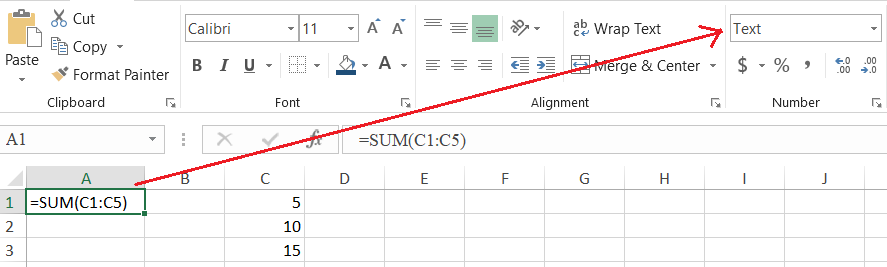 Excel cell A1 formatted as Text showing the SUM formula string instead of the calculated value
As illustrated above, even though the syntax =SUM(C1:C5) is correct, Excel displays the raw text because the cell properties prevent calculation.
How to Fix Formatting Issues
To resolve this, you must change the format and force Excel to re-evaluate the cell content:
- Select the affected cell(s): Highlight the cells displaying the formula text.
- Change Number Format: Go to the Home tab. In the Number group, click the dropdown menu (which likely says “Text”) and change it to General or Number.
- Force Re-calculation: This is the crucial step most users miss. Simply changing the format will not immediately calculate the value. You must double-click the cell (or press F2) to enter edit mode, and then press Enter. Excel will now recognize it as a formula and display the result.
2. The “Show Formulas” Mode
If your entire spreadsheet (or large sections of it) is displaying formulas instead of results, you have likely enabled the Show Formulas auditing mode. This feature is designed for debugging but can be confusing if activated accidentally.
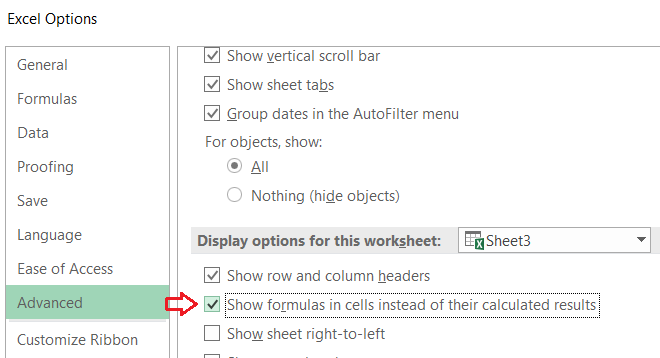 Excel Advanced Options window showing the checkbox for Show formulas in cells instead of their calculated results
How to Disable Show Formulas
There are two professional methods to toggle this setting off and return to standard view:
Method 1: Excel Options (Permanent Setting)
This method ensures the global setting for the worksheet is corrected:
- Navigate to File > Options.
- Select the Advanced tab in the left pane.
- Scroll down to the section labeled Display options for this worksheet.
- Uncheck the box that says: “Show formulas in cells instead of their calculated results.”
- Click OK.
Method 2: The Keyboard Shortcut (Quick Toggle)
For power users, using the keyboard shortcut is the most efficient way to switch views instantly.
- Press
Ctrl+`(the backtick/grave accent key, usually located to the left of the ‘1’ key).
 Animation demonstrating the toggle of Show Formulas mode using the Ctrl plus backtick keyboard shortcut
When is “Show Formulas” Actually Useful?
While often mistaken for an error, the “Show Formulas” mode is a deliberate feature engineered for auditing complex spreadsheets. Understanding its value can elevate your Excel skills:
- Formula Auditing: It allows you to view all mathematical logic on a sheet simultaneously, making it easier to spot inconsistencies or reference errors without clicking individual cells.
- Locating Hidden Dependencies: It helps identify cells that look empty but actually contain formulas returning blank strings (e.g.,
=""), which might be affecting averages or counts.
Conclusion
The issue of Excel displaying formulas instead of results is a common hurdle, but it is easily surmountable once you understand the mechanics of cell formatting and view modes. By verifying that your cells are set to General format and ensuring Show Formulas is disabled, you can ensure your data is calculated accurately.
Mastering these troubleshooting techniques not only saves time but also ensures the integrity of your data reporting. For more insights into optimizing your workflow, explore our other advanced Excel tutorials.
References
- Microsoft Support. (n.d.). Display or hide formulas. Retrieved from Microsoft.com.
- Excel Jet. (n.d.). Excel formula not calculating. Retrieved from ExcelJet.net.
- Thủ Thuật. (2025). Original technical analysis on Excel errors.













Discussion about this post