


When working with datasets in Microsoft Excel, handling time-based data is a daily necessity for data analysts and office professionals. However, the DATE function often causes confusion because Excel does not store dates the way humans read them. Instead of storing “March 5, 2026,” Excel records a serial number. Understanding this underlying logic is crucial for accurate calculations. This guide provides a deep dive into the DATE function, moving from basic syntax to advanced applications like converting text strings and conditional formatting.
Understanding the DATE Function Syntax
The core purpose of the DATE function is to construct a valid Excel date serial number from individual integer components. This is particularly useful when your year, month, and day values are stored in separate columns or need to be calculated dynamically.
The formula structure is straightforward:
=DATE(year, month, day)
1. The Year Argument
The year argument defines the year of the date. Excel for Windows generally defaults to the 1900 date system.
- 1900 to 9999: If you input a number between these values, Excel treats it as the actual year. For example,
=DATE(2025, 12, 31)returns December 31, 2025. - 0 to 1899: Excel adds the input value to 1900. For instance, inputting
105results in the year 2005 (1900 + 105). - Error Handling: Numbers less than 0 or greater than 9999 will trigger a
#NUM!error.
Pro Tip: To ensure data consistency and avoid the “Y2K” style ambiguity, always input the full four-digit year (e.g., use “2023” instead of “23”).
2. The Month Argument
The month integer represents the month of the year, from 1 (January) to 12 (December). However, Excel’s handling of values outside this range is a powerful feature for calculation:
- Overflow (Values > 12): Excel adds the excess months to the first month of the specified year. For example,
=DATE(2025, 14, 2)calculates as February 2, 2026 (14 months is 1 year and 2 months). - Underflow (Values < 1): If you use 0 or negative numbers, Excel subtracts months.
=DATE(2025, 0, 1)technically requests “Month 0,” which Excel interprets as December of the previous year (December 1, 2024).
3. The Day Argument
Similar to the month argument, the day integer (1 to 31) supports positive and negative overflow. This logic allows you to calculate dates without worrying about the varying lengths of months (28, 30, or 31 days).
 Excel function arguments dialog box showing the DATE function structure
Using negative numbers in the month or day arguments might seem counterintuitive initially, but it is an incredibly efficient method for complex timeline adjustments, such as calculating previous billing cycles or expiration dates.
Basic Examples and Dynamic Dates
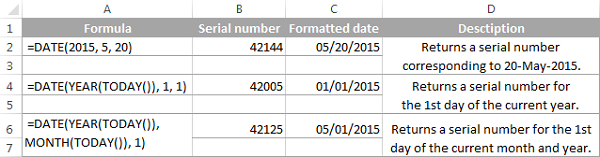
The most basic application involves hardcoding numbers, such as =DATE(2015, 5, 20), which returns May 20, 2015. However, the real power of Excel lies in dynamic formulas.
Combining with System Time
You generally won’t hardcode dates in professional reports. Instead, you can combine DATE with functions like YEAR(), MONTH(), and TODAY().
- First Day of the Current Year:
=DATE(YEAR(TODAY()), 1, 1) - First Day of the Current Month:
=DATE(YEAR(TODAY()), MONTH(TODAY()), 1)
Referencing Other Cells
A common scenario involves assembling a date from separate data columns. If cell A2 contains the year, A3 the month, and A4 the day, the formula is:
=DATE(A2, A3, A4)
 Excel spreadsheet demonstrating cell references for the DATE function
This method is essential when importing CSV data where date components are fragmented across different fields.
Advanced: Converting Text Strings to Dates
Data imported from legacy systems often arrives in text formats that Excel does not recognize as dates, such as “20251231” or “31122025”. The DATE function acts as a converter when combined with text manipulation functions (LEFT, MID, RIGHT).
Scenario:
You have a text string “31122025” in cell A2 (Format: DDMMYYYY). To convert this into a usable Excel date, you must extract the year, month, and day separately:
- Year:
RIGHT(A2, 4)extracts “2025” - Month:
MID(A2, 3, 2)extracts “12” - Day:
LEFT(A2, 2)extracts “31”
The combined formula becomes:
=DATE(RIGHT(A2,4), MID(A2,3,2), LEFT(A2,2))
 Spreadsheet example showing conversion of text string to date format
This technique is vital for data cleaning processes, ensuring that pivot tables and charts interpret the timeline correctly.
Performing Date Arithmetic
Because Excel stores dates as serial numbers (where 1 is January 1, 1900), you can perform standard mathematical operations like addition and subtraction directly on dates.
Adding and Subtracting Days
To calculate a deadline or a past event, you do not need complex functions; simple arithmetic operators suffice.
- Add Days:
=DATE(2015, 5, 20) + 15results in June 4, 2015. - Subtract Days:
=DATE(2015, 5, 20) - 15results in May 5, 2015.
Calculating Date Differences
To find the number of days between today and a specific deadline:
=TODAY() - DATE(2025, 12, 31)
This returns an integer representing the day count.
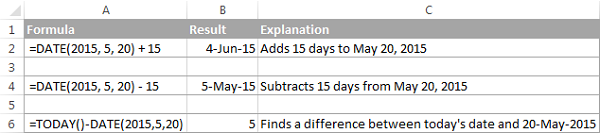 Example of adding and subtracting days in Excel formulas
If your dates are already stored in cells (e.g., A1 and B1), the formula simplifies to =A1 - B1 or =A1 + B1.
Visualizing Data with Conditional Formatting
Beyond calculations, the DATE function is instrumental in visual data analysis using Conditional Formatting. This allows you to highlight deadlines, overdue tasks, or specific timeframes automatically.
Example Scenario:
You have a list of dates in Column A. You want to highlight:
- Orange: Dates before May 1, 2015.
- Green: Dates after May 31, 2015.
The Logic:
- For Orange, apply the rule:
=$A2 < DATE(2015, 5, 1) - For Green, apply the rule:
=$A2 > DATE(2015, 5, 31)
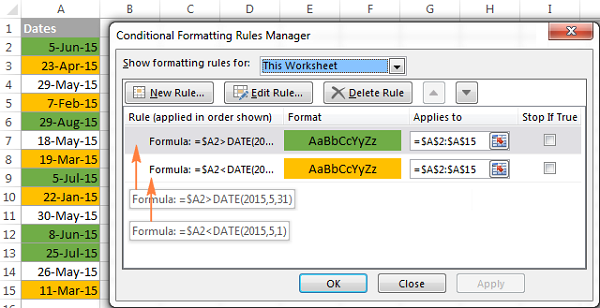 Conditional formatting rules applied to a date list
This visual cue helps project managers instantly identify critical milestones or overdue items without manually filtering the list.
Conclusion
The DATE function is more than just a tool for entering numbers; it is the foundation of time-based data management in Excel. Whether you are correcting invalid date formats from imported data, building dynamic dashboards that update automatically with TODAY(), or setting up visual alerts via Conditional Formatting, mastering DATE(year, month, day) is essential.
By understanding how Excel interprets dates as serial numbers and utilizing the function’s ability to handle overflow calculations, you can significantly increase your efficiency and accuracy. We encourage you to experiment with these formulas in your next report to streamline your workflow.
References
- Microsoft Support. (n.d.). DATE function. Retrieved from Microsoft.com.
- Ablebits. (n.d.). Excel DATE function – formula examples.
- Hoc Excel Online. (2025). Advanced Excel Training for Professionals.













Discussion about this post