


The COUNTIF function is a staple for data analysts and Excel users who need to determine how often a specific value appears within a dataset. While this function works seamlessly in standard cell ranges, applying it to Excel Tables (ListObjects) introduces a unique set of challenges regarding structured references and dynamic ranges.
This guide provides a deep dive into counting occurrences effectively, specifically addressing the complexities of maintaining accurate “running counts” when data is added to an Excel Table.
The Standard Approach: COUNTIF in Normal Ranges
In a traditional Excel layout (non-table format), creating a running count—calculating the number of times a value has appeared up to the current row—is straightforward. The logic relies on a mix of absolute and relative cell references.
To count the occurrence of names in column A, starting from A2, the standard formula is:
=COUNTIF($A$2:A2, A2)
How it works:
- Range ($A$2:A2): The first part of the range (
$A$2) is locked as an absolute reference. This represents the fixed starting point. The second part (A2) remains relative. As you copy the formula down to row 10, the range automatically expands to$A$2:A10. - Criteria (A2): This checks the content of the current cell against the expanding range above it.
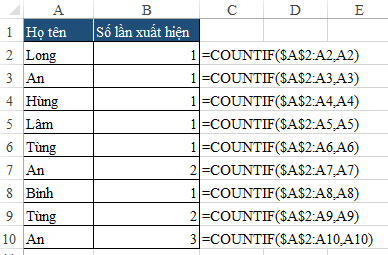 Excel spreadsheet showing standard COUNTIF formula application in a normal range
This method is efficient for static data. However, modern Excel workflows increasingly rely on Tables (Insert > Table) due to their automatic formatting and dynamic data handling capabilities. Unfortunately, this standard formula often breaks when converted to the Table format.
The Challenge with Excel Tables and Structured References
When working with Excel Tables, cell addresses (like A2) are replaced by Structured References (like [@Name]). While structured references make formulas easier to read, they handle “locking” references differently than standard cells.
A common issue arises when users attempt to drag the standard logic into a Table. Initially, the formula might appear correct for existing rows. However, as new data is appended to the bottom of the table, the formula often fails to update the range limit correctly, or it defaults to referencing the entire column rather than the specific range “up to this row.”
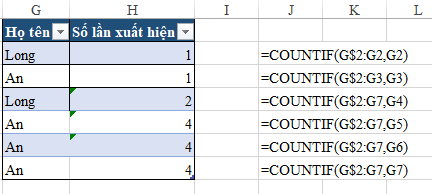 Screenshot demonstrating the error when using standard COUNTIF formulas inside an Excel Table
The specific symptoms of this error include:
- Inaccurate Auto-fill: When new rows (e.g., Row 5, 6, 7) are added, the calculated count may return incorrect values because the range reference shifts unexpectedly.
- Loss of Anchor: The Table structure often resets the “start” of the range or expands the “end” of the range to the bottom of the table automatically, destroying the “running count” logic.
 Animated banner promoting basic Excel training courses
This behavior occurs because Tables are designed to treat columns as whole entities. To fix this, we need a formula that explicitly defines the “Start” and “Current Position” using Table syntax that Excel’s calculation engine respects even when new rows are added.
The Solution: Using INDEX for Dynamic Table Ranges
To replicate the running count logic ($A$2:A2) inside a Table, we must construct a range that is anchored at the top of the column and ends at the current row. The most robust way to achieve this is by combining structured references with the INDEX function.
 Animated banner promoting VBA automation courses
The Correct Formula:
=COUNTIF([@[Name]]:INDEX([Name],1), [@[Name]])
Let’s break down the technical syntax of this solution:
1. The Dynamic Range Components
The crucial part of this formula is the range definition: [@[Name]]:INDEX([Name],1).
[@[Name]]: This refers to the value in the “Name” column in the current row. It acts as the moving endpoint of our range.[Name]: This refers to the entire data body of the “Name” column.INDEX([Name],1): This function returns the reference to the first cell in the “Name” column. By usingINDEX, we create a hard anchor to the top of the table data without using a brittle cell reference like$A$2(which could break if the table moves).
2. How the Logic Flows
By combining these with a colon (:), we tell Excel to construct a range from the “Current Row” to the “First Row”.
- Range:
[@[Name]]:INDEX([Name],1)$rightarrow$ From Start to Current Position. - Criteria:
[@[Name]]$rightarrow$ Count instances of the current value within that specific range.
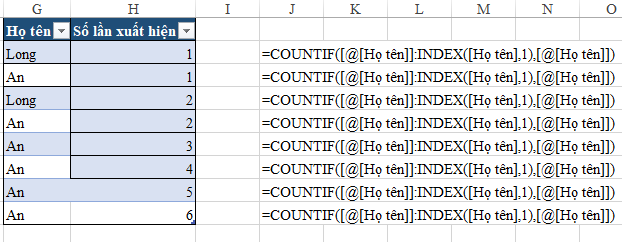 Excel Table showing the correct result using the INDEX and Structured Reference combination
This approach ensures that regardless of how many rows you add, or if you sort the table, the formula dynamically calculates the cumulative count based on the relative position of the row within the table structure. It effectively translates the logic of “Fixed Start, Relative End” into the language of Excel Tables.
Conclusion
Transitioning from standard ranges to Excel Tables requires a shift in mindset regarding formula construction. While the standard COUNTIF works for static data, it lacks the stability required for dynamic Tables.
By utilizing the INDEX function to anchor your structured references, you ensure:
- Accuracy: Counts remain correct as data expands.
- Stability:Formulas do not break when the table is moved or resized.
- Automation: New rows automatically inherit the correct logic without manual adjustment.
Mastering this technique is essential for creating professional, resilient Excel dashboards and data logs.
References
- Microsoft Support: Using structured references with Excel tables.
- Excel Tech Community: Dynamic ranges in ListObjects.
- Hoc Excel Online (Original Technical Analysis).













Discussion about this post