


In the landscape of data analysis and spreadsheet management, logical functions serve as the backbone of automated decision-making. Among these, the AND function stands out as a fundamental tool for evaluating multiple criteria simultaneously. While simple in concept, its true power is unlocked when combined with conditional statements like the IF function, allowing users to build sophisticated logic models without complex programming.
The AND function is designed to test multiple conditions and return a single boolean result: TRUE or FALSE. It operates on a strict “all-or-nothing” principle. For the function to return TRUE, every single condition inside it must be met. If even one condition fails, the entire formula collapses to FALSE. This makes it the perfect gatekeeper for scenarios requiring strict compliance, such as financial auditing, employee performance reviews, or inventory quality control.
Understanding the Syntax
To effectively utilize the AND function, it is crucial to understand its structural arguments. The syntax is straightforward but allows for scalability depending on the complexity of your data.
Syntax:
=AND(logical1, [logical2], ...)
- logical1: The first condition or value you want to test. This is required.
- logical2, …: Additional conditions to test. These are optional, and Excel supports up to 255 separate conditions in a single AND formula.
The output is binary. It helps to think of it as a series of gates; the signal only passes through (TRUE) if every gate is open. If one is closed (FALSE), the signal stops.
Practical Application: The “IF + AND” Power Combination
While the AND function can exist on its own, it is rarely used in isolation because a raw “TRUE” or “FALSE” result isn’t always presentation-friendly. Its most common application is nesting within an IF function. This allows you to define custom outputs—such as specific text, calculations, or empty cells—based on the logical test.
Let’s examine a real-world Human Resources scenario to demonstrate this synergy.
Scenario: Employee Bonus Calculation
Imagine you are managing payroll and need to determine which employees are eligible for a monthly bonus. To ensure fairness and productivity, the company has established strict criteria. An employee receives a bonus only if they meet two simultaneous conditions:
- They have worked 24 days or more in the month.
- They have zero incidents of arriving late.
Below is the raw data table containing employee performance metrics, including workdays and lateness records.
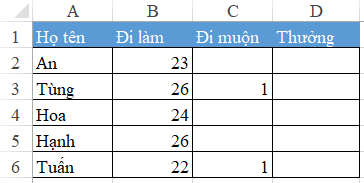 Excel data table showing employee work days and late arrival records
Constructing the Formula
To solve this, we need to translate the business logic into Excel syntax at cell D2:
- Condition 1: Workdays (Column B) must be greater than or equal to 24 (
B2>=24). - Condition 2: Late days (Column C) must equal 0 (
C2=0). - Logic: Both must be true, so we wrap them in
AND. - Result: If passed, display “Yes”; otherwise, display “No”.
The complete formula is:
=IF(AND(B2>=24, C2=0), "Yes", "No")How Excel Processes the Logic
When you press Enter, Excel evaluates the formula from the inside out. First, the AND function checks B2. Is it 24 or higher? Then it checks C2. Is it 0? Only if both answers are yes does the AND function hand a “TRUE” result to the IF function. The IF function then triggers the first value (“Yes”).
Conversely, if an employee worked 25 days but was late once, the AND function returns FALSE. Consequently, the IF function triggers the second value (“No”).
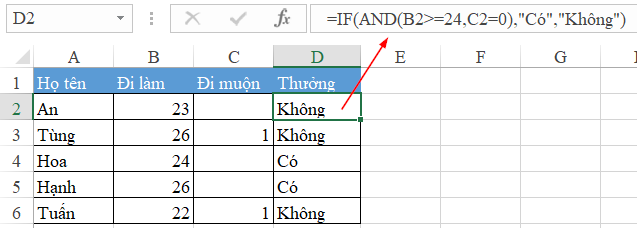 Excel spreadsheet showing the result of the IF and AND formula for bonus calculation
This method eliminates manual checking and human error, instantly filtering data regardless of whether the list contains ten employees or ten thousand.
Expanding Your Toolkit: The Logical Function Family
The AND function is just one part of Excel’s logical suite. Depending on your specific requirements, you might need conditions where only one criteria needs to be met, or where you need to reverse a logic state. Microsoft Excel provides OR, XOR, and NOT functions to handle these variations.
Understanding the distinction between these functions is vital for building robust spreadsheets.
 Animation demonstrating the selection of logical functions in Excel interface
Comparison of Logical Functions
The table below outlines how AND compares with its siblings, helping you choose the right tool for your specific logic problem.
| Function | Logical Behavior | Example Formula | Interpretation |
|---|---|---|---|
| AND | Strict. Returns TRUE only if all arguments are TRUE. | =AND(A2>=10, B2<5) | True only if A2 is 10+ AND B2 is less than 5. |
| OR | Flexible. Returns TRUE if at least one argument is TRUE. | =OR(A2>=10, B2<5) | True if A2 is 10+, OR if B2 is less than 5, or both. Fails only if both are false. |
| XOR | Exclusive. Returns TRUE if an odd number of arguments are TRUE. | =XOR(A2>=10, B2<5) | In a two-condition test: True if only one is true. Returns FALSE if both are true or both are false. |
| NOT | Inverter. Reverses the logical value of its argument. | =NOT(A2>=10) | Returns FALSE if A2 is 10+ (swaps True to False and vice versa). |
Conclusion
Mastering the AND function is a critical step in moving from basic spreadsheet entry to advanced data analysis. By enforcing strict criteria, it allows users to filter data with precision. When combined with the IF function, it transforms raw data into actionable insights, such as determining payroll eligibility, grading student exams, or validating data entry.
To become truly proficient, practice nesting these functions. Experiment with combining AND and OR within the same IF statement to handle complex, multi-layered business rules. As you become more comfortable with these logical operators, you will find that your ability to manipulate and interpret data scales explicitly, saving time and increasing accuracy in your professional workflows.
References
- Microsoft Support. (n.d.). AND function. Retrieved from Microsoft Office Support.
- Microsoft Support. (n.d.). Use AND, OR, and NOT functions in formulas. Retrieved from Microsoft Office Support.
- TechCommunity. (n.d.). Excel Logical Functions Best Practices. Retrieved from Microsoft Tech Community.












Discussion about this post