


In the realm of data management and financial analysis, working with multiple versions of the same spreadsheet is a common scenario. Whether you are tracking monthly sales reports, auditing inventory lists, or collaborating with a team on a shared project, the ability to accurately compare two Excel files is a critical skill. Failing to identify discrepancies—such as broken links, duplicate entries, inconsistent formulas, or formatting errors—can lead to significant data integrity issues.
This guide provides an in-depth look at the most effective methods for comparing Excel files. We will explore native features like “View Side by Side,” utilize powerful formulas for automated detection, apply conditional formatting for visual heatmaps, and review advanced third-party tools designed for complex data merging. By mastering these techniques, you can ensure your data remains accurate and your workflow efficient.
Visual Comparison: Using View Side by Side
For quick spot-checks or when dealing with smaller datasets, the most intuitive method is to view the spreadsheets simultaneously. Excel’s native “View Side by Side” feature is designed specifically for this purpose, allowing you to scroll through two workbooks in tandem to visually spot differences.
Activating the Side-by-Side View
To begin a visual comparison, ensure that both Excel workbooks you intend to compare are currently open on your computer.
Navigate to the View tab on the Ribbon, locate the Window group, and click on View Side by Side. This command instantly arranges your open windows so they share the screen space.
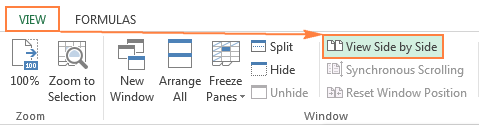 Enabling the View Side by Side feature in the View tab
By default, Excel often arranges these windows horizontally (one on top of the other). However, for most datasets, a vertical arrangement is far more practical as it allows you to see more rows of data. To change this, click on Arrange All within the Window group and select Vertical.
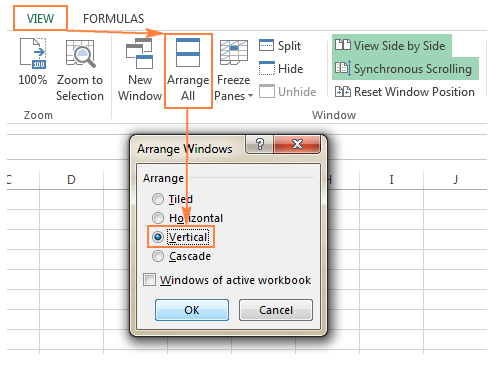 Selecting the Vertical arrangement option in the Arrange Windows dialog
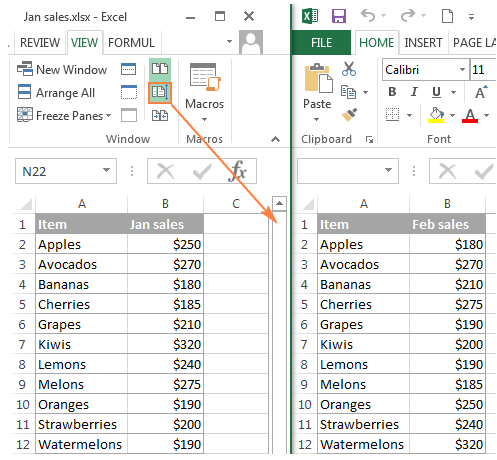
Once arranged, you can easily look back and forth between the two files. This setup is particularly effective for identifying structural changes or missing rows that might disrupt a formula-based comparison.
 Animation showing the result of arranging windows vertically for comparison
Leveraging Synchronous Scrolling
The true power of the “View Side by Side” mode lies in the Synchronous Scrolling feature. When enabled, scrolling down in one workbook automatically scrolls the other workbook by the same amount. This ensures that row 10 in your first file always aligns with row 10 in your second file, preventing you from losing your place during review.
This option is usually toggled on by default when you activate “View Side by Side,” but if you find the windows moving independently, check the View > Window group to ensure it is active.
 The Synchronous Scrolling button enabled in the Excel Ribbon
Handling Multiple Workbooks
If you have more than two Excel files open, Excel needs to know which specific file you wish to compare against your active workbook. Upon clicking “View Side by Side,” a Compare Side by Side dialog box will appear. Here, you simply select the target file from the list of open documents.
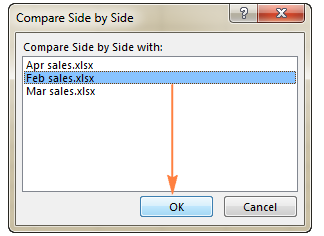 Dialog box for selecting which workbook to compare against the active one
Comparing Sheets Within the Same Workbook
Sometimes, the comparison isn’t between two different files, but between two sheets (tabs) within the same Excel file—for example, comparing “January Sales” vs. “February Sales.” You cannot view two tabs of the same window simultaneously using the standard view, but there is a workaround.
Go to View > Window > New Window. This creates a second instance of your current workbook. You will notice the filename in the title bar now includes a number (e.g., “Report:1” and “Report:2”).
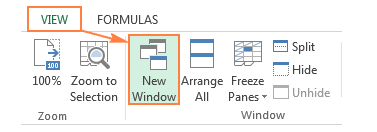 Creating a new window instance for the current workbook
Once the new window is open, you can engage View Side by Side as described previously. Simply select “Sheet 1” in the first window and “Sheet 2” in the second window to compare them directly.
Automated Detection Using Formulas
For large datasets where visual inspection is prone to human error, using formulas is the most reliable method. An IF formula can mathematically verify if cell A1 in one sheet is identical to cell A1 in another.
Create a new “Comparison” sheet. In cell A1, enter a formula following this logic:
=IF(Sheet1!A1<>Sheet2!A1, "Difference: " & Sheet1!A1 & " vs " & Sheet2!A1, "")This formula checks the equality of the cells. If they differ, it prints the differing values; if they are the same, it returns an empty string, keeping your report clean. Drag this handle across and down to cover your data range.
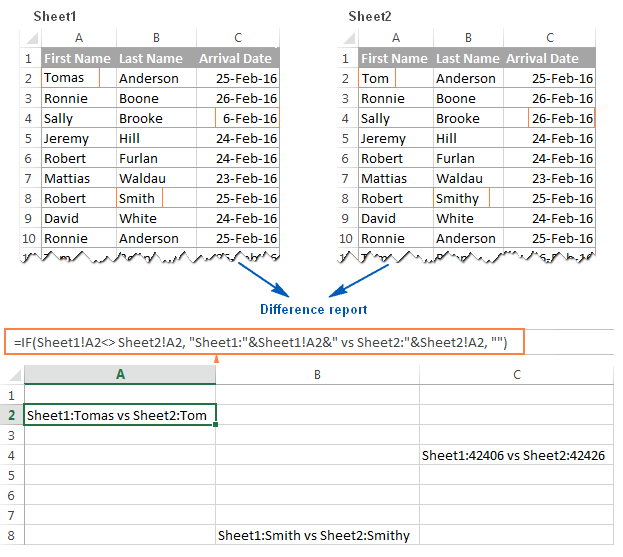 Spreadsheet showing the results of the comparison formula identifying differences
Visualizing Differences with Conditional Formatting
If you prefer to highlight discrepancies directly on the original data rather than creating a separate report sheet, Conditional Formatting is an excellent tool. This method applies a specific color (like red text or a yellow background) to any cell that does not match its counterpart in the comparison sheet.
To execute this, select the range of data you want to check. Navigate to Home > Conditional Formatting > New Rule. Choose “Use a formula to determine which cells to format” and enter the logic: =A1<>Sheet2!A1.
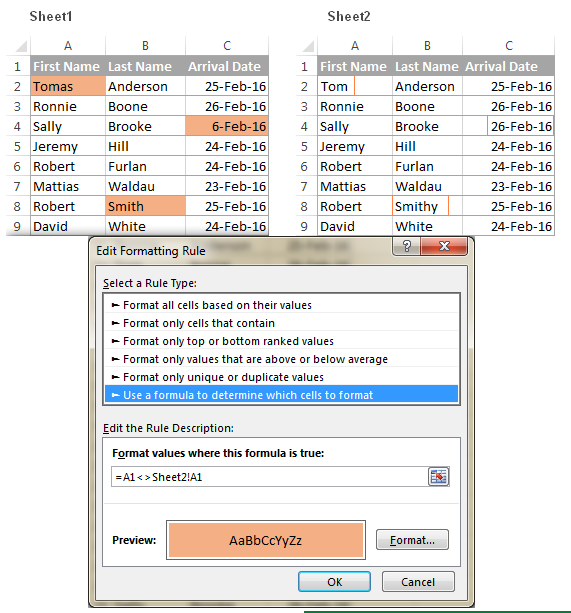 Setting up a Conditional Formatting rule to highlight non-matching cells
This creates a “heatmap” of changes, allowing you to instantly focus on the data points that have been altered.
Legacy Feature: Compare and Merge Workbooks
For teams that do not use modern cloud collaboration (like Microsoft 365 Co-authoring), the legacy Compare and Merge Workbooks feature is vital. This allows you to distribute a copy of a workbook to multiple users and then merge their changes back into a master file.
Enabling the Feature
This feature is hidden by default in modern Excel versions. To access it, you must add it to your Quick Access Toolbar. Go to File > Options > Quick Access Toolbar. In the dropdown menu, select All Commands, find Compare and Merge Workbooks, and click Add.
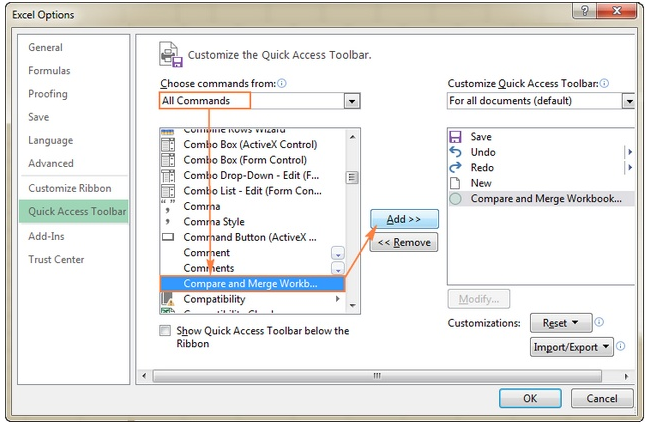 Adding the Compare and Merge command to the Quick Access Toolbar
The Merging Process
Once the button is available, and assuming you have a shared workbook that others have edited, click the Compare and Merge Workbooks icon. Excel will prompt you to save your current file. Then, a file selection dialog will appear, allowing you to choose the copies edited by your colleagues.
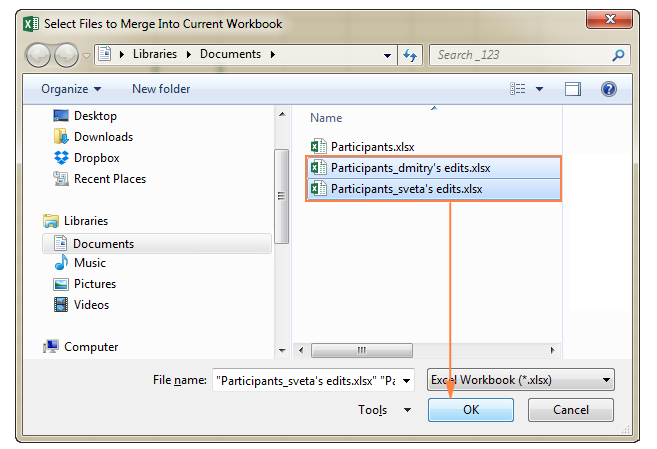 Selecting the modified workbook files to merge into the master file
Excel will then analyze the differences and merge the data, highlighting cells where changes have occurred. This is particularly useful for consolidating budget requests or departmental reports.
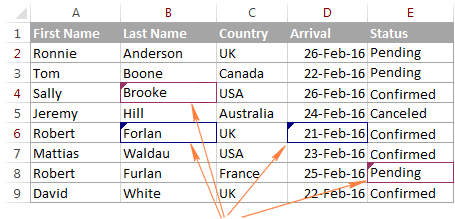 The result of merging workbooks showing updated data
Advanced Solutions: Third-Party Comparison Tools
For enterprise-level needs, especially when dealing with complex structures, VBA macros, or heavy formatting, native Excel tools may fall short. Dedicated add-ins like Synkronizer Excel Compare offer robust solutions for granular control over the comparison process.
Step-by-Step with Synkronizer
After installing the add-in, launch it from the designated tab in your Ribbon. The interface is designed to guide you through a logical workflow, starting with file selection.
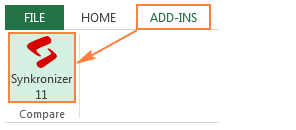 Launching the Synkronizer tool from the Excel Add-ins tab
The first step is to identify the two workbooks you wish to analyze. Synkronizer allows you to select currently open files or browse for files stored on your local drive or server.
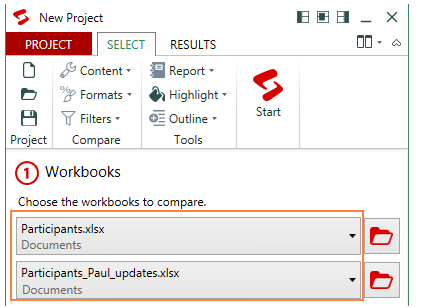 Selecting the source and target workbooks within the Synkronizer interface
Once the workbooks are loaded, you can specify exactly which sheets to compare. This is useful if your workbook contains dozens of tabs, but you only need to audit the “Financial Summary” sheet.
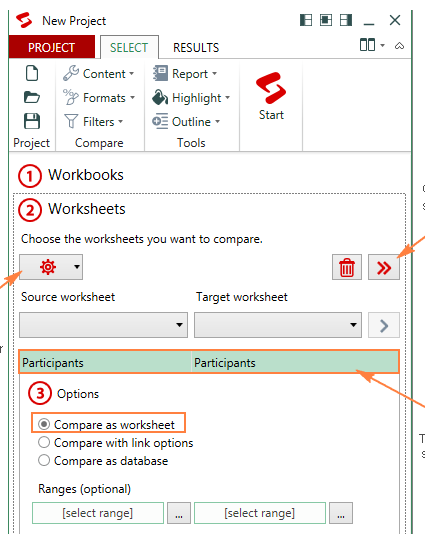 Choosing specific sheets to include in the comparison process
Professional tools excel in their ability to filter what constitutes a difference. You might want to flag value changes but ignore formatting updates (like bold text) or formula syntax changes. Synkronizer lets you toggle these criteria precisely.
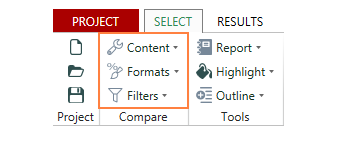 Configuring content types to compare such as values or formulas
After clicking Start, the tool processes the data. The results are typically displayed in a comprehensive dashboard that categorizes the differences found, saving hours of manual review.
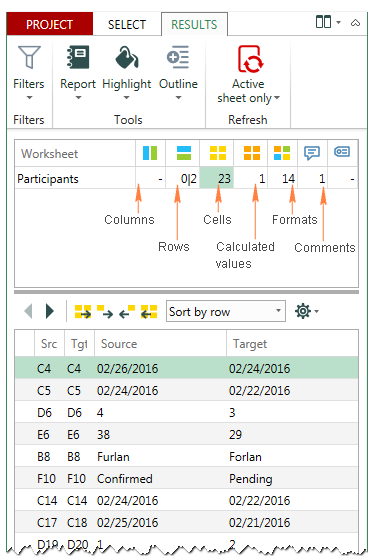 The results dashboard showing a summary of found differences
You can drill down into specific cell-level details. The interface often provides a side-by-side view of the “Old Value” versus the “New Value,” making it easy to decide which version to keep.
 Detailed cell comparison view showing specific value differences
For documentation purposes, generating a tangible report is crucial. These tools can export a “Difference Report” that lists every discrepancy, which serves as excellent documentation for audit trails.
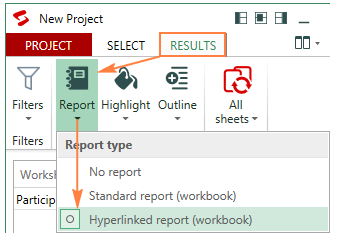 Generating a difference report for documentation purposes
Advanced users can also compare multiple sheets simultaneously, handling complex cross-referencing that would be impossible with standard Excel formulas.
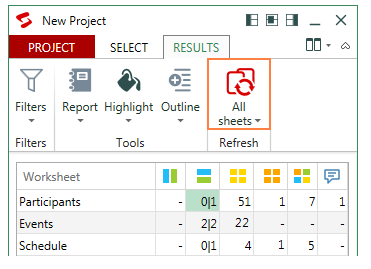 Interface showing the capability to compare multiple sheets at once
Visual highlighting remains a key feature. Similar to conditional formatting but more powerful, the tool can color-code rows to indicate deletions, insertions, or modifications.
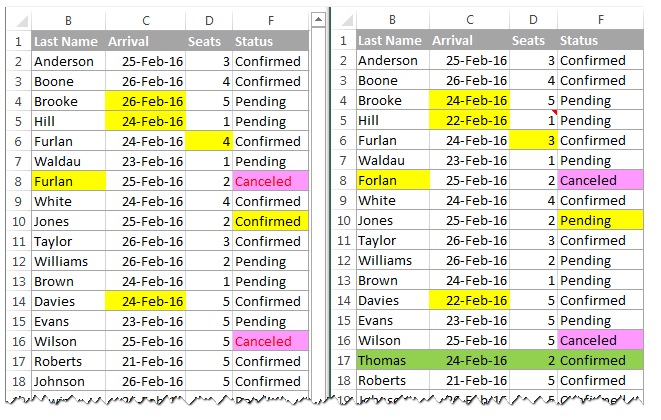 Visualizing differences with color-coded highlighting on the spreadsheet
You retain full control over these visualization settings, customizing the colors used for different types of discrepancies to match your organization’s reporting standards.
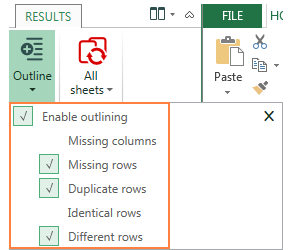 Customizing the highlighting options and color preferences
Finally, the ultimate goal is often synchronization. The tool allows you to update the target file with data from the source, effectively merging the valid changes into a final “Gold Master” version.
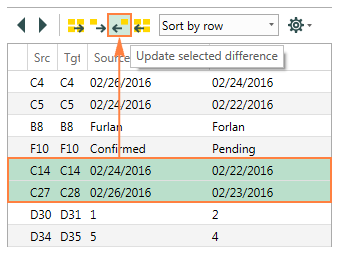 Updating and merging the accepted changes into the final workbook
Other Notable Tools
Beyond Synkronizer, the market offers other reliable alternatives such as XlCompare (great for VBA project comparison) and Florencesoft DiffEngineX. For mobile users or those needing cross-platform verification, Change Pro for Excel provides solutions that extend beyond the desktop.
Online Comparison Services
For users who cannot install software or need a one-off comparison on a public computer, web-based tools offer a convenient alternative. Services like MistExcel, XLComparator, or CloudyExcel allow you to upload two files and receive a comparison report instantly.
While convenient, always consider data privacy policies before uploading sensitive corporate data to third-party web servers.
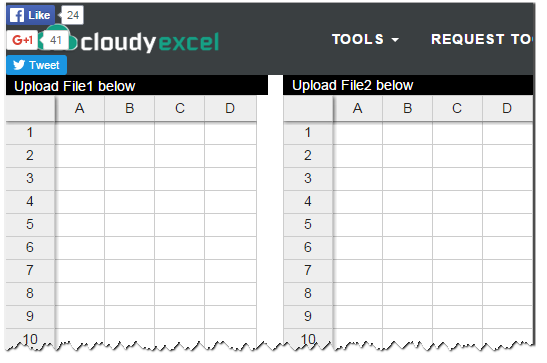 The main interface of the MistExcel online comparison tool
These tools generally output a simplified HTML or Excel report highlighting the rows and columns where data diverges, providing a quick solution for non-technical users.
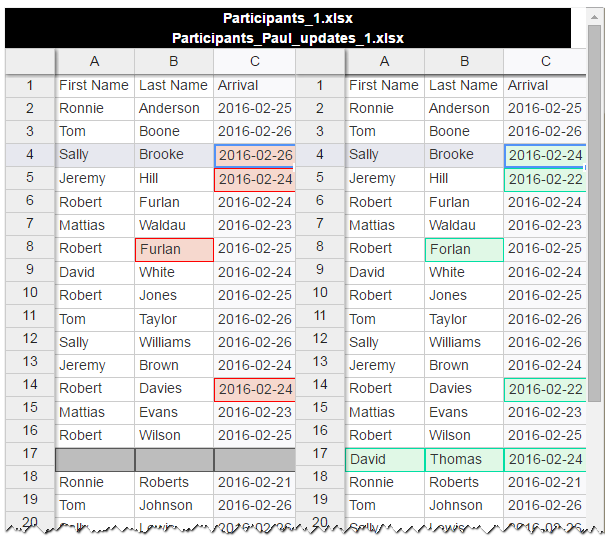 The resulting comparison report generated by MistExcel
Conclusion
Comparing Excel files is a fundamental skill that safeguards data accuracy and streamlines collaboration. Whether you choose the visual simplicity of “View Side by Side,” the automated precision of formulas, or the robust capabilities of specialized add-ins, the right method depends on the complexity of your data and the frequency of the task. For daily ad-hoc checks, native Excel features are usually sufficient. However, for critical financial reporting or merging extensive databases, investing in professional tools or mastering complex formulas is highly recommended to ensure no error goes unnoticed.
References
- Microsoft Support: “View two or more worksheets at the same time.”
- TechCrunch: “The evolution of spreadsheet management tools.”
- Excel Campus: “VBA and Add-ins for Data Analysis.”












Discussion about this post